Authentication
Authentication allows Make to securely communicate with your Eledo account.
Without authentication, Eledo does not know which account should process the request and cannot generate documents on your behalf.
This integration uses a simple API Key.
Step 1 — Create an API Key in Eledo
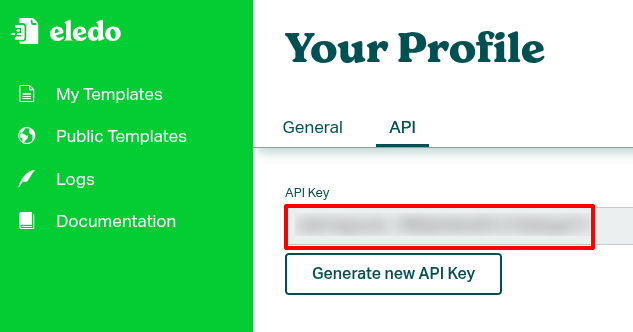
- Log into your Eledo account at https://eledo.online/
- Click Profile in the left-side menu
- Open the API tab under the Your Profile section
- Copy your API key
If you do not have an API key yet, you can generate one in this section.
Step 2 — Create a Connection in Make
Open your scenario and add an Eledo module.
At the top of the module configuration window, locate the Connection field.
If this is your first time setting up authentication:
- Click
Add - Enter a name for the connection
- Paste your API key into the appropriate field
- Confirm the dialog to save the connection
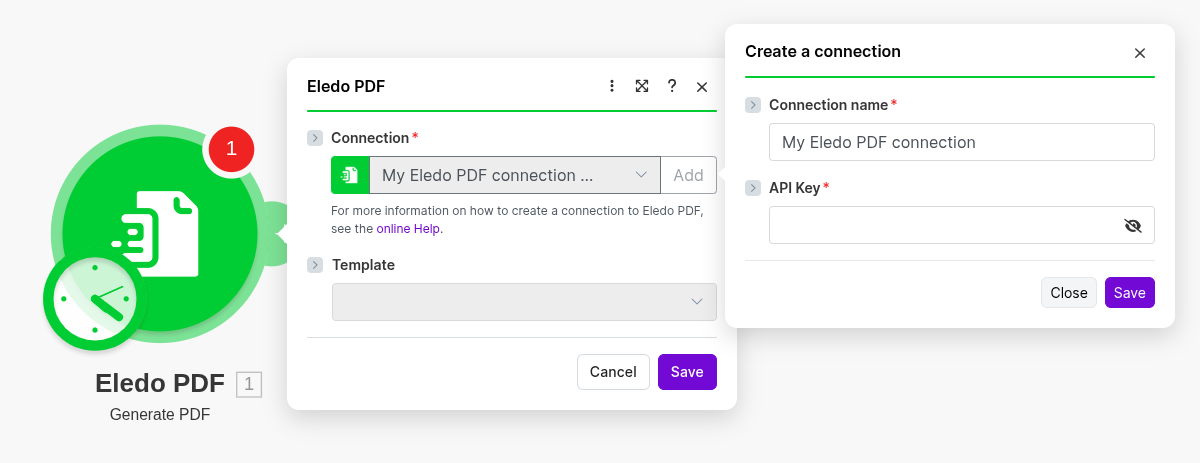
After completing these steps, the connection will appear in the Connection field and can be reused in other Eledo modules.
You can add multiple Eledo connections. Make allows you to choose which connection should be used in each scenario.
Make usually tests the connection when you create it. If the API key is valid, the connection is saved and becomes available for selection. If not, Make displays an error message explaining the issue.
If you receive an error:
- Verify that the API key was copied correctly
- Ensure your internet connection is active
- Try generating a new API key in Eledo and updating the connection
Notes
- You can generate a new API key at any time under Profile → API.
- If you regenerate the key, remember to update it in any existing Make connections.
- Invalid or outdated API keys are the most common cause of authentication errors.
Once authentication is complete, you can proceed to selecting a template and mapping your data.