Printing Image
This guide shows how to print images into your PDF using Make.
Step 1 — Prepare your template
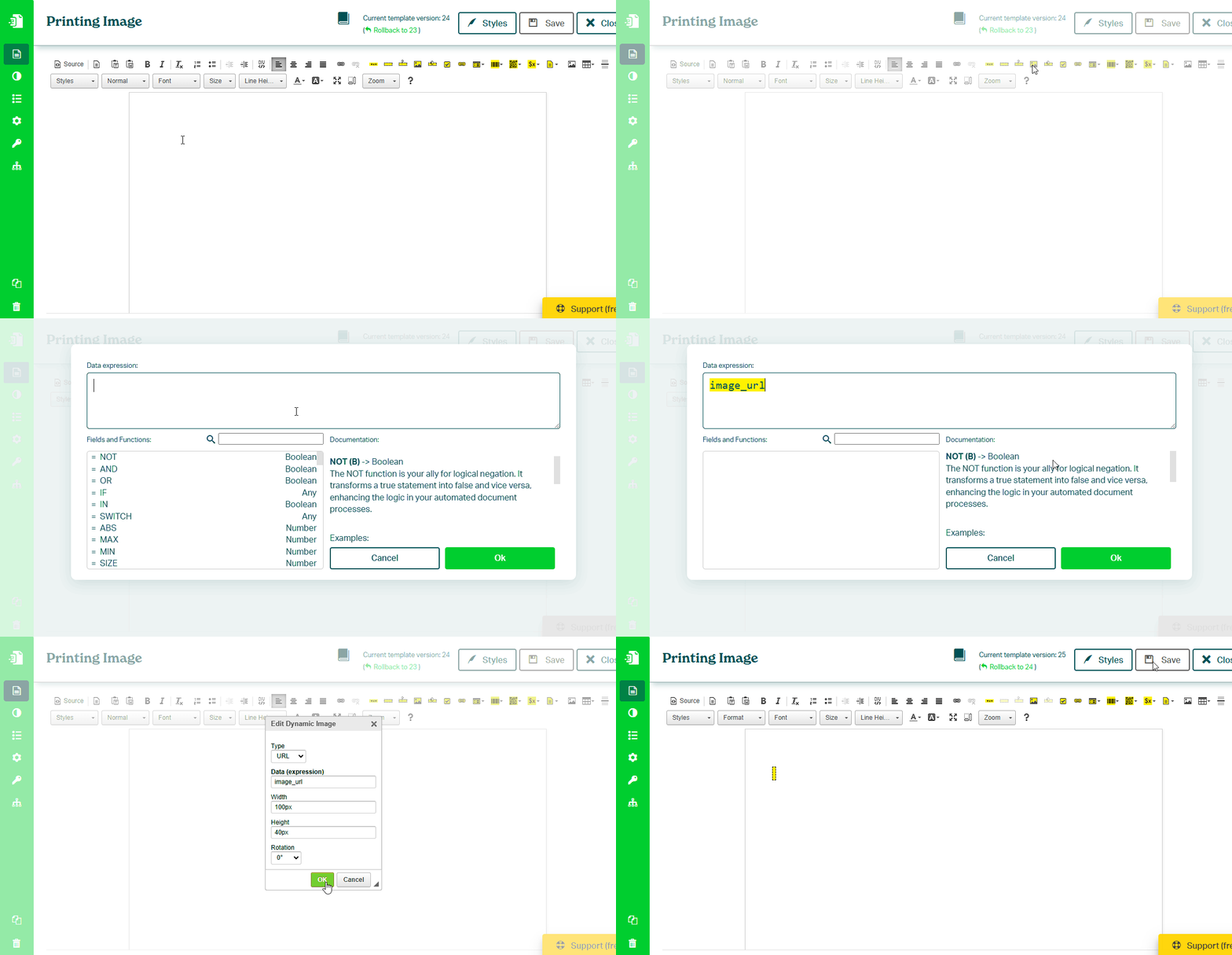
In the Eledo editor:
- Add a Dynamic Image component
- In Data (expression), enter a field name (for example
image_url) - (Optional) Set width or height
- Confirm and save the template
If only one dimension is set, the other is calculated automatically to preserve the aspect ratio.
tip
Learn more about Dynamic Image:
→ /docs/product/template-editor/components/dynamic-image.mdx
Step 2 — Use the template in Make
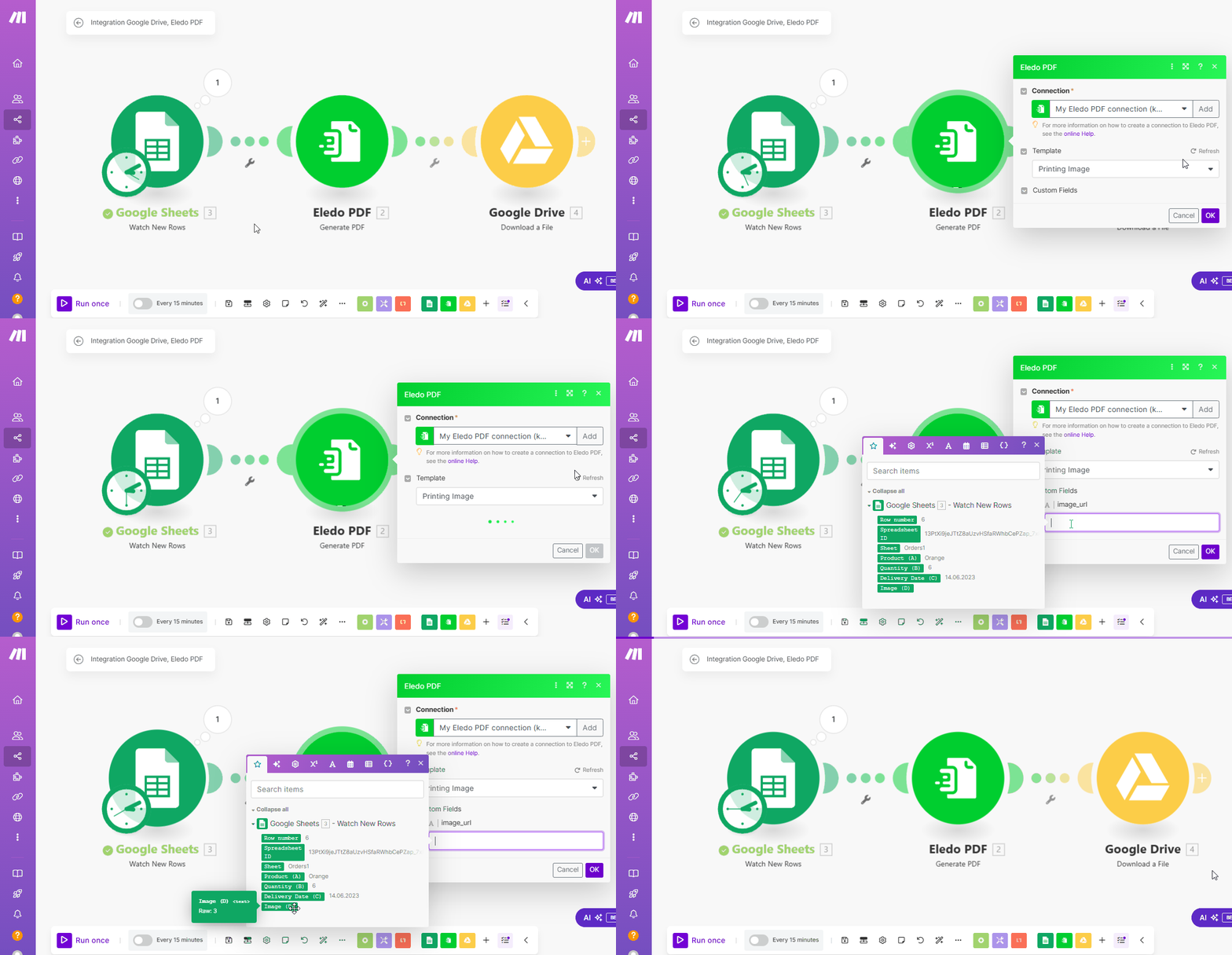
In your Make scenario:
- Add the Eledo PDF module
- Select your template
- Click Refresh Custom Fields
Your field (for example image_url) will appear.
Step 3 — Map your data
- Click into the field (for example
image_url) - Select a value from your data source
- Confirm the mapping
Important notes
- The image must be accessible via a public URL
- Invalid or inaccessible URLs will result in a missing image
Result
When the scenario runs:
- the image URL is passed from your source
- Eledo loads the image
- the image is rendered in the document
Next steps
- Print multiple images → Printing Images in Line
- Build full workflow → Generate Your First PDF
Was this article helpful?
Yes
No