Using Webhook for Advanced Automation Workflow
If uploading your PDF back to a monday.com board is not sufficient, you can start a custom automation workflow by sending the PDF from Eledo to a webhook.
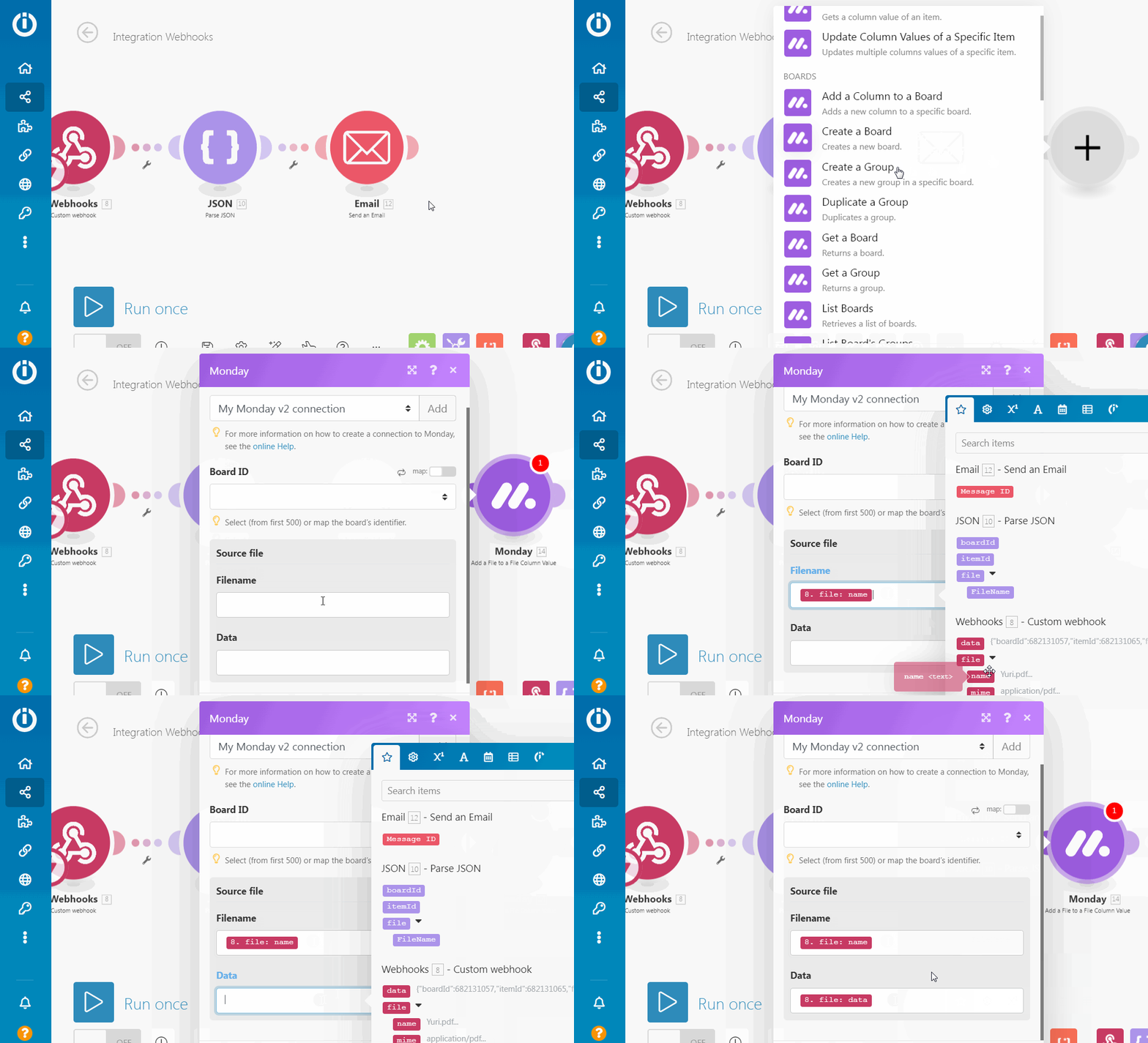
In this guide, we will create a simple Monday workflow that:
- sends the PDF as an email attachment
- uploads it back to a monday.com board
Obtaining Webhook URL
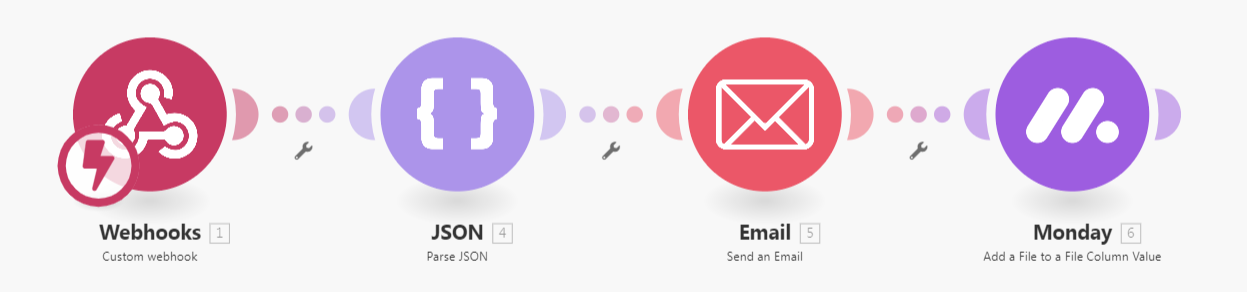
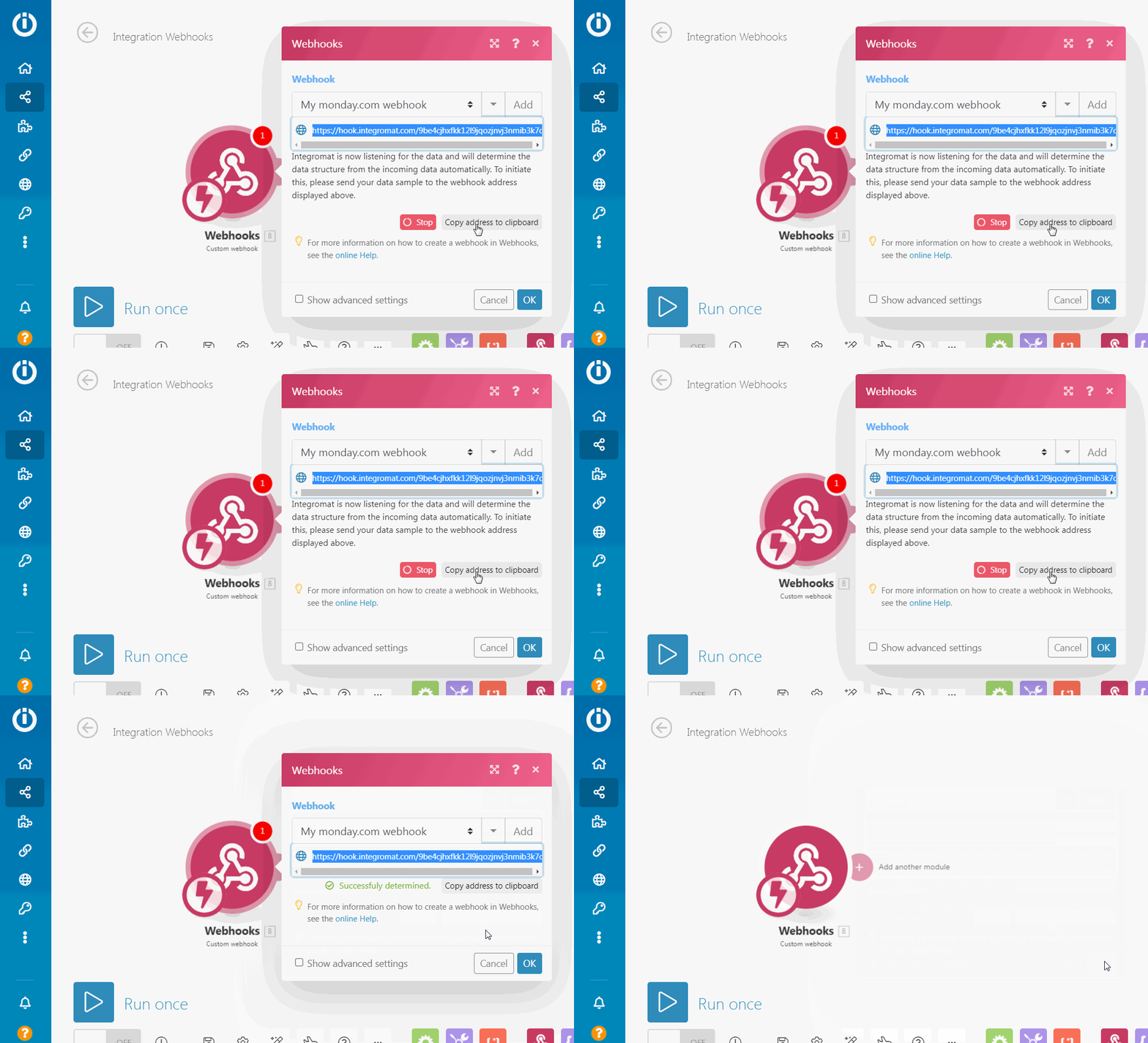
Create a new Monday workflow and start with a Webhook module.
- Create a new webhook
- Copy its URL
The Monday workflow will now wait for the first request to determine the data structure.
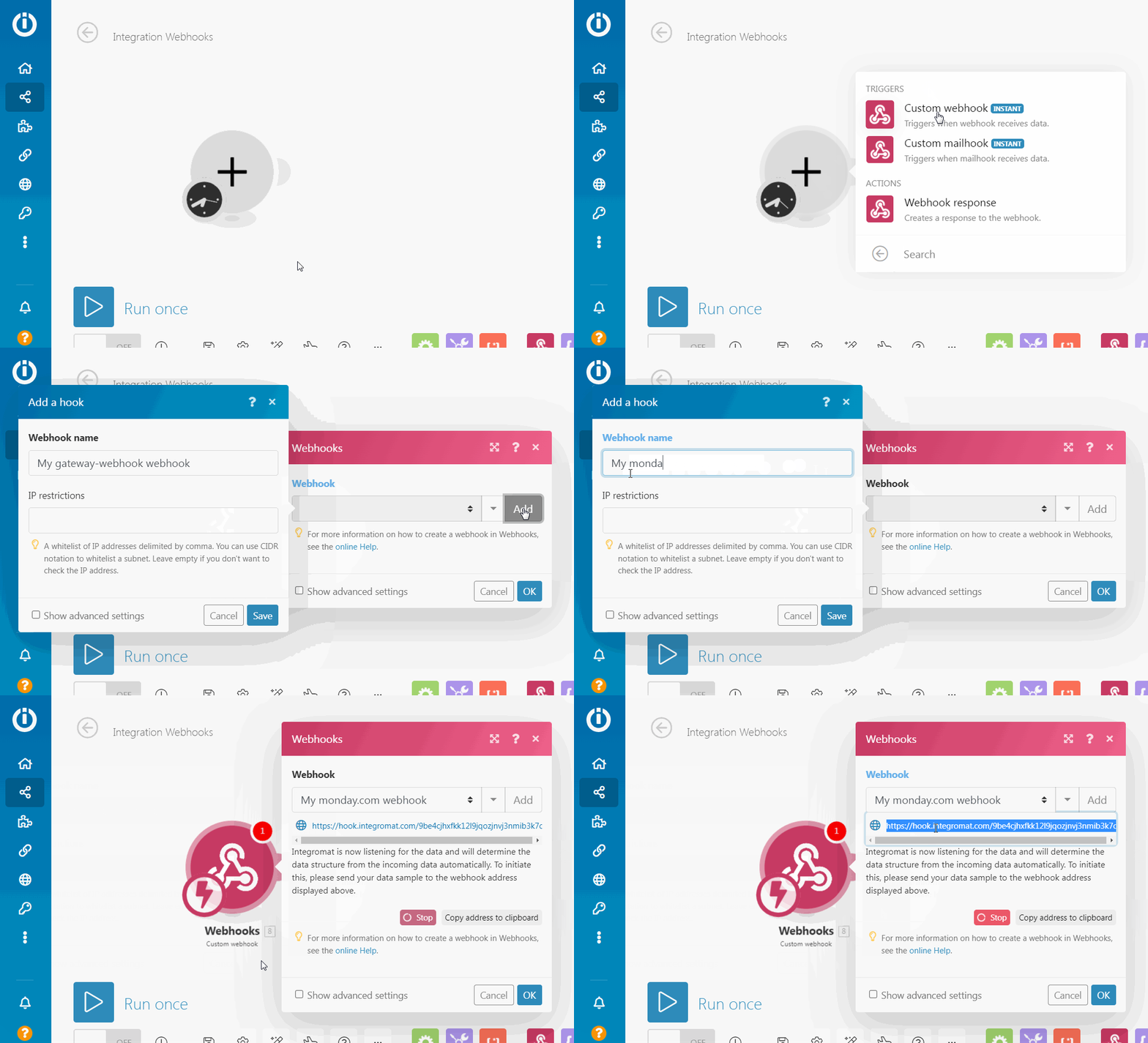
Add an Integration Recipe to your monday.com board and use the webhook URL from your Monday workflow.
Trigger the Integration Recipe and wait for confirmation in Monday.
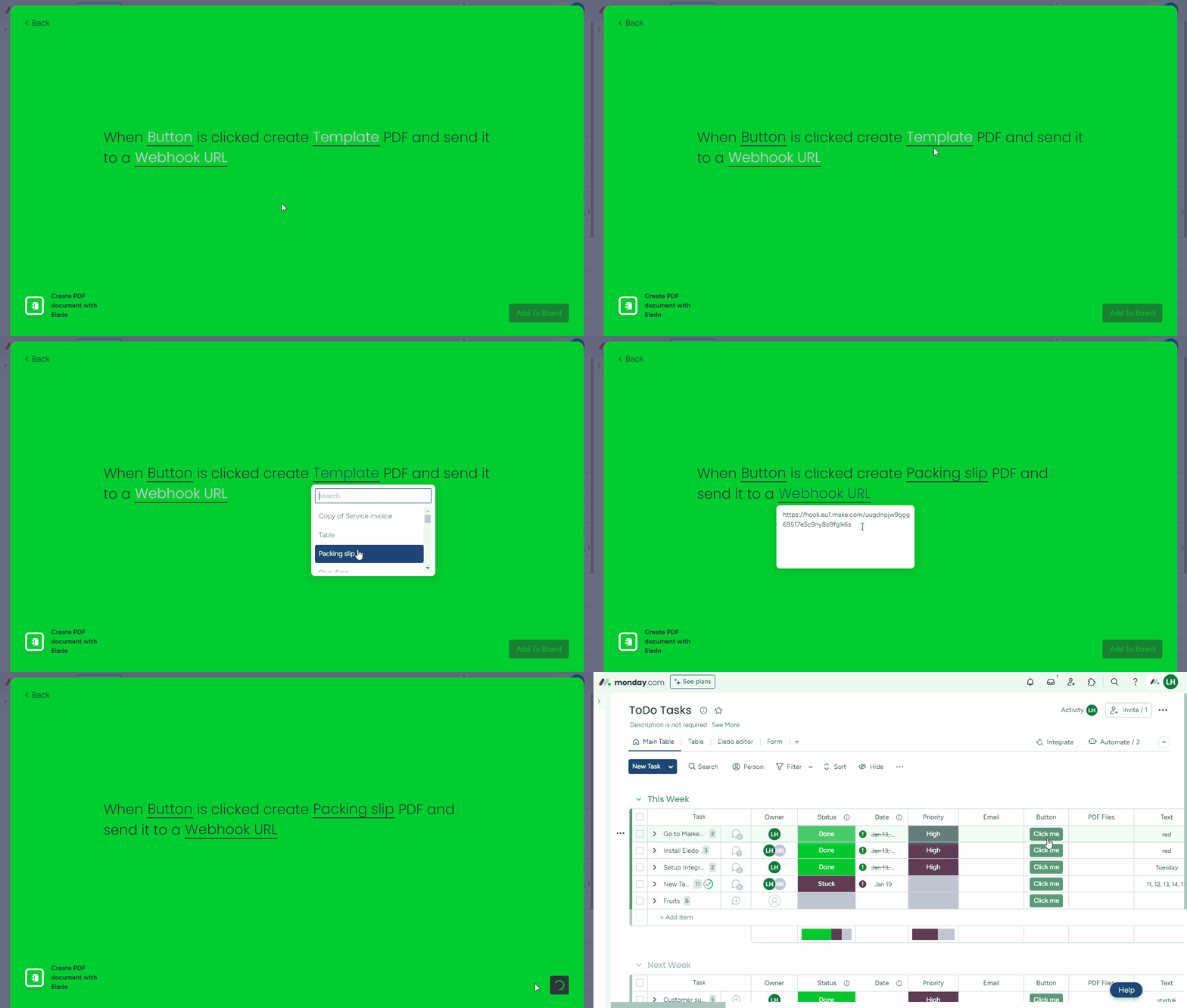
After a successful document creation, you should see a “Successfully determined” message in the Monday webhook module.
Data Structure
Data sent from Eledo to the webhook contains two parts:
- transaction data (JSON format)
- PDF file (binary format)
The PDF file can be mapped directly to other modules (for example, Email or monday.com upload).
To extract values from the JSON data, use a JSON Parse module after the webhook.
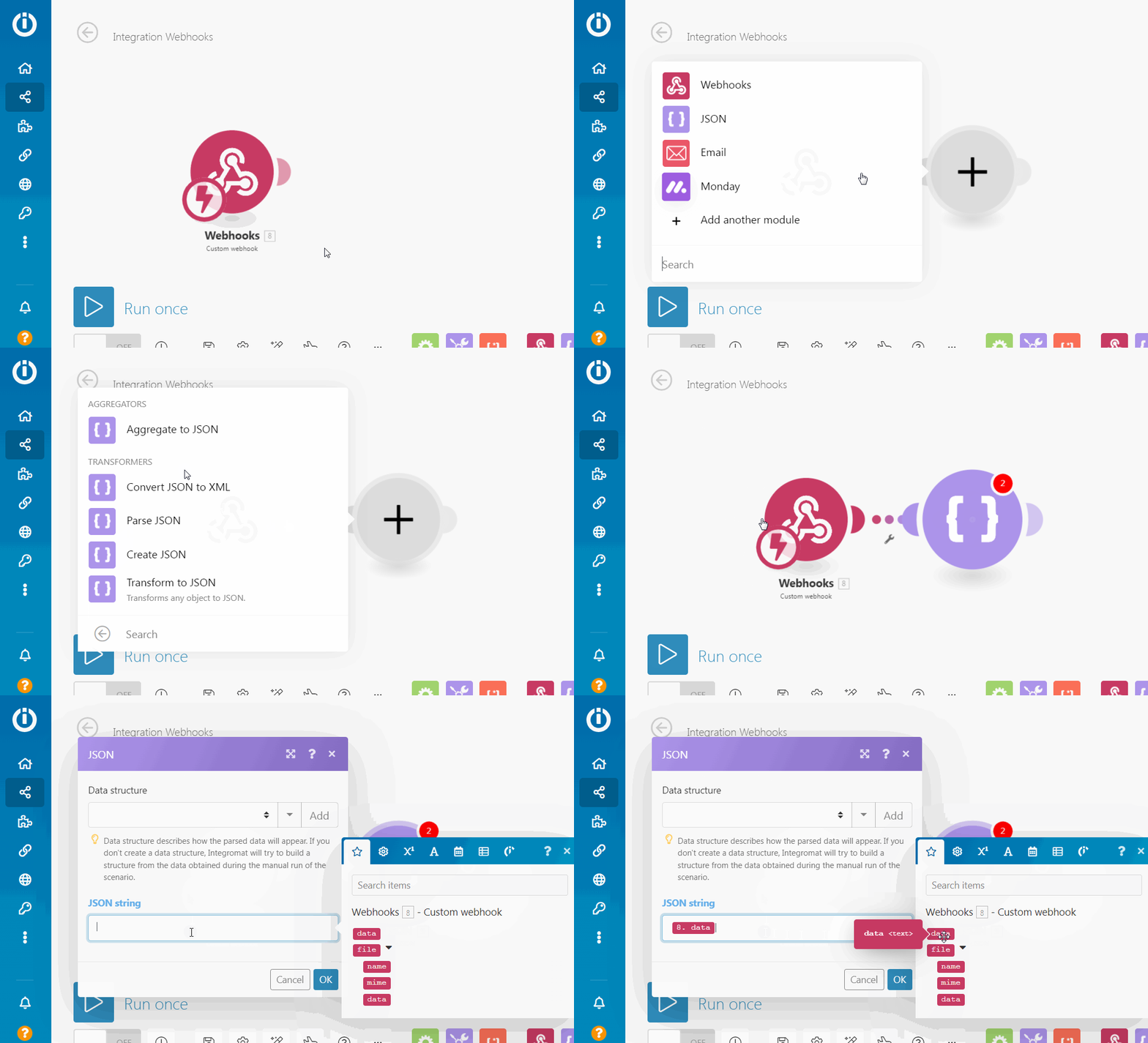
Preparing JSON Structure
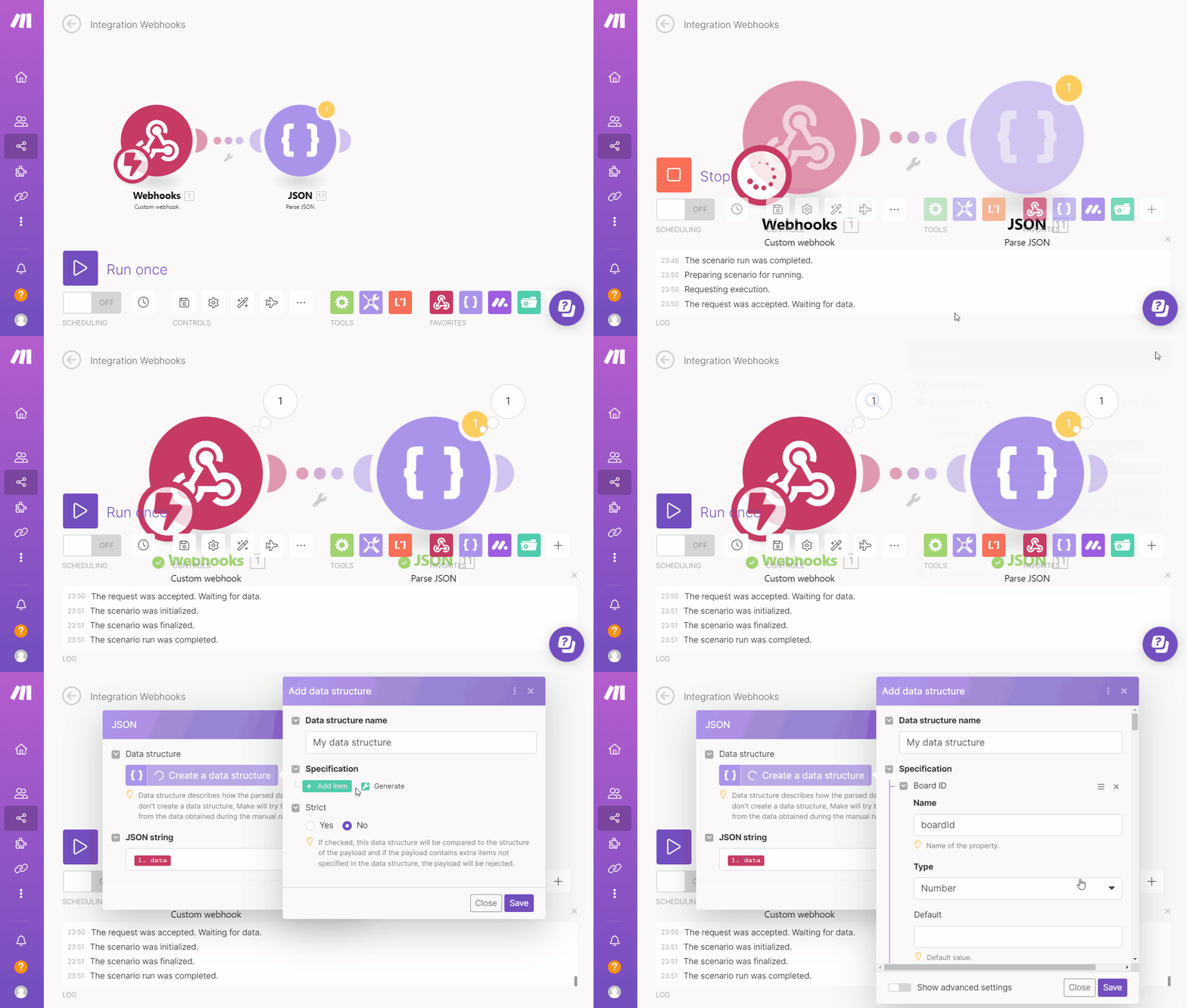
To configure the JSON parser, you need to define the expected data structure.
This depends on your template, but typically includes:
boardId(number)itemId(number)file(collection)
The file collection contains data used to generate the PDF (including local variables). It does not include all column values from the monday.com item—only those used in the template.
Generating the Structure
You can generate the structure automatically:
- Run your Monday workflow
- Trigger document creation from monday.com
- Open the scenario run log
- Copy the JSON payload returned by Eledo
- Use it to generate the JSON structure
PDF Post-processing
Once the scenario is configured, you can perform additional actions in Monday.
For example:
- retrieve additional data from monday.com
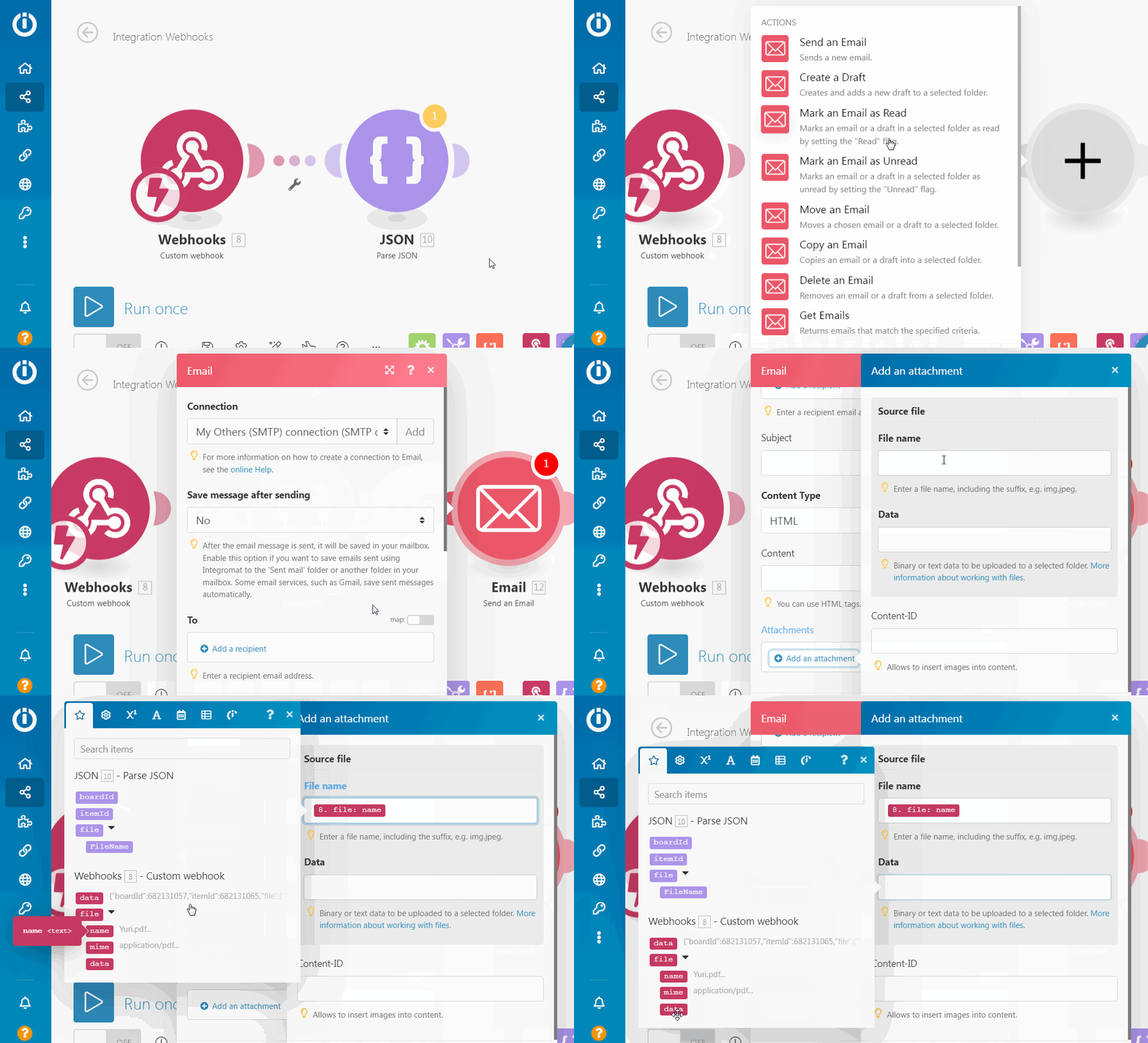
- send the PDF via email
- upload the PDF to monday.com, cloud storage, or ERP systems
Example: Send Email
Example: Upload to monday.com