Multiple Items in a Single PDF
Printing multiple items into a single PDF differs from printing a single item, and your Eledo template must be adjusted to support it.
When one or more items are transferred from monday.com into the Eledo template, they are available in the item and items variables.
- items always contains a list of all items passed to the template
- item refers to the first item in the list or the item that triggered the automation
Preparing Template
To print multiple items, you typically use a table with one row per item. However, Block Repetition can be applied to any container, such as table rows, lists, or paragraphs.
In this case, the data expression for Block Repetition is:
items
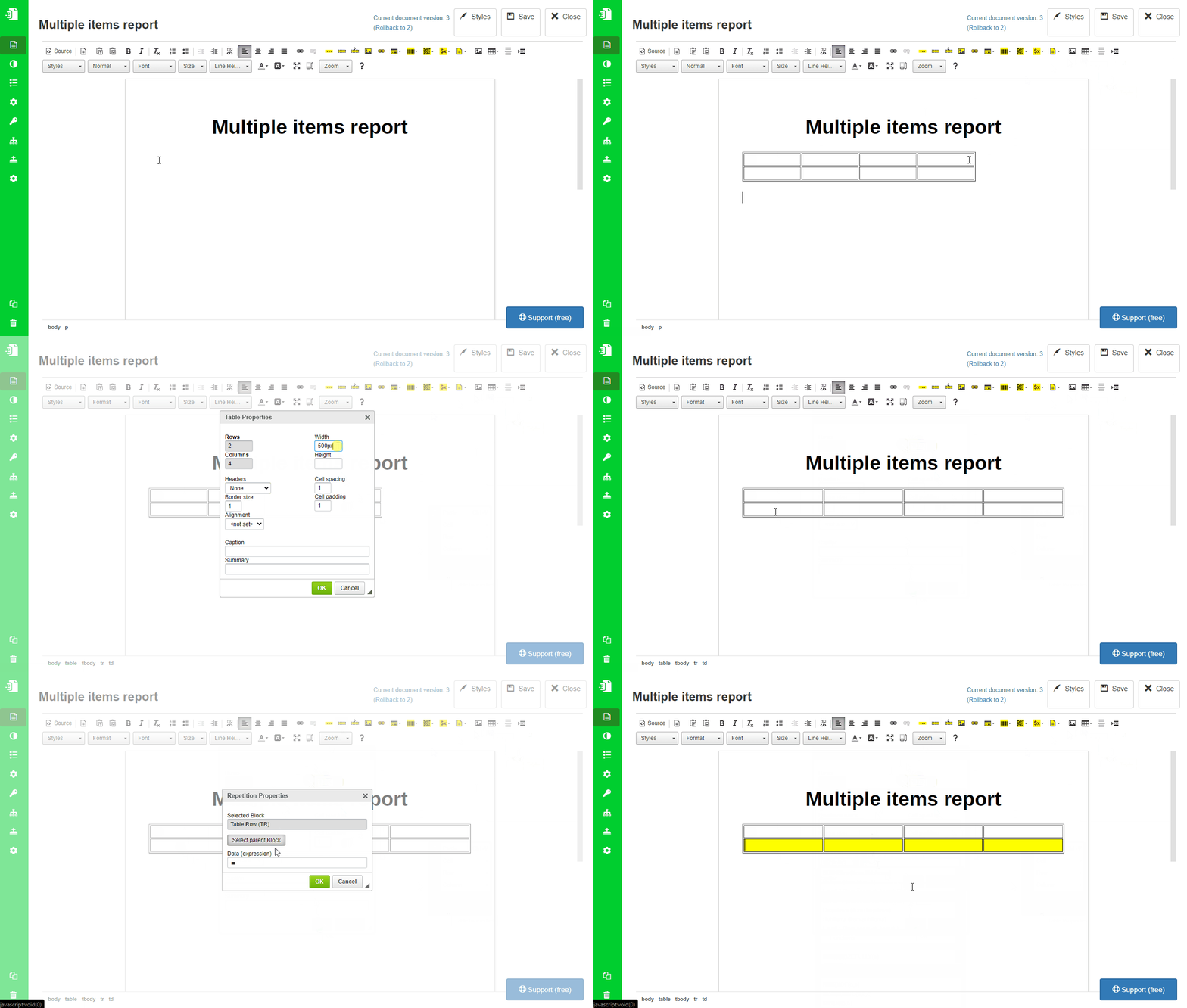
Create a table with two rows:
- one for column headers
- one for values
Place the cursor in the second row and click Block Repetition.
The configuration window will open. By default, the selected block is a table cell (TD), but we want to repeat the entire row. Click Select Parent Block to change the selection to the table row.
Set the data expression to:
items
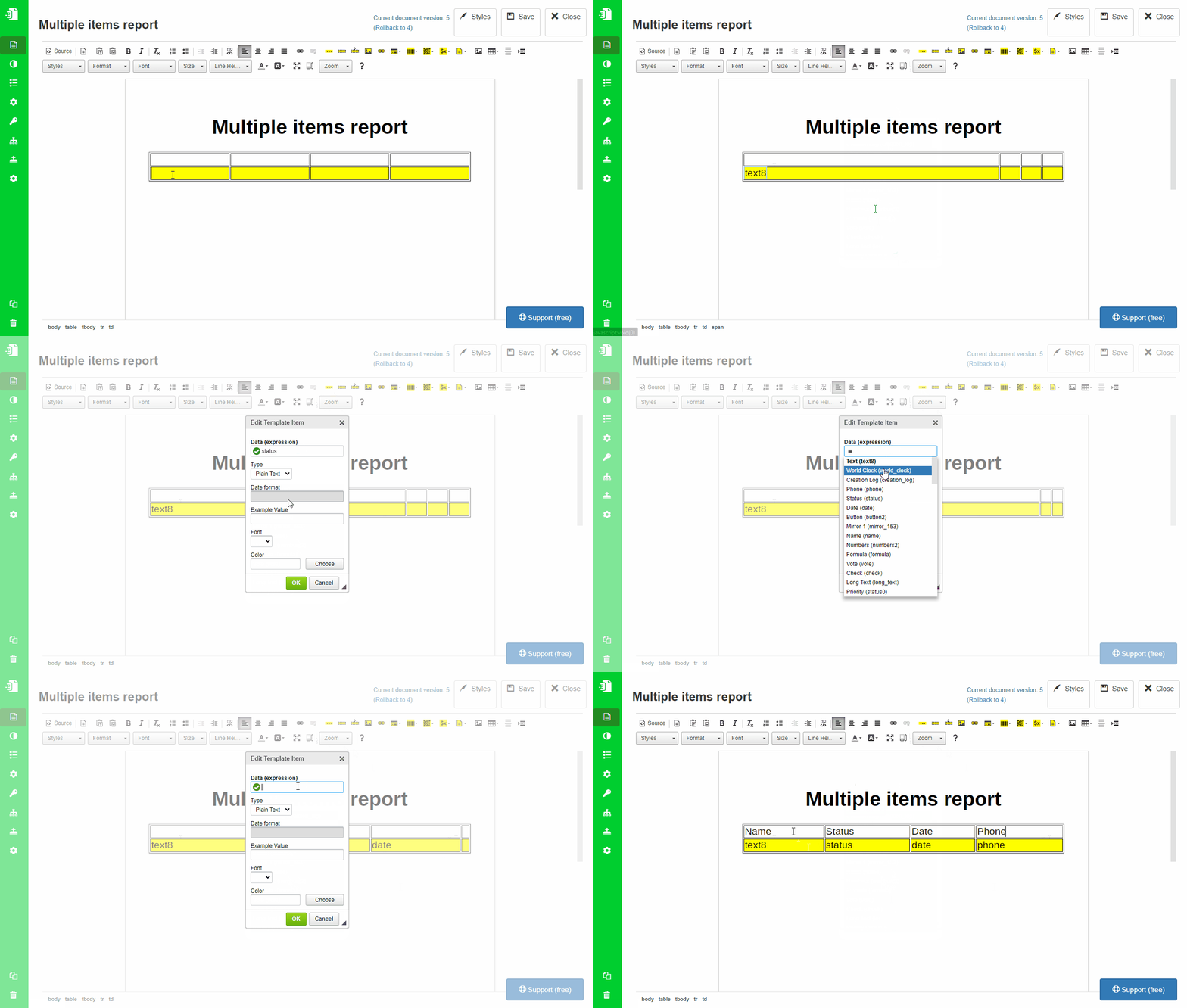
To print values, place Text Box components inside the repeated row.
You can use the expression builder to select fields from the available suggestions.
Integration Recipe Setup
The template is now ready, but you also need to use a monday.com Integration Recipe that sends multiple items to the template.
You can identify these recipes by the word items in the description.
Examples of supported recipes:
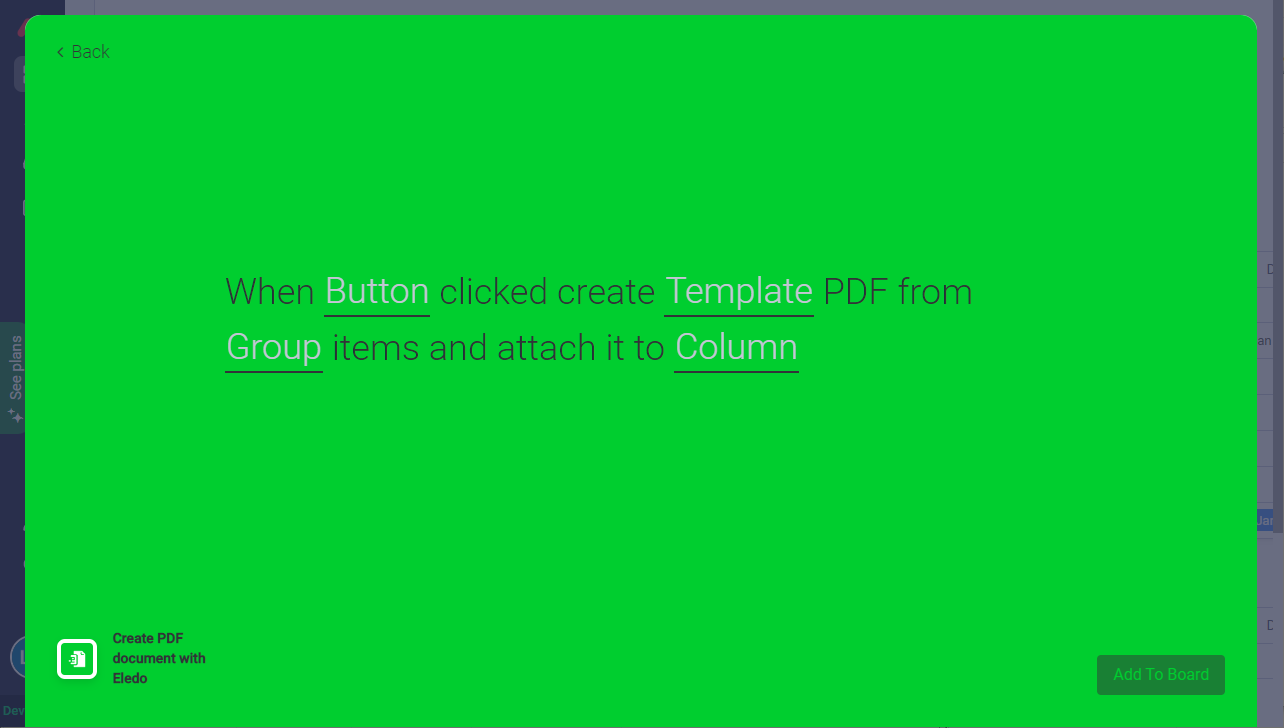
- When Button clicked create Template PDF from Group items and attach it to Column
- When Button clicked create Template PDF with multiple items where status is value and attach it to Column of every matched item
- When Button clicked create Template PDF with multiple items where status is value and attach it to column of source item
- When Button clicked create Template PDF with multiple items where status is value and send it to Webhook URL
- Every time period create Template PDF with multiple items where status is value and send it to Webhook URL
- Recurring create Template PDF from Group items and send it to a Webhook URL