Authentication
Authentication allows n8n to communicate securely with your Eledo account.
Without authentication, Eledo does not know which account should receive the request and cannot generate documents for you.
This integration uses a simple API Key.
Step 1 — Create an API Key in Eledo
- Log into your Eledo account at https://eledo.online/
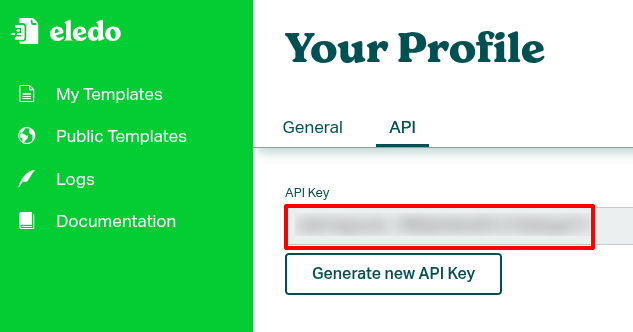
- Click on Profile (bottom-left corner of the screen)
- Open the API tab under the Your Profile section
- Copy your API key
If you do not have an API key yet, you can generate one in this section.
Step 2 — Create Credentials in n8n
Open the Eledo node inside your workflow.
At the top of the configuration panel, locate the field Credential to connect with.
If this is your first time setting up authentication:
- Click the dropdown icon
- Select Create new credential
- Paste your API key into the API Key field
- Leave all other fields at their default values
Save the credential.
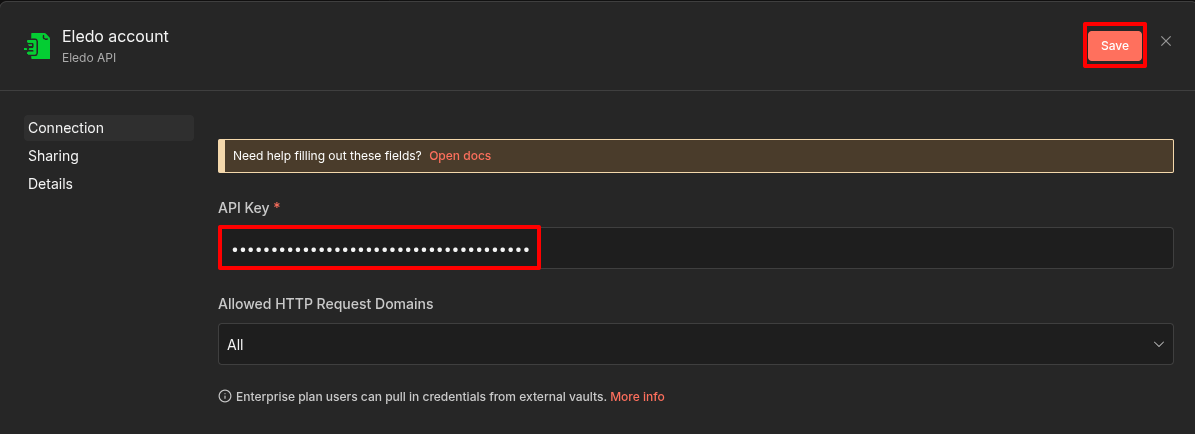
After saving, the credential will appear in the dropdown under the default name Eledo account. If you create additional credentials, n8n will automatically name them Eledo account 2, Eledo account 3, and so on. The name is generated by n8n. The credential name can be customized by clicking the title field at the top of the Credentials dialog and editing it directly.
You may create multiple credentials if needed and select the appropriate one for each workflow.
Step 3 — Test the Connection
After saving the credential, n8n will attempt to validate it automatically.
If everything is configured correctly and your internet connection is working, you should see the message:
Connection tested successfully
If you receive an error:
- Verify that the API key was copied correctly
- Ensure your internet connection is active
- Try generating a new API key in Eledo and updating the credential
Notes
- You can generate a new API key at any time under Profile → API.
- If you regenerate the key, remember to update it in n8n as well.
- Invalid or outdated keys are the most common cause of authentication errors.
Once authentication is complete, you can proceed to configuring your template and mapping data.