Repeating Table Row
This guide shows how to print a list of items into a table using n8n.
Step 1 — Prepare your template
In the Eledo editor:
-
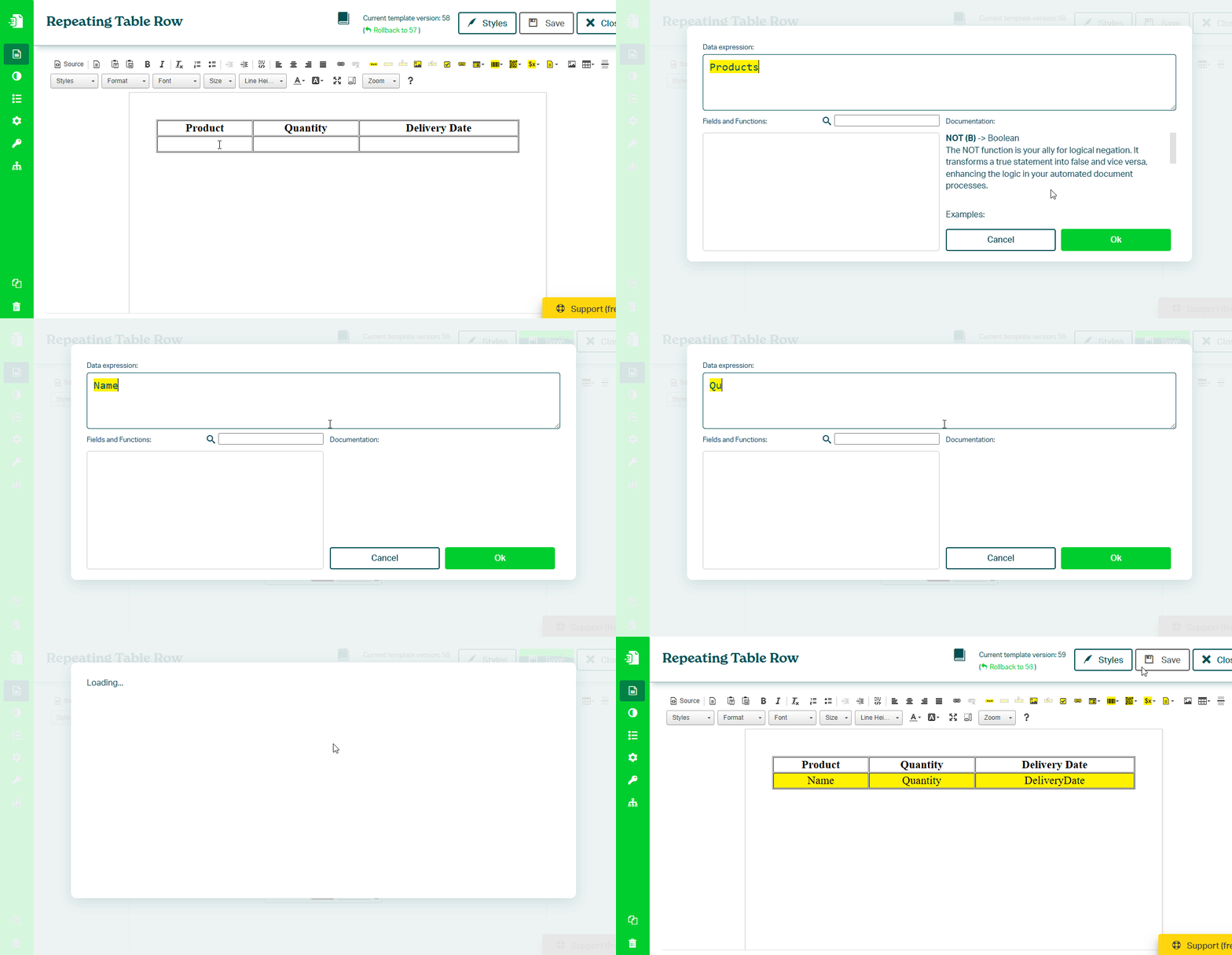
Create a table with:
- one row for headers
- one row for data
-
Place the cursor inside the second row
-
Click Block Repetition
-
Click Select Parent Block to select the entire table row
-
In Data (expression), enter the list name (for example
Products)
This will repeat the table row for each item in the list.
Add dynamic values
Inside the repeated row:
- Add Text Box (TXT) components
- Use field names for item properties (for example
Name,Quantity,DeliveryDate)
Learn more about Block Repetition:
→ /docs/product/template-editor/components/block-repetition.mdx
Step 2 — Prepare JSON structure
Open your template in Eledo and navigate to the API section.
Locate the example request and copy the object assigned to file.
Example:
{
   "Products":[
      {
         "Name":"",
         "Quantity":"",
         "DeliveryDate":""
      }
   ]
}
Step 3 — Use the template in n8n
In your n8n workflow:
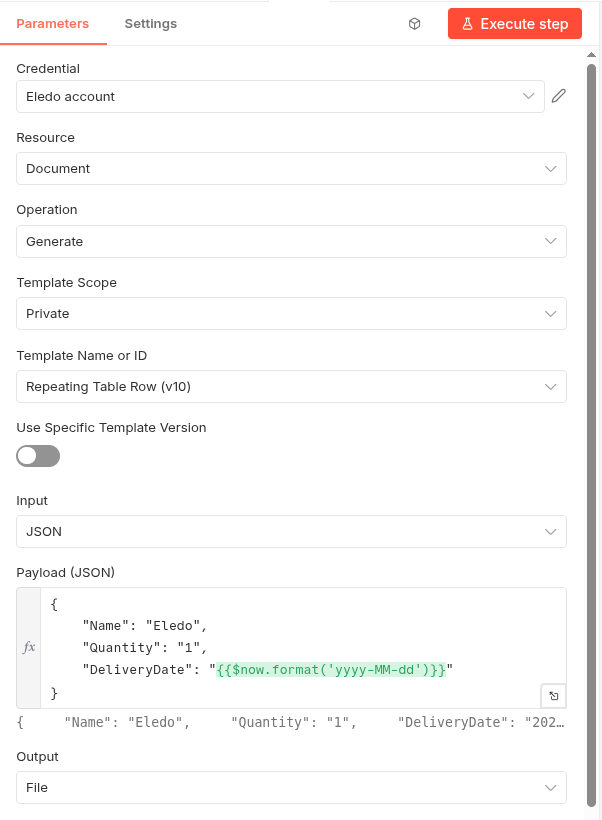
- Add the Eledo PDF node
- Select your credentials
- Choose your template
- Set Input to JSON
- Paste and fill the JSON structure into Payload (JSON)
Example:
{
   "Products":[
      {
         "Name":"Eledo",
         "Quantity":"1",
         "DeliveryDate":"2026-04-21"
      }
   ]
}
Result
When the workflow runs:
- each item in the list is processed
- the table row is repeated
- values are inserted into each column
Notes
Repeating rows require structured data.
Because of this, they can only be configured using JSON Input Mode in n8n.
Next steps
- Grouping rows → Grouping Table Rows
- Build full workflow → Generate Your First PDF