Printing Number
This guide shows how to print numeric values into your PDF using Zapier.
Step 1 — Prepare your template
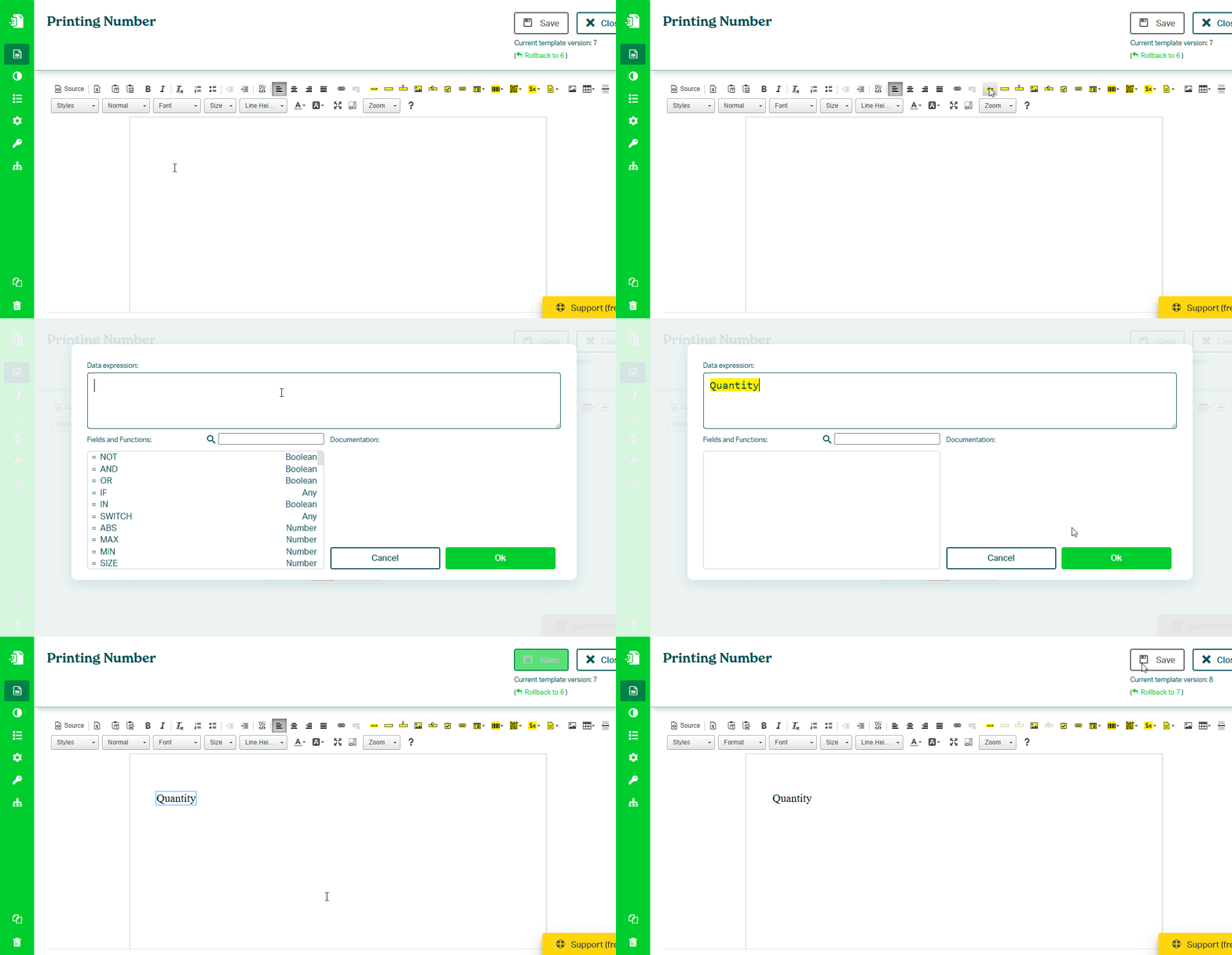
In the Eledo editor:
- Add a Text Box (TXT) component
- In Data (expression), enter a field name (for example
Quantity) - Confirm and save the template
tip
Learn more about Text Box:
→ /docs/product/template-editor/components/text-box.mdx
Step 2 — Use the template in Zapier
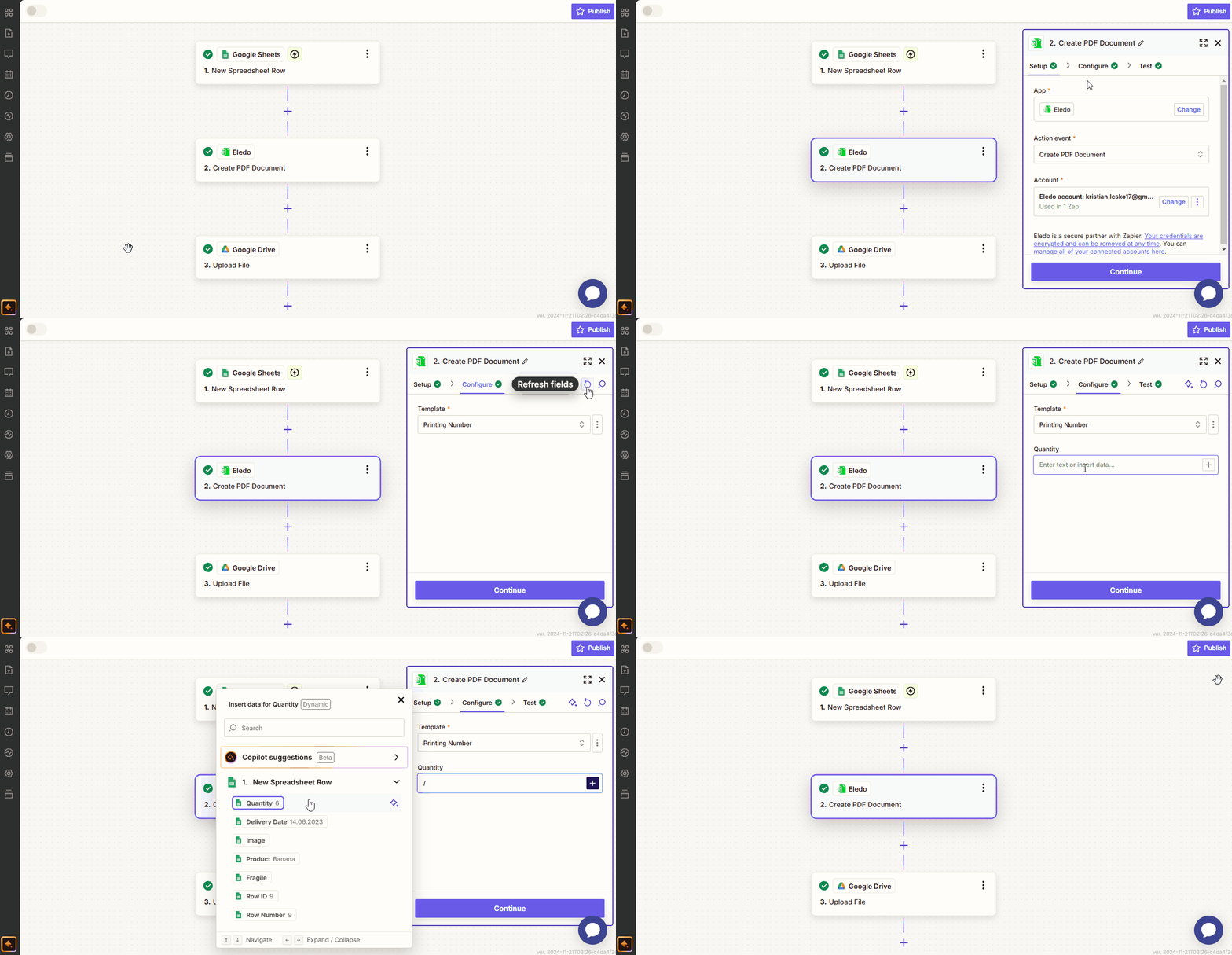
In your Zap:
- Add the Eledo PDF action
- Select your template
- Load the available fields
Your field (for example Quantity) will appear.
Step 3 — Map your data
- Click into the field (for example
Quantity) - Select a numeric value from your trigger or previous step
- Confirm the mapping
Step 4 — Format the number (recommended)
By default, numbers are converted to text automatically.
This may result in inconsistent formatting.
Use formatting functions in the template to control output.
Examples:
NUM(Quantity, 0, 2)
CURR(Quantity, 0, 2)
CONCAT("$", CURR(Quantity, 0, 2))
tip
Learn more about number formatting:
→ Formatting Numbers
→ Number Functions
Result
When the Zap runs:
- data is passed from your trigger
- Eledo fills the Text Box
- the formatted number is printed in the document
Next steps
- Printing dates → Printing Date
- Build full workflow → Generate Your First PDF
Was this article helpful?
Yes
No