Dynamic Checkbox
A Dynamic Checkbox allows you to insert a checkbox into your document that is automatically checked or unchecked based on data.
Instead of setting the checkbox manually, you define a value or condition that determines its state when the document is generated.
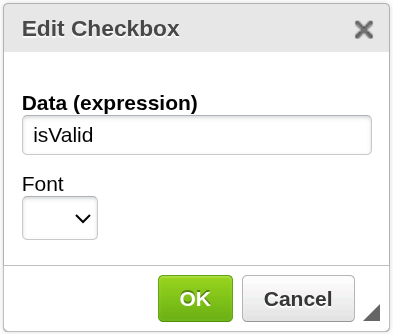
Add a Dynamic Checkbox
To insert a Dynamic Checkbox into your document:
- Open your template in the editor
- Place the cursor where you want the checkbox to appear
- Click the Dynamic Checkbox icon in the top toolbar
- The configuration window will open
- Confirm to insert the checkbox
The checkbox will be placed at the cursor position.

How it works
Each Dynamic Checkbox is controlled by the Data (expression) field.
This field is evaluated when the document is generated, and the result determines whether the checkbox is checked.
true→ checkbox is checkedfalse→ checkbox is unchecked
The value is provided at runtime through integrations (Make, Zapier, API, etc.).
Examples:
Question1
Checks the box if the Question1 value is true.
Amount > 100
Checks the box if the Amount is greater than 100.
Chooser1 == "Red"
Checks the box if the value of Chooser1 equals "Red".
You don’t need to use complex expressions to get started — a simple boolean field is enough.
Configuration
Name
The technical name of the checkbox element in the document.
- Should be unique within the document
- Useful when identifying elements in the template or during integrations
Data (expression)
Defines the logic that controls whether the checkbox is checked.
- Can be a simple boolean field (
true/false) - Or a condition that evaluates to a boolean result
The expression is evaluated during document generation.
Using multiple checkboxes
You can use the same data expression in multiple checkboxes.
For example:
Question1
can be used in several places in the document.
All checkboxes using this expression will reflect the same value.
When to use Dynamic Checkbox
Use a Dynamic Checkbox when you need to:
- represent a yes/no or true/false value
- show whether a condition is met
- visually indicate a state in the document
- reuse the same logical value in multiple places
Next steps
- Learn how expressions work → Expressions
- Learn how to format values → Printing Text