Dynamic Image
Dynamic Image allows you to insert images into your document based on data.
Unlike Image, which is static, Dynamic Image is evaluated during document generation and can change for each document.
Use Image for static visuals configured in the template.
Use Dynamic Image when the image should come from data and change for each generated document.
The image source is provided at runtime, making it possible to generate documents with dynamic visuals such as:
- profile pictures
- product images
- attachments
- logos or branding assets
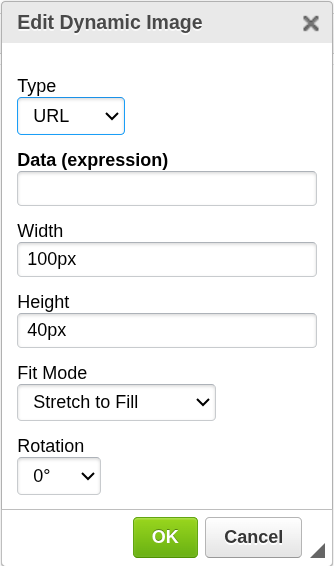
How it works
Dynamic Image evaluates a Data (expression) that returns either:
- an image URL
- or Base64-encoded image data
The image is then rendered in the document during generation.
Add Dynamic Image
To insert a dynamic image:
- Place the cursor where you want the image to appear
- Click the Dynamic Image icon in the top toolbar
- The configuration window will open
- Configure the image settings
- Confirm to insert the image
The image placeholder will be inserted at the cursor position.

Configuration
Type
Defines how the image is provided.
- URL — the image is downloaded from a URL provided in the data
- Base64 — the image is provided directly as Base64-encoded data
Data (expression)
Defines the source of the image.
- Must evaluate to a URL or Base64 image data
- The expected format depends on the selected Type
Examples:
ImageURL
Field containing a URL (used with Type = URL)
ImageData
Field containing Base64 image data (used with Type = Base64)
Width (optional)
Sets the width of the image in the final document.
- The image is scaled to match the specified width
- If height is not set, aspect ratio is preserved
Height (optional)
Sets the height of the image in the final document.
- The image is scaled to match the specified height
- If width is not set, aspect ratio is preserved
Scaling behavior
- If only one dimension is set → the other is calculated automatically
- If both width and height are set → the image is resized to fit both
Important notes
- The image is loaded during document generation
- Invalid URLs or data may result in a missing image
- Large images may impact generation performance
When to use Dynamic Image
Use this component when you need to:
- include images from external systems
- personalize documents with user-specific visuals
- dynamically generate branded or media-rich PDFs
Next steps
- Learn how expressions work → Expressions
- Control layout with other components → Components