Table
A Table allows you to structure content into rows and columns.
It is commonly used for layouts such as invoices, item lists, or structured data sections.
Add a Table
To insert a table into your document:
- Place the cursor where you want the table to appear
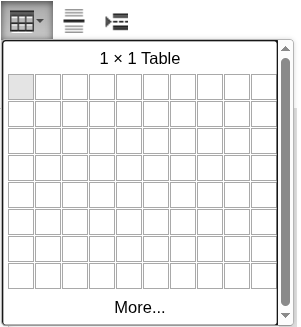
- Click the Table icon in the toolbar
- Select the number of rows and columns
- Confirm to insert the table
The table will be inserted at the cursor position.
Editing a Table
Once inserted, you can:
- add or remove rows and columns
- merge or split cells
- adjust layout and formatting
- insert components inside cells
Tables behave like structured containers for content.
Using Tables with Dynamic Content
Tables are often used together with dynamic components:
- Block Repetition — repeat rows for lists (e.g. invoice items)
- Text Box — display values inside cells
- Dynamic Image — insert images into cells
This makes tables essential for building structured, data-driven documents.
When to use Table
Use a Table when you need:
- structured layout (rows and columns)
- repeating data (lists, items)
- precise alignment of content
Next steps
- Repeat rows dynamically → Block Repetition
- Insert dynamic values → Text Box
- Learn how layout works → Page Break
Was this article helpful?
Yes
No