Select
A Select field allows you to add a dropdown input into your PDF document.
The user can choose one option from a predefined list.
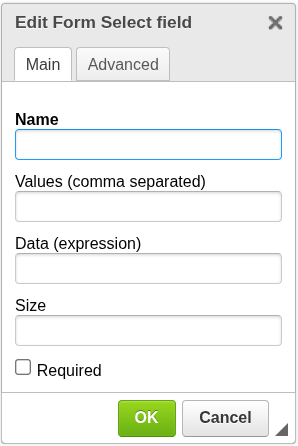
Add a Select field
To insert a Select field into your document:
- Place the cursor where you want the field to appear
- Click the Form dropdown in the toolbar
- Select Select
- Configure the field and confirm
The Select field will be inserted at the cursor position.
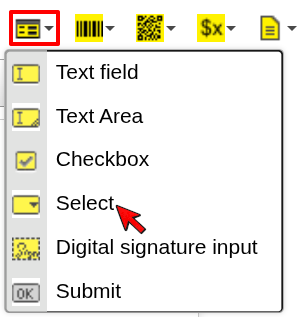
Configuration
Name
The technical name of the field in the PDF form.
- Should be unique within the document
- Used when processing form data or integrations
Values (comma separated)
Defines the list of available options.
- Values are separated by commas
- Each value becomes one selectable option
Example:
Red, Green, Blue
Creates a dropdown with three options: Red, Green, Blue.
Data (expression)
Defines the preselected value.
- Must match one of the defined values
- Evaluated during document generation
Example:
Color
Selects the option matching the value of Color.
Size
Defines how many options are visible.
- Numeric value
- Controls the height of the dropdown
Required
Marks the field as mandatory.
- When enabled, the user must select a value
- Validation behavior depends on the PDF viewer
When to use Select
Use a Select field when you need:
- a predefined list of options
- controlled user input
- a compact alternative to multiple checkboxes
Next steps
- Learn about boolean input → Checkbox
- Learn how expressions work → Expressions
Was this article helpful?
Yes
No