Page Margins, Borders and Padding
Page spacing is controlled using CSS styles applied to the document.
The main properties are:
- margin
- border
- padding
These define how content is positioned within the page.
How it works
These properties wrap around the page content in the following order:
- margin → outer spacing (towards page edge)
- border → visible boundary (optional)
- padding → inner spacing (around content)
This allows you to control:
- how far content is from the page edge
- whether a border is visible
- how much space surrounds the content
Common scenarios
Full-page content
To let content fill the entire page:
- set margin, border, and padding to
0
Adding safe spacing
To prevent content from touching page edges:
- increase padding or margin
Using borders
Borders can be used for:
- document framing
- visual separation
Changing margins, borders, and padding
These settings are configured in Styles Mode.
- Click the Styles button
- Edit the CSS for the
bodyelement
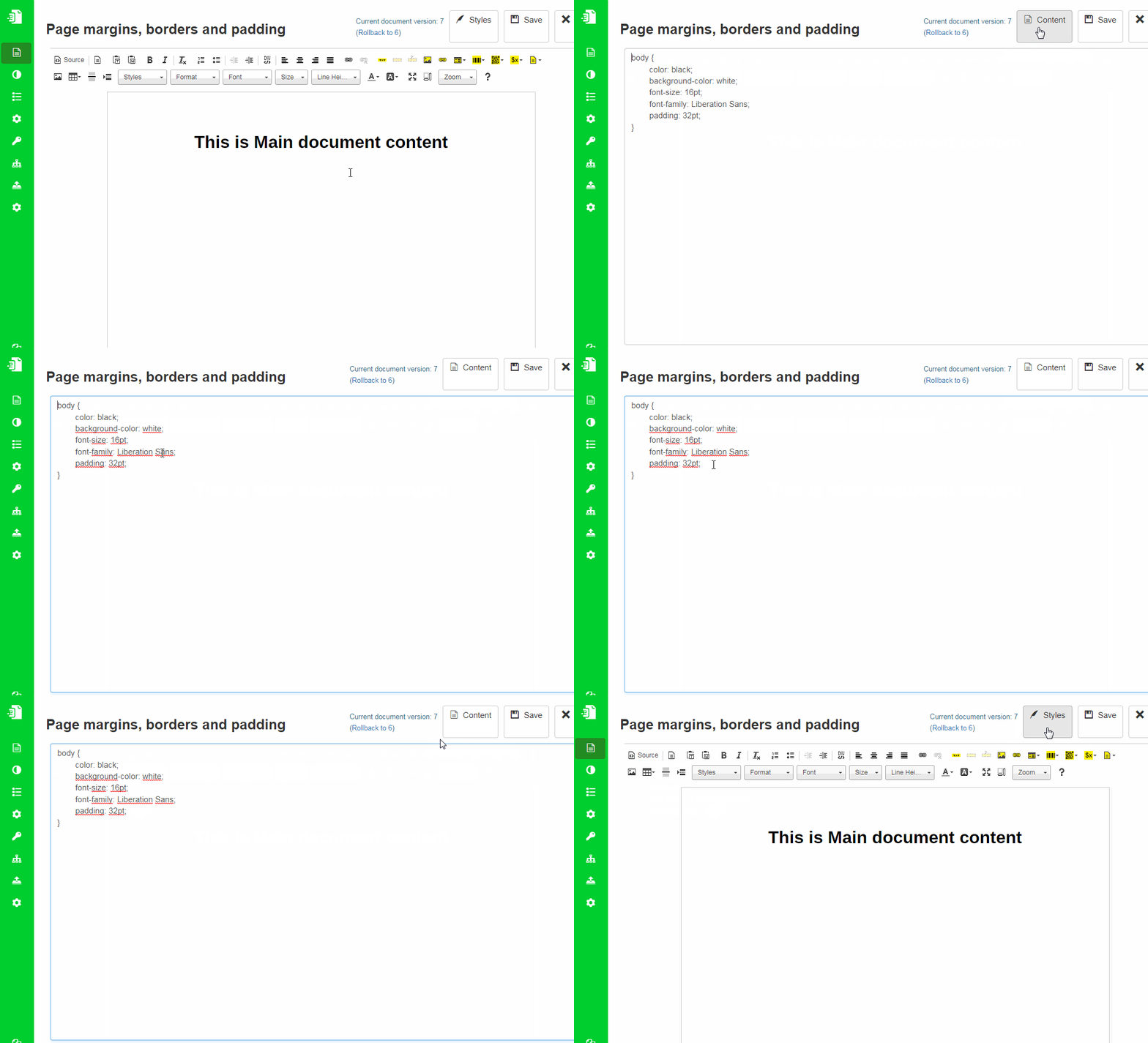
Example
Default document style:
body {
    color: black;
    background-color: white;
    font-size: 16pt;
    font-family: Liberation Sans;
    padding: 32pt;
}
Remove all spacing:
body {
    margin: 0;
    border: 0;
    padding: 0;
}
Important notes
- Styles apply separately to Main and Background documents
- Incorrect margins may cause content to overlap with background elements
- Changes affect the entire page layout
Related topics
- Page layout → Header and Footer
- Styling → Styles Mode
Was this article helpful?
Yes
No