How to Create Custom PDF from monday.com Board with Eledo
monday.com Boards contain a lot of information about your daily tasks with custom columns. These pieces of information are valuable and in many cases you may want to include them in a document or fill them into a form.
Eledo makes this possible in an easy and automated way. In this article we will show you how to integrate Eledo PDF document automation into your monday.com Board.
Adding Eledo into your monday.com Board
You can find the Eledo App in the monday.com Marketplace or simply click the button below.

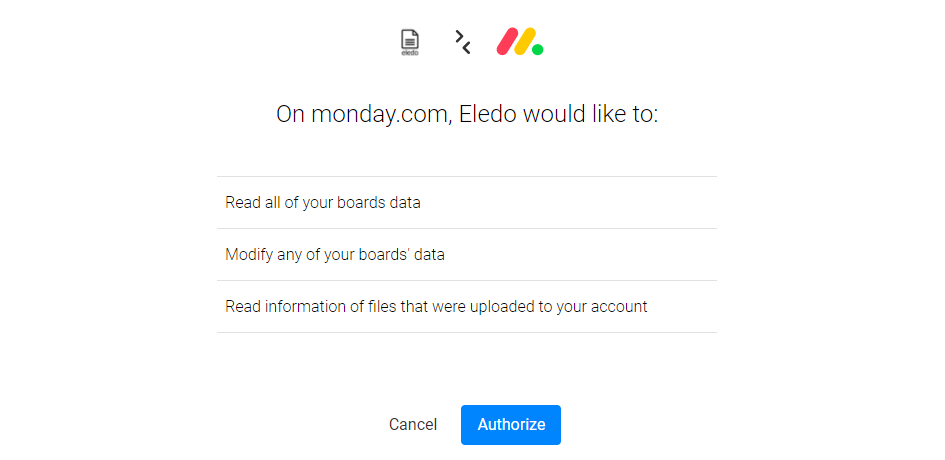
In both cases you will need to authorize the Eledo App to access your board by clicking the Authorize button.
This authorization allows Eledo to:
- read your board data and insert them into your PDF document
- write the generated document back to your board
- read assets when image attachments are included
Setting up your Eledo PDF template
With Eledo you can create a custom PDF document, or upload a PDF form that you want to fill automatically.
In both cases you need to write data expressions that tell Eledo which information from your monday.com board should appear in the document.
Data expressions can consist of:
- field names
- functions
- operations that modify the values
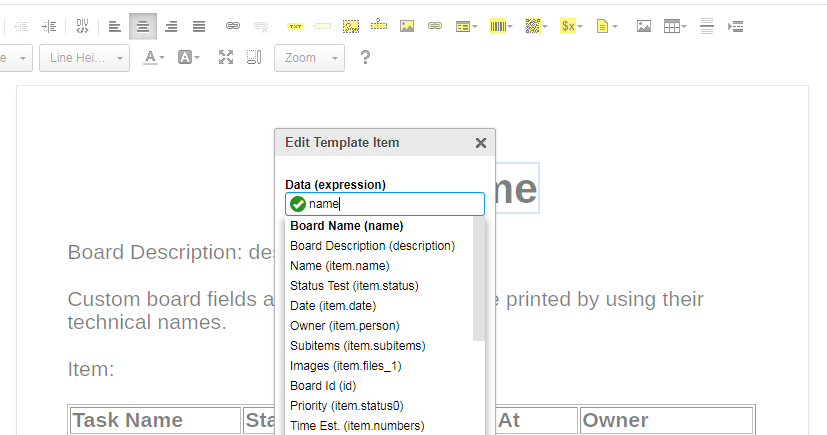
To make this easier, you can connect your Eledo template with your monday.com Board, and the expression builder will help you create the correct expressions.
To connect them you will need to know your Board ID.
You can find instructions here:
Then navigate to Input Fields in the Eledo template editor, enter your monday.com Board ID, and click Import.
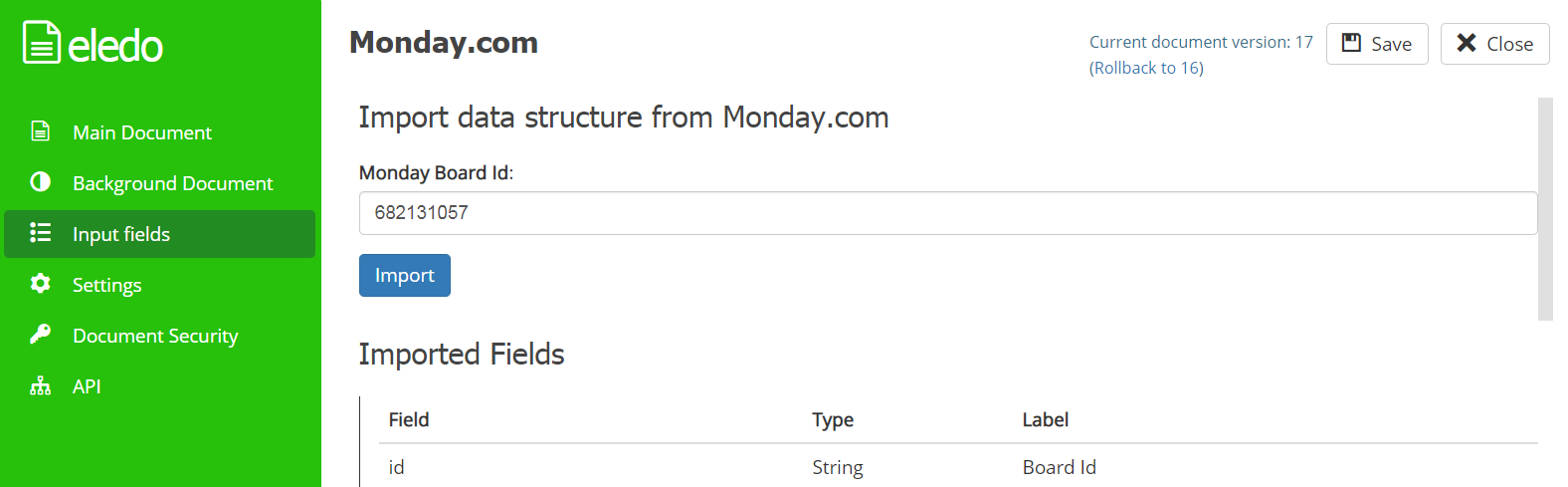
Field names from your board will appear below as Imported Fields, including your custom columns.
The expression builder will then provide suggestions for fields that can be used in your template.
Don't forget to re-import fields whenever you change columns in your board so the template structure stays up to date.
Setting up monday.com Integration Recipes
Once your document template is ready, you are only one step away from automation.
Choosing when the document should be generated is important.
Typically you want the document to be created when:
- task information is complete
- the task needs to be processed further
- the document should be stored as a PDF record
Generating the same document multiple times for one task can unnecessarily consume your Eledo subscription limits, so configure your Recipes carefully.
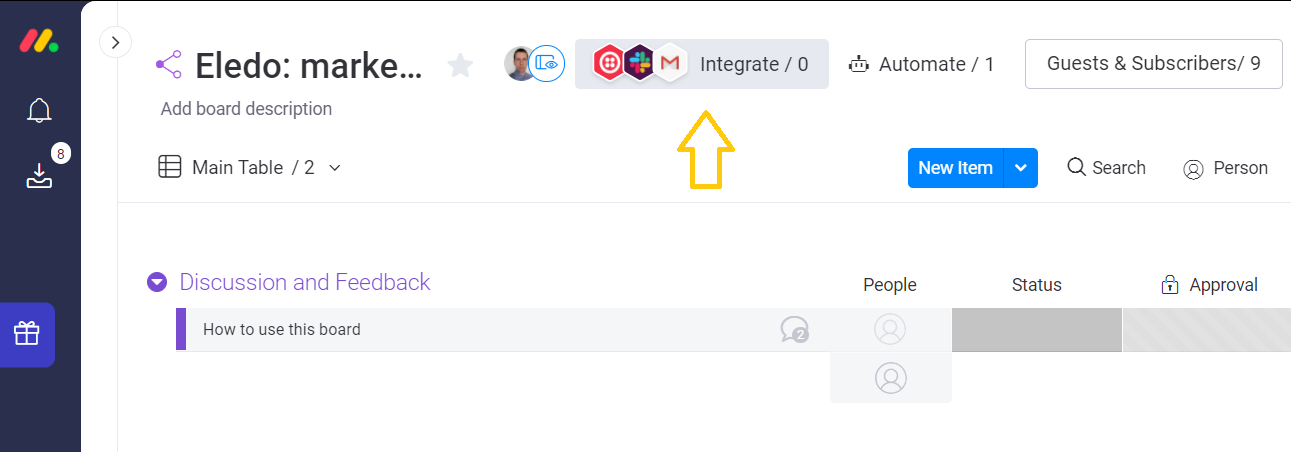
You can find Eledo integration recipes directly in your monday.com board.
Click the Integrate button and search for Eledo.
We have prepared multiple recipes.
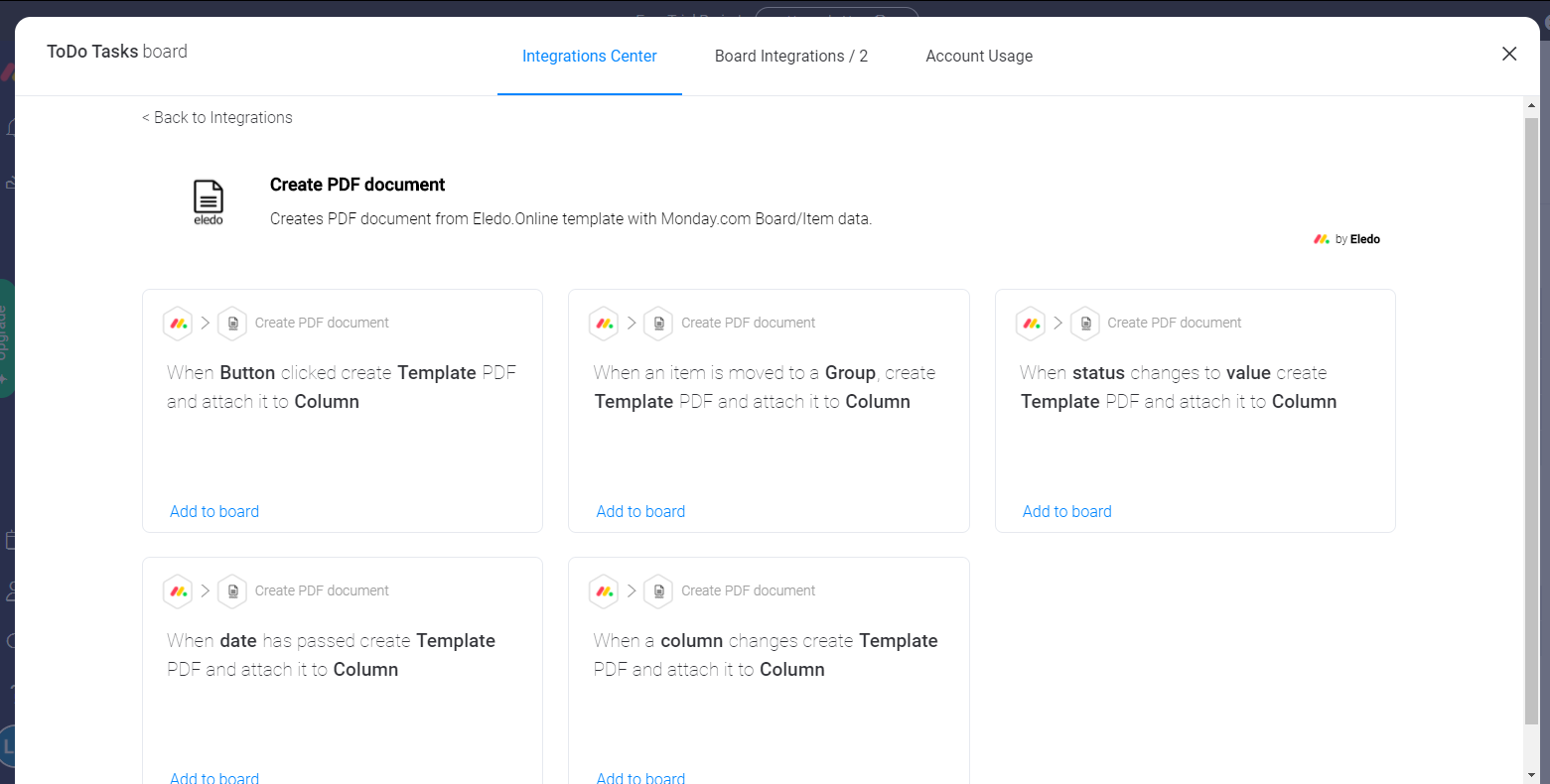
After selecting a recipe you will need to complete the sentence configuration.
Click the underscored words to configure the recipe parameters. Once everything is set up, the PDF will be generated automatically according to your configuration.
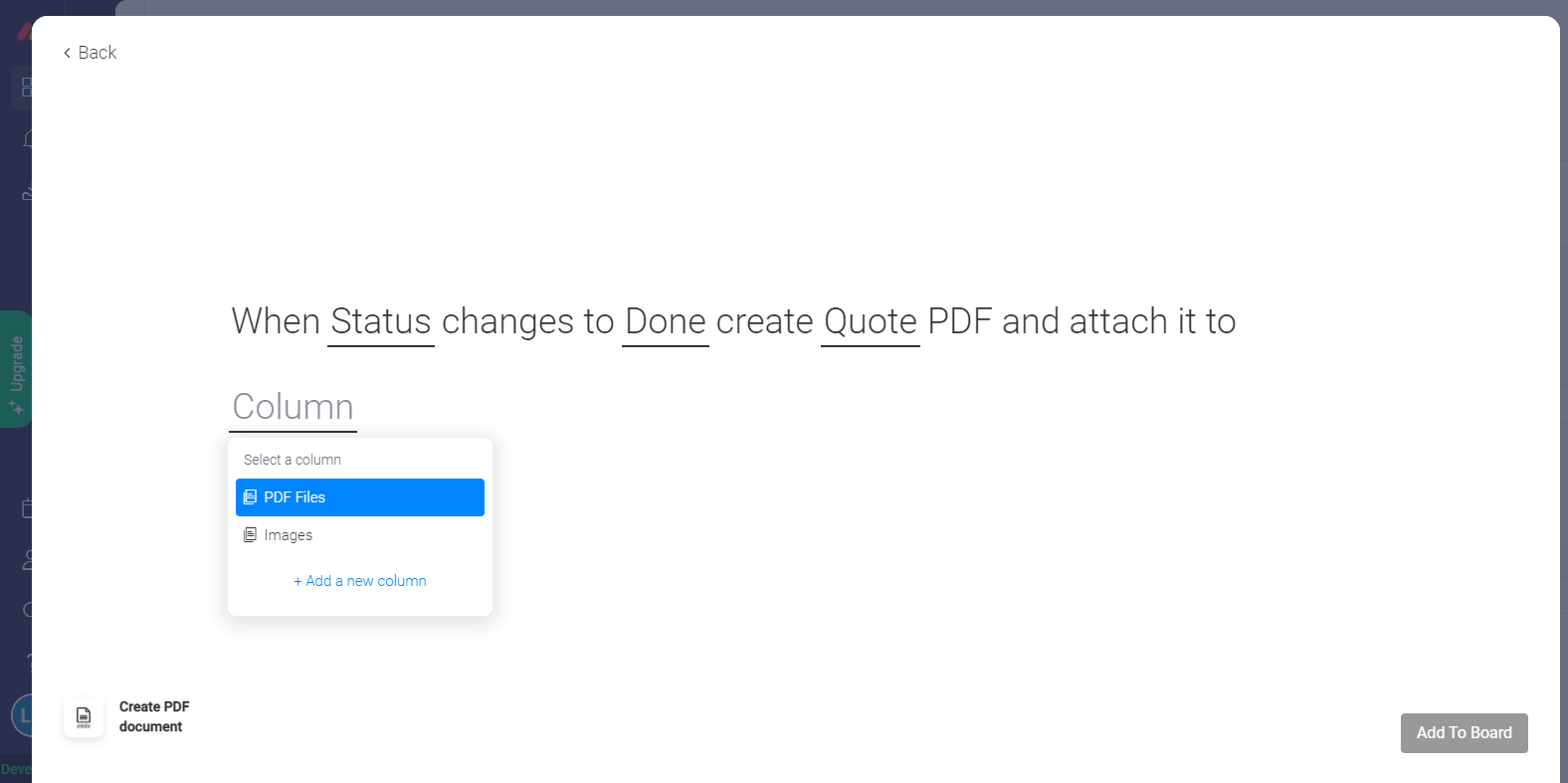
Done! Your automated document creation is now set up.
Error Handling
If everything seems configured but you are not receiving your PDF, the issue is usually related to the Eledo template configuration.
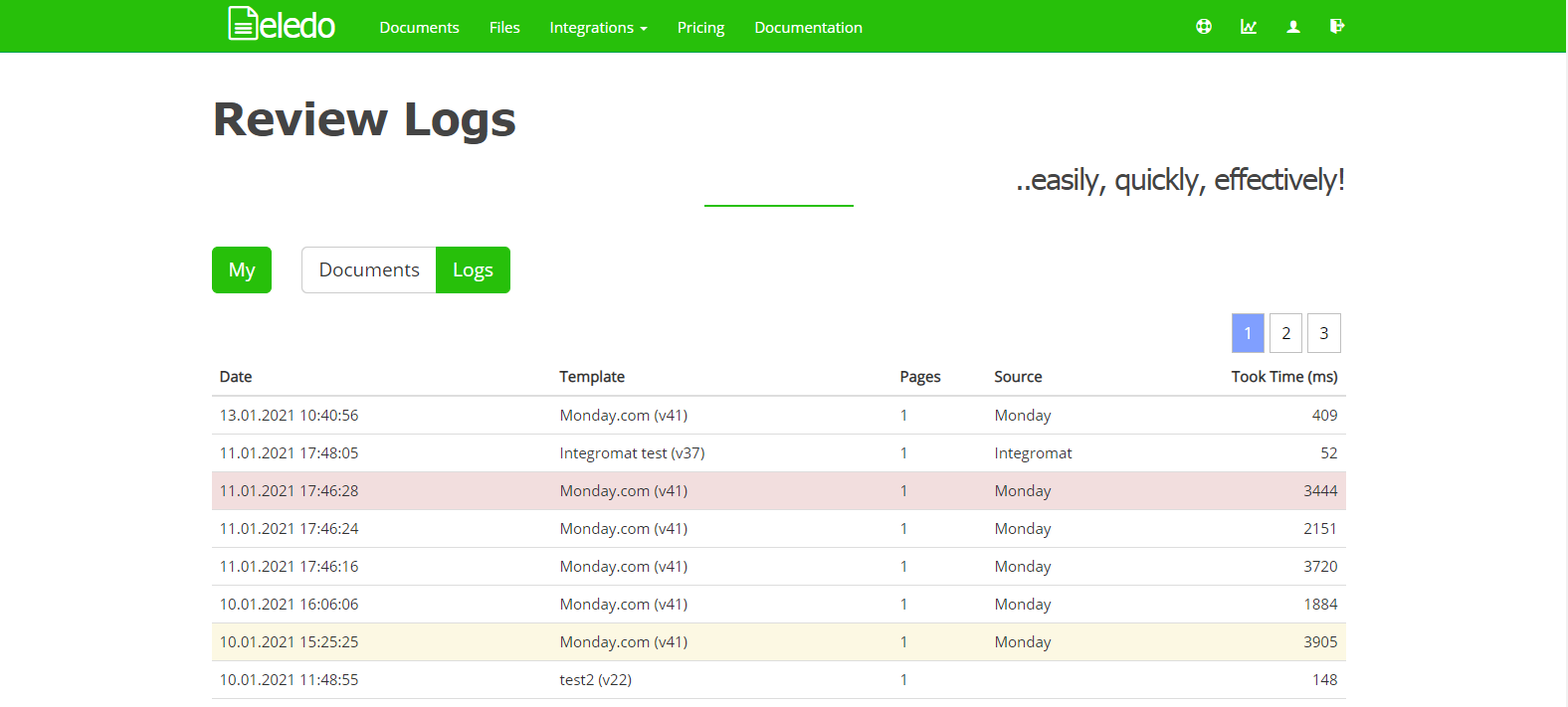
Eledo records every PDF generation request as an event and creates a log entry for it.
Each log contains:
- date and time
- event source
- template used
- document statistics such as page count and generation time
Important: Eledo does not record transactional data (the actual request content).
Logs may also include:
- warnings
- errors
These messages can help identify problems with your request.
You can access the logs in Eledo and inspect the event log details.
Helpdesk
If something is not working as expected, feel free to contact the Eledo Helpdesk.
We hope this automation saves you time and improves your workflow. We would also be happy to hear your feedback.