Authentication
Authentication allows eledoctl to communicate securely with your Eledo account.
Without authentication, Eledo does not know which account should receive the request and cannot generate documents for you.
eledoctl uses a simple API key.
Step 1 — Create an API Key in Eledo
- Log into your Eledo account at https://eledo.online/
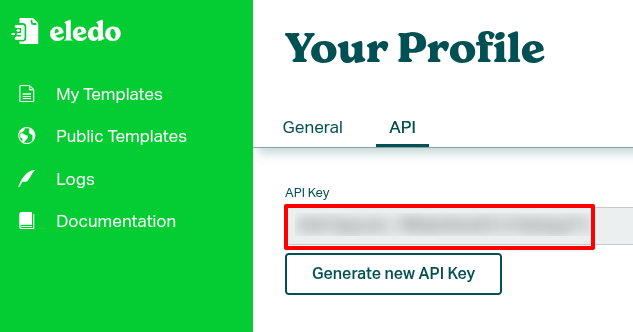
- Click on Profile in the bottom-left corner of the screen
- Open the API tab under the Your Profile section
- Copy your API key
If you do not have an API key yet, you can generate one in this section.
Step 2 — Log in with eledoctl
After installing eledoctl, authenticate with your API key.
There are three supported authentication modes.
Option 1 — Interactive Login
The simplest method is interactive login:
eledoctl login
You will be asked to paste your Eledo API key.
The key is validated and stored locally, so you do not need to provide it again for every command.
After login, verify the connection:
eledoctl profile
If authentication works, eledoctl will show information about the currently authenticated Eledo account.
Option 2 — Login with --token
You can also pass the API key directly using the --token option:
eledoctl login --token YOUR_ELEDO_API_KEY
This is useful for setup scripts or controlled environments where interactive input is not convenient.
After login, verify the connection:
eledoctl profile
Be careful when using this method in a shared terminal, because command-line arguments may be stored in shell history.
Option 3 — Login with an Environment Variable
For CI/CD jobs, deployment scripts, or other non-interactive environments, you can provide the API key through the ELEDO_API_TOKEN environment variable:
ELEDO_API_TOKEN=YOUR_ELEDO_API_KEY eledoctl login
This avoids interactive input and keeps the token out of the command arguments.
After login, you can run normal eledoctl commands:
eledoctl profile
eledoctl templates
In CI/CD systems, store the API key as a secret and expose it as ELEDO_API_TOKEN only during the job that needs it.
Step 3 — Test the Connection
To test that authentication works, run:
eledoctl profile
If everything is configured correctly and your internet connection is working, the command will return your Eledo profile information.
You can also list available templates:
eledoctl templates
If either command fails:
- verify that the API key was copied correctly
- ensure your internet connection is active
- try generating a new API key in Eledo
- run
eledoctl loginagain with the new key
Notes
- You can generate a new API key at any time under Profile → API.
- If you regenerate the key, remember to run
eledoctl loginagain. - Invalid or outdated keys are the most common cause of authentication errors.
- For local development, interactive login is usually the most convenient option.
- For CI/CD or automation, use
ELEDO_API_TOKEN.
Once authentication is complete, you can list templates and generate documents from the command line.