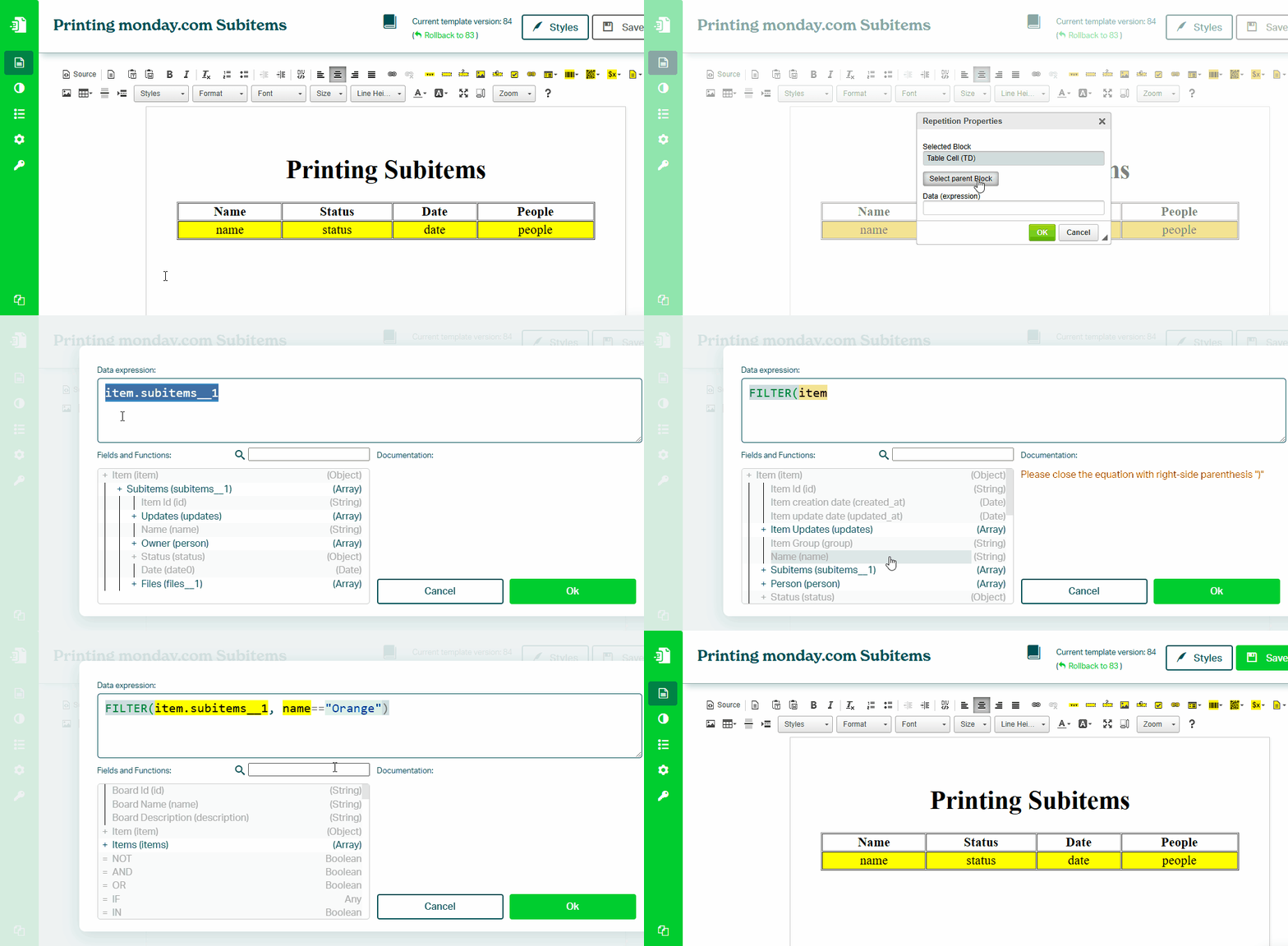
Filtering Subitems
Sometimes you may not want to print all subitems from your board, but only a subset based on specific conditions.
Filtering allows you to define simple or complex conditions to control which items are included.
Filtering is done using the FILTER function in Eledo data expressions. It takes two parameters:
- source array
- filtering condition
The condition can compare column values or combine multiple conditions using AND and OR.
Filtering Condition
The most important part of filtering is the condition.
Conditions are evaluated on each item in the list, so column names are used directly without any prefix.
Filtering by Text Column
To compare a text column with a static value, use the == operator:
FILTER(item.subitems, text1 == "Orange")
To compare against multiple values, combine conditions:
FILTER(item.subitems, OR(text1 == "Orange", text1 == "Apple"))
Filtering by Number Column
To compare a number column, use operators such as:
>, <, >=, <=, ==, !=
Example:
FILTER(item.subitems, number0 > 100)
To define a range:
FILTER(item.subitems, AND(number0 > 100, number0 <= 1000))
Where to Apply
The result of the FILTER function is a filtered list.
To print this list, use Block Repetition. Apply the FILTER expression directly in the Block Repetition data expression.
See: Printing Subitems