Printing Subitems
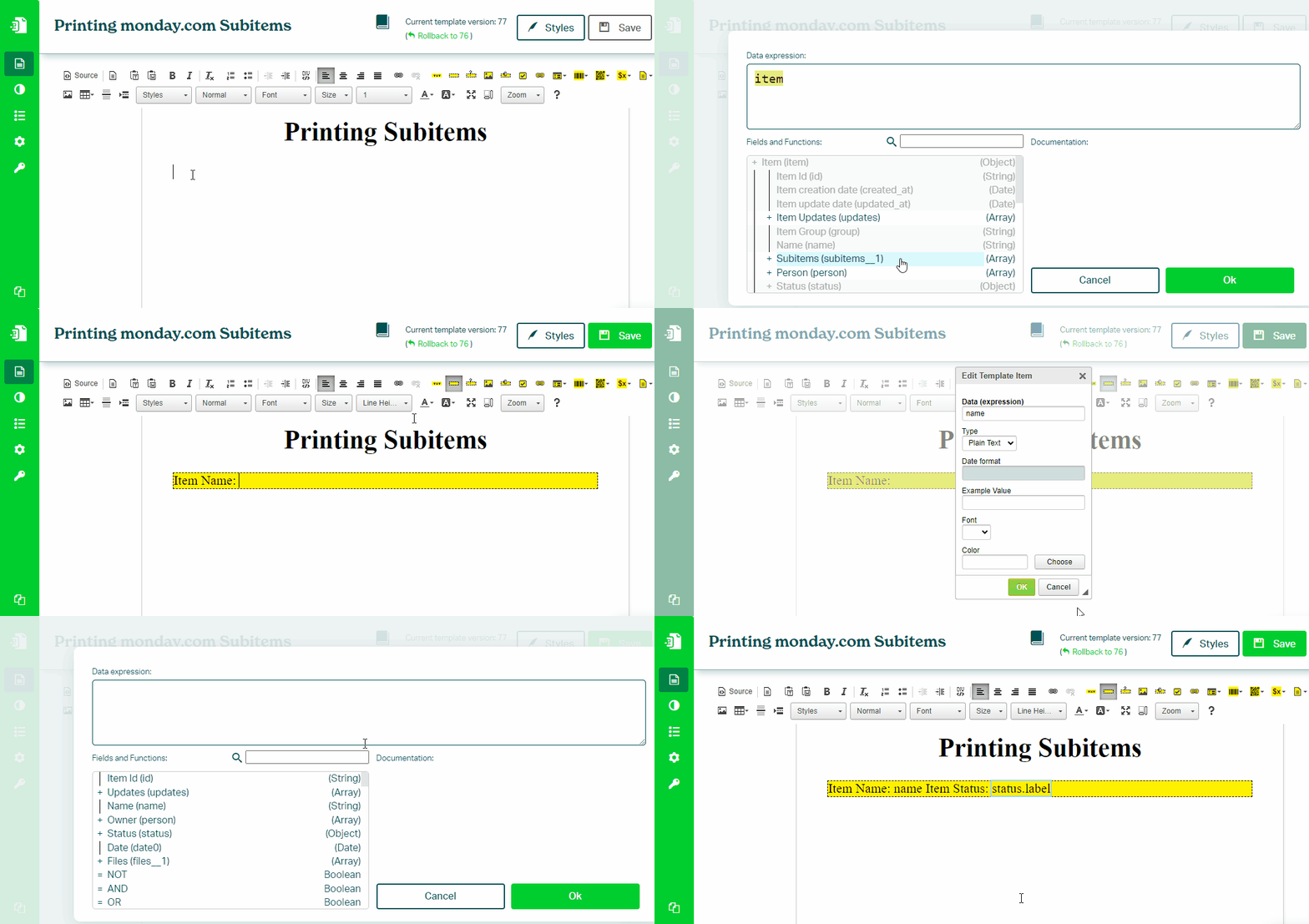
Lists of items, subitems, connected board items, or attachments can be printed using Block Repetition. It can turn any container—such as a table row, table, list item, or paragraph—into a repeatable block.
The idea behind Block Repetition is simple: design a block for a single item, turn it into a repeatable block, and Eledo will print it as many times as there are items in your list.
Let’s learn by example.
One Table Row per Subitem
Create a table with two rows:
- one for column headers
- one for values
Set the table width as needed. Place the cursor in the second row and click Block Repetition.
The configuration window will open. By default, the selected block is a table cell (TD), but we want to repeat the entire row. Click Select Parent Block to change the selection to the row.
Set the data expression to:
item.subitems
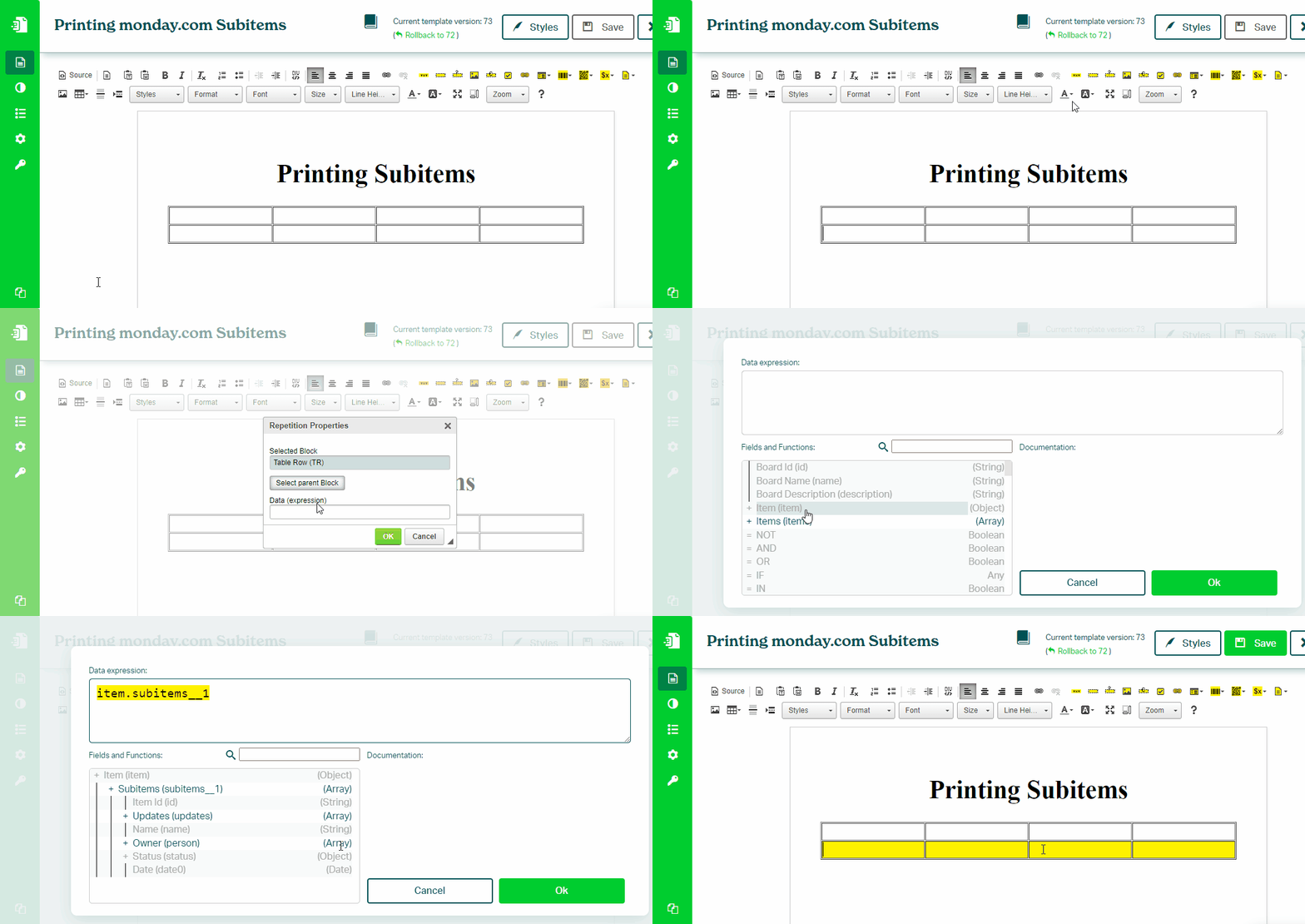
This setup ensures the row is repeated for each subitem.
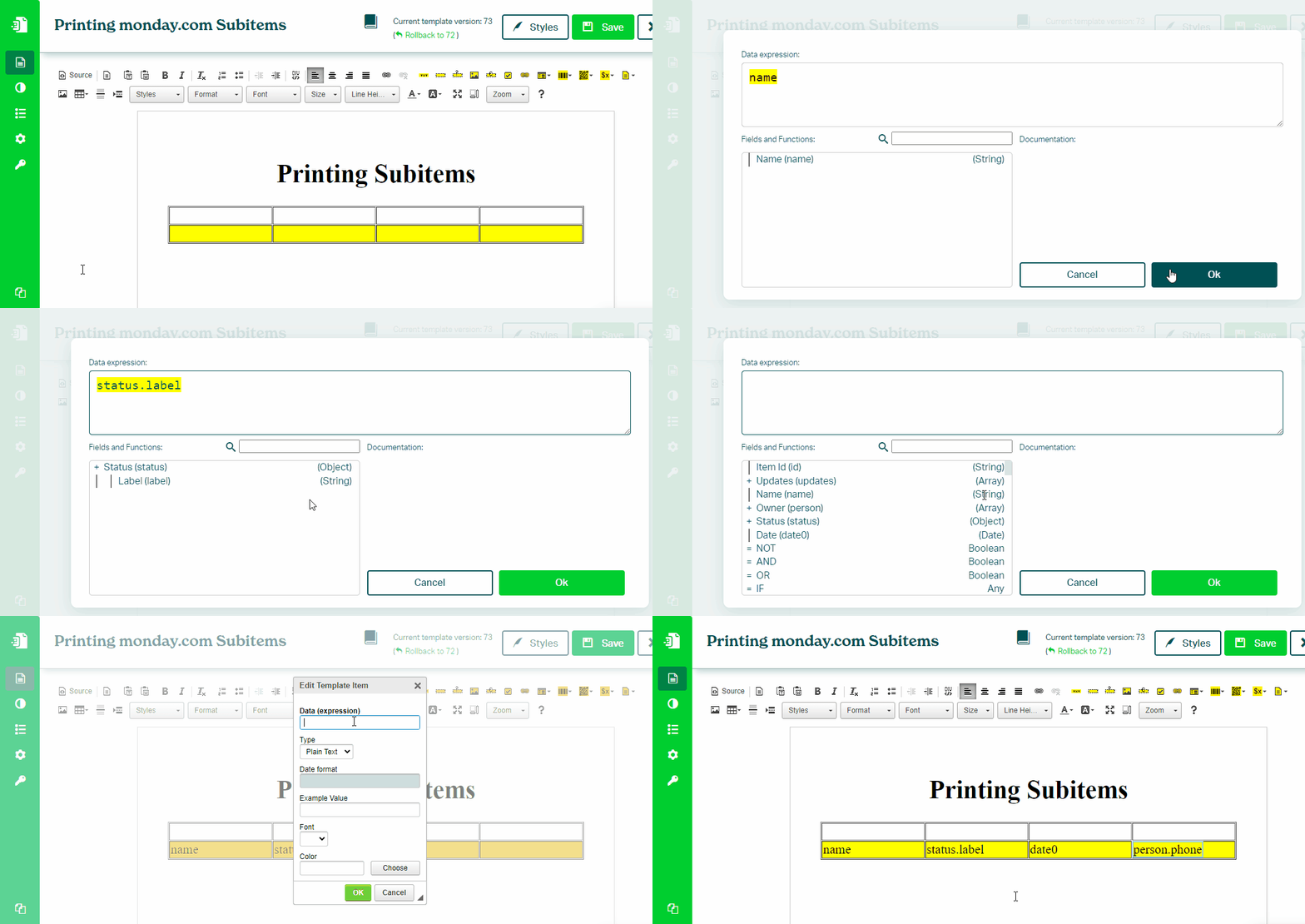
To print values, place Text Box components inside the repeated row.
Data Context
Block Repetition changes the data context.
Inside the repeated block, you use subitem fields directly, without prefixes such as item. or item.subitems..
Repeating List Items and Paragraphs
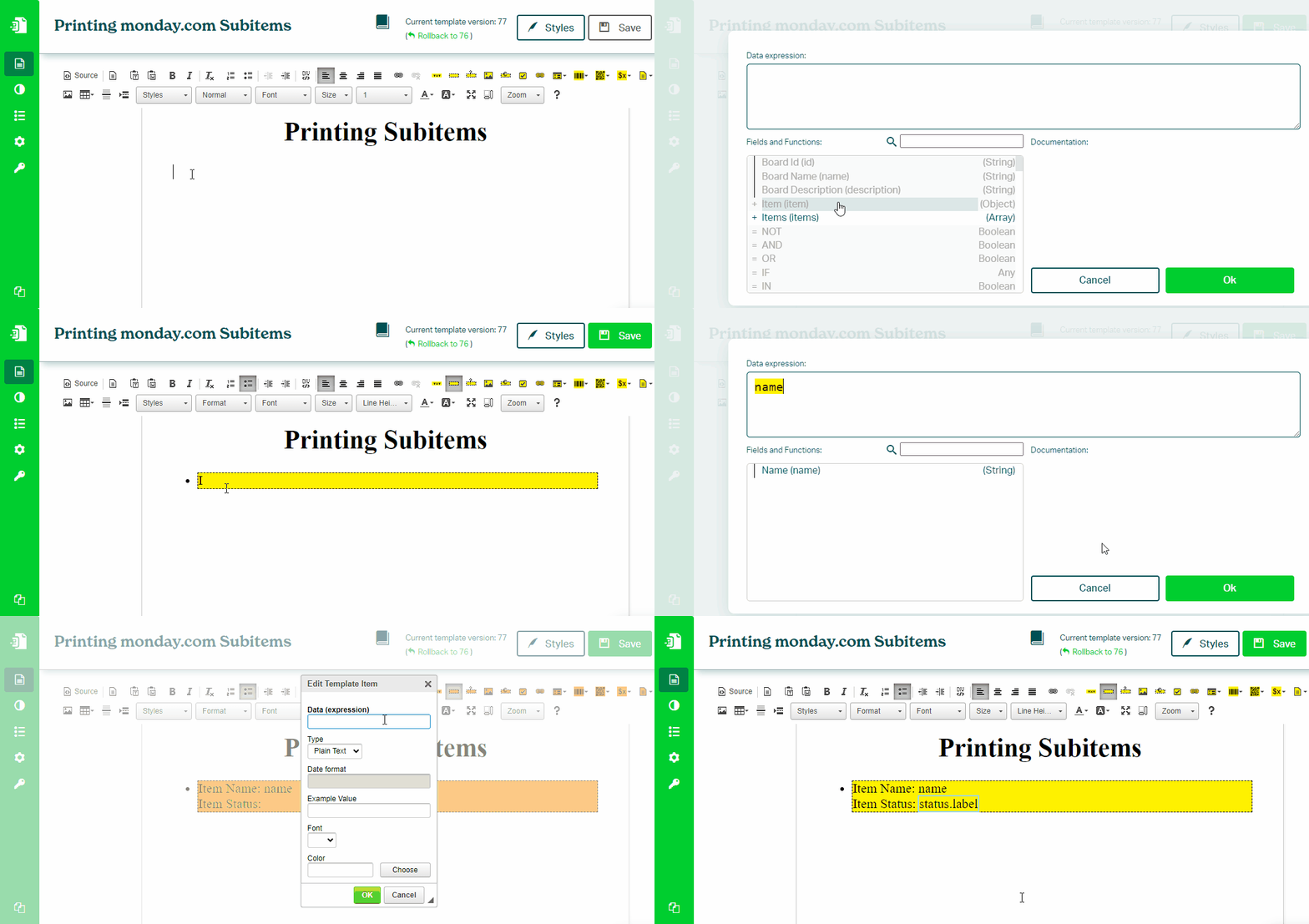
The same approach can be applied to other container types, such as list items or paragraphs.
Place the cursor inside the container and click Block Repetition. Always verify which block is selected.
Line Breaks
To create a new line inside a list item or paragraph:
- Shift + Enter → new line
- Enter → new list item or paragraph