Creating PDFs for Each Subitem Separately
Eledo provides an integration recipe that generates a separate PDF document for each subitem within a parent item.
This automation requires a template that includes at least one subitem field and the Files column ID at the subitem level, where the generated PDFs will be attached.
This recipe is triggered by a button click at the item level and generates PDFs for all subitems in a single run.
Currently, it is not possible to generate PDFs for subitems individually or on demand.
Template Setup
To use this integration recipe, your Eledo template must include at least one field from a subitem.
You can include all subitems in the document. When the automation runs, the current subitem (the one the document is being created for) will appear first in the list.
Integration Recipe Setup
You can find the relevant Integration Recipe in monday.com:
- When Button clicked create Template PDF for each subitem separately and attach it to subitem's Files column ID
To configure:
- Select the button at the item level that will trigger the automation
- Choose the Eledo template that prints subitem data
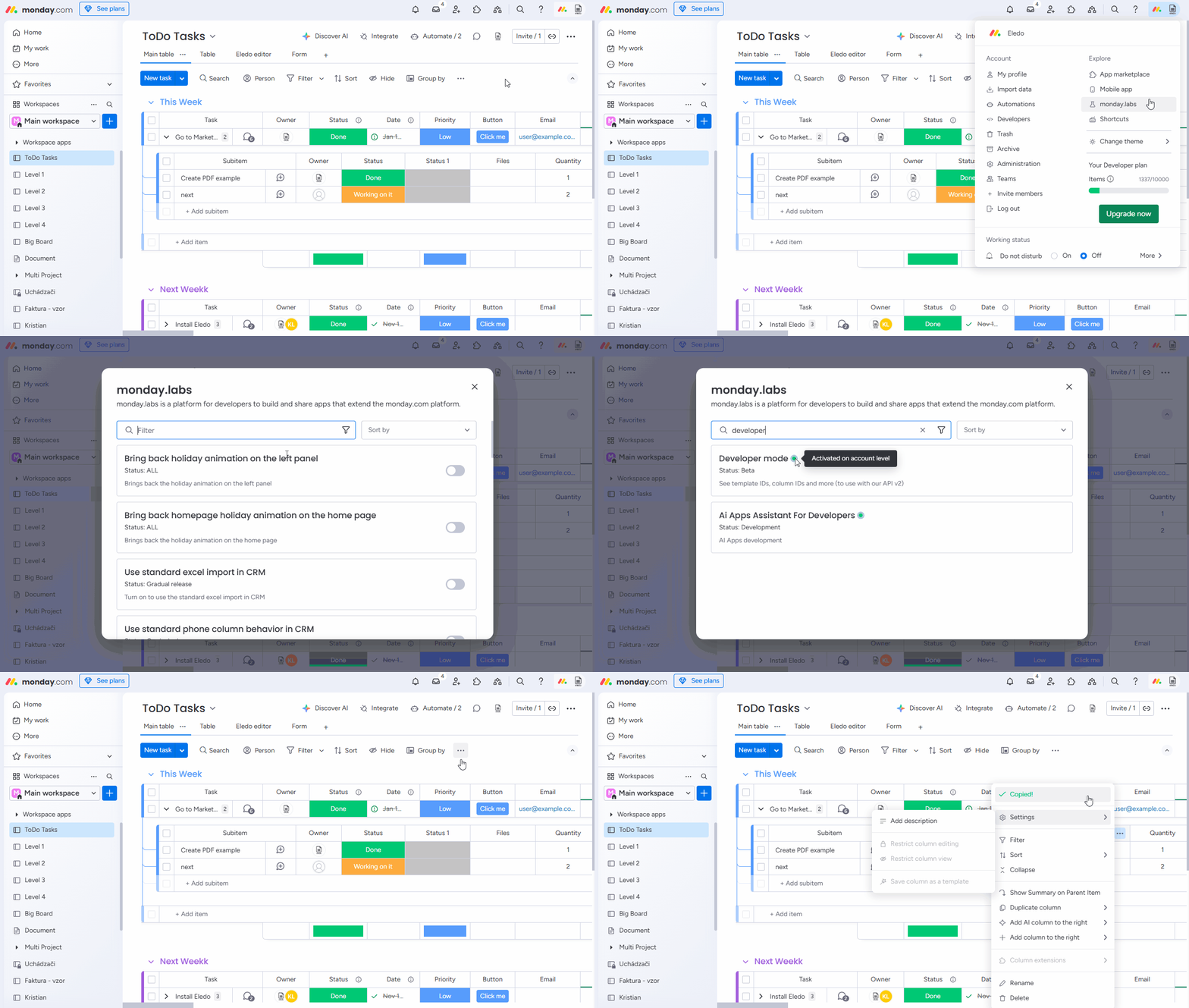
- Provide the Files column ID manually (this value cannot be selected from a dropdown)
How to Find the Files Column ID
To locate the Files column ID at the subitem level:
-
Enable Developer Mode in monday.labs and copy the column ID from the column menu (three dots)
-
Alternatively, open the Data Model menu in the Eledo template editor and expand the item and subitem sections to find the Files column ID