Printing QR Code
This guide shows how to print QR codes into your PDF using n8n.
Step 1 — Prepare your template
In the Eledo editor:
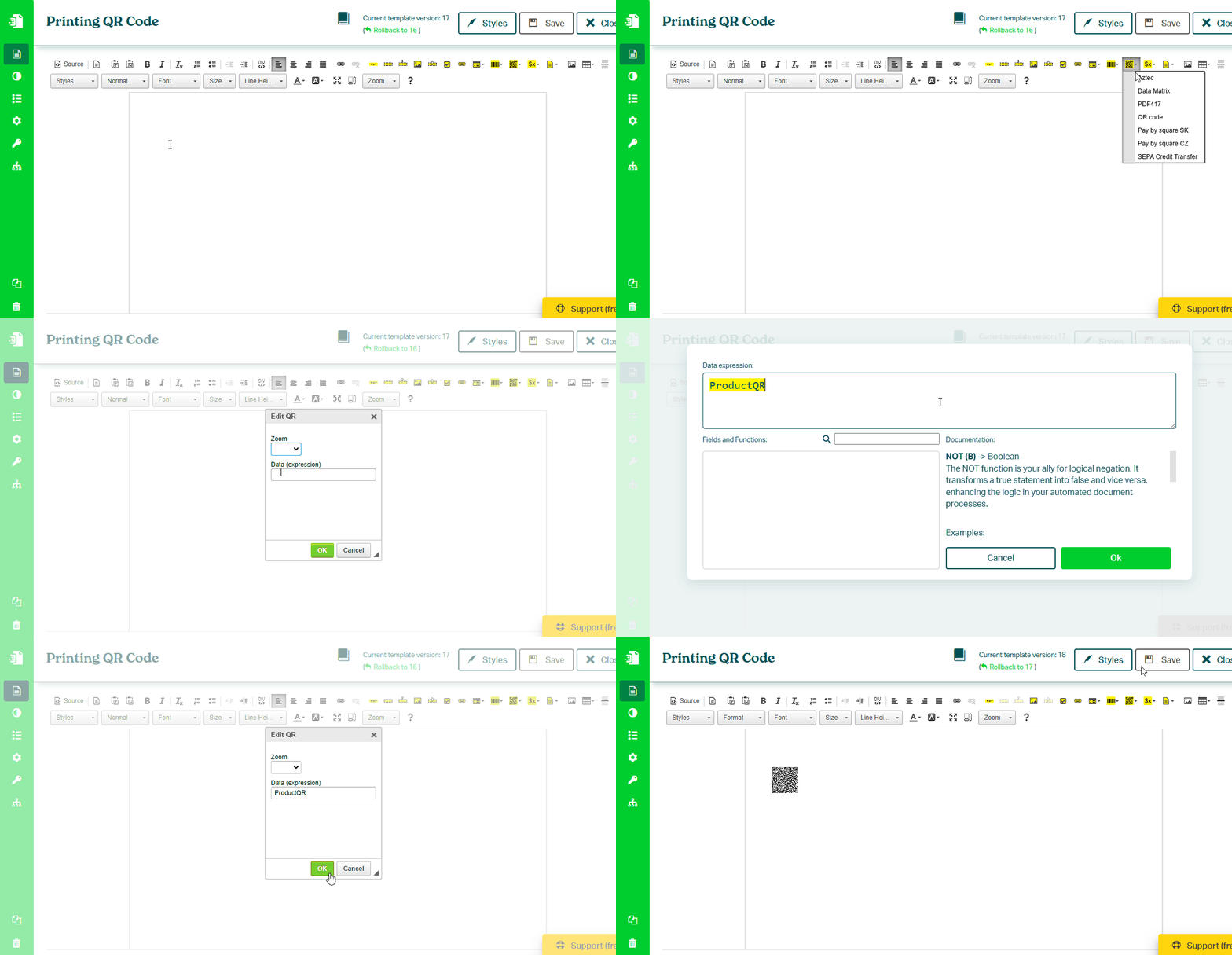
- Click Barcodes 2D → select QR Code
- In Data (expression), enter a field name (for example
ProductQR) - Confirm and save the template
tip
Learn more about QR codes:
→ /docs/product/template-editor/guides/generating-qr-codes.mdx
Step 2 — Use the template in n8n
In your n8n workflow:
- Add the Eledo PDF node
- Select your credentials
- Choose your template
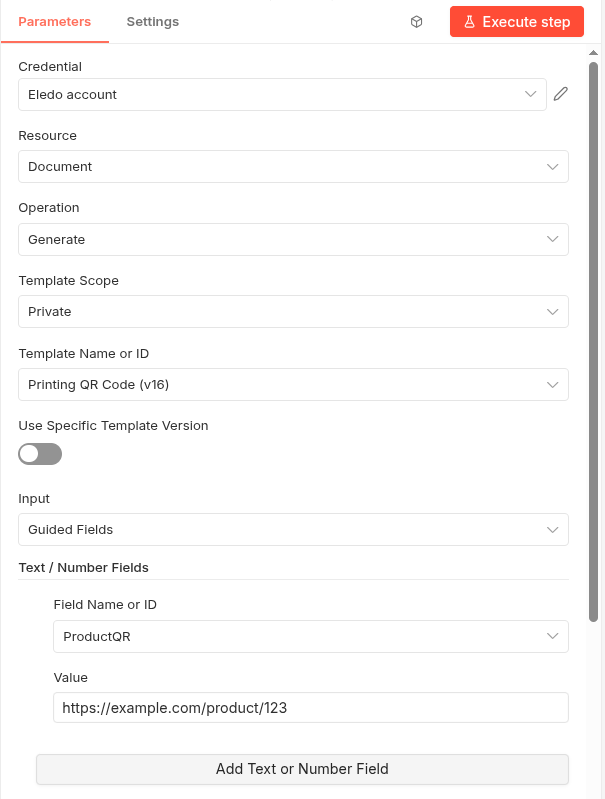
- Make sure Input is set to Guided Fields
Step 3 — Add and set the value
In the Eledo node:
- Click Add Text or Number Field
- Select the field (for example
ProductQR) - Enter the value to encode (for example a URL or text)
Important notes
- QR codes encode text — the format of the value determines behavior
- Common use case: encode a URL
Example:
https://example.com/product/123
Result
When the workflow runs:
- the value is passed to Eledo
- Eledo encodes it into a QR code
- the QR code is rendered in the document
Next steps
- Learn QR formats → Generating QR Codes
- Build full workflow → Generate Your First PDF
Was this article helpful?
Yes
No