Dynamic Link
Dynamic Link allows you to insert hyperlinks into your document based on data.
You can define both the target URL and the displayed text dynamically, making it possible to generate personalized or context-aware links.
How it works
Dynamic Link evaluates expressions to determine:
- the destination URL
- the displayed text
The link is rendered in the document during generation.
Add Dynamic Link
To insert a dynamic link:
- Place the cursor where you want the link to appear
- Click the Dynamic Link icon in the top toolbar
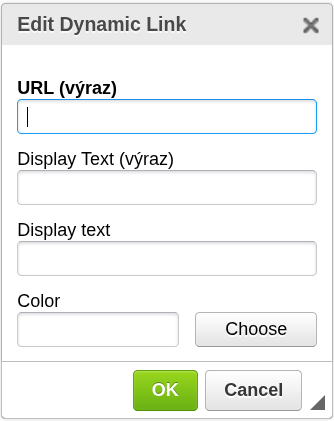
- The configuration window will open
- Configure the link settings
- Confirm to insert the link
The link will be inserted at the cursor position.

Configuration
URL (expression)
Defines the destination of the link.
- Must evaluate to a valid URL
- Used as the hyperlink target
Example:
CustomerPortalURL
Display Text (expression)
Defines the visible text of the link using an expression.
- Can reference data fields
- Evaluated during document generation
Example:
CustomerName
Display text
Defines static text for the link.
- Used when no expression is needed
- If both are provided, the expression takes precedence
Example:
View details
Color
Defines the color of the link text.
- Optional
- Helps visually distinguish links in the document
Important notes
- The URL must be valid to create a functional link
- Display text can be dynamic or static
- Expressions are evaluated during document generation
When to use Dynamic Link
Use this component when you need to:
- include links to external systems
- generate personalized URLs
- provide navigation or references inside documents
Next steps
- Learn how expressions work → Expressions
- Combine with conditions → Block Condition
Was this article helpful?
Yes
No