Text Box
A Text Box allows you to insert dynamic values into your document — such as a name, price, or date.
Instead of writing static text, you define what value should appear when the document is generated.
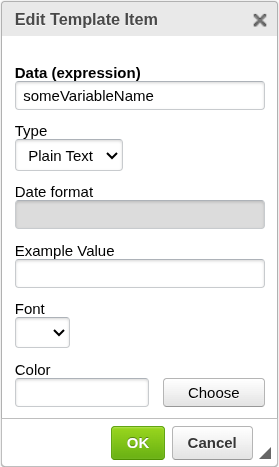
Add a Text Box
To insert a Text Box into your document:
- Open your template in the editor
- Place the cursor where you want the text to appear
- Click the TXT icon in the top toolbar
- The configuration window will open
- Confirm to insert the Text Box
The Text Box will be placed at the cursor position.

How it works
Each Text Box is connected to a value using the Data (expression) field. This field can either reference a simple value or use expressions to transform data during document generation.
The expression is evaluated when the document is generated, and the resulting value is inserted into the document through integrations (Make, Zapier, API, etc.).
Examples:
Surname
prints the value provided at runtime.
CONCAT(NUM(Amount, 0, 2), " €")
formats a number and adds a currency.
You don’t need to fully understand expressions to get started — a simple field name is enough.
Display types
A Text Box can display values in different ways depending on the selected Type.
Plain Text
The default option.
- Displays simple text values
- Supports line breaks using \n
Use this for most cases — names, labels, addresses, notes.
HTML
Allows you to render formatted content using HTML.
Use this if you need styling inside the value itself (for example bold text or colored text).
Date
Formats a date value into a readable format.
This option is used when your input contains a date (for example: invoice date, birth date).
Date formatting
When Type = Date, you can control how the date is displayed using a format pattern.
Eledo uses standard Java-style date formatting patterns. You don’t need to memorize all options — most common formats are shown below.
For a complete reference of all supported patterns, see Formatting Dates.
Common examples:
yyyy-MM-dd
dd.MM.yyyy
yyyy-MM-dd HH:mm:ss
Example value (design-time only)
The Example Value is shown only inside the editor.
It does not affect the final output.
Use it when:
- your expression is long or unreadable
- you want to preview layout with realistic data
Example:
Instead of seeing:
CONCAT(NUM(Amount, 0, 2), " €")
you can display:
1,250.00 €
Styling
You can adjust the appearance of the text:
These settings affect how the value is displayed in the final document.
When to use Text Box
Use a Text Box whenever you need:
- dynamic text (name, address, label)
- formatted values (numbers, currency)
- dates
- calculated output
Next steps
- Learn how expressions work → Expressions
- Learn how to format values → Printing Text