Form Components
Form Components allow you to add interactive input fields into your PDF documents.
Unlike dynamic components, which are evaluated during document generation, form components are filled in by the end user after the document is created.
These components are commonly used when you need user input directly inside the generated PDF.
Where to find Form Components
All form components are grouped under the Form dropdown in the editor toolbar.
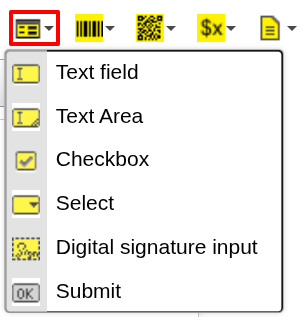
To insert a form component:
- Place the cursor where you want the field to appear
- Click the Form dropdown in the toolbar
- Select the desired component
- Configure it and confirm
The component will be inserted at the cursor position.
Available components
The following form components are available:
- Text Field — single-line text input
- Text Area — multi-line text input
- Checkbox — user-controlled checkbox
- Select — dropdown selection field
- Digital Signature Input — field for capturing a signature
- Submit — submit action for the form
Each component can be configured to define how user input is captured.
When to use Form Components
Use form components when you need:
- user input after document generation
- editable PDF forms
- data collection directly inside the document
If your goal is to display data from your system, use dynamic components instead.
Next steps
- Learn how to use individual form components → select a component from this section
- Learn how data is inserted into documents → Expressions
Was this article helpful?
Yes
No