Checkbox
A Checkbox allows you to add an interactive checkbox field into your PDF document.
The checkbox can be prefilled based on data and later modified by the end user.
Add a Checkbox
To insert a Checkbox into your document:
- Place the cursor where you want the checkbox to appear
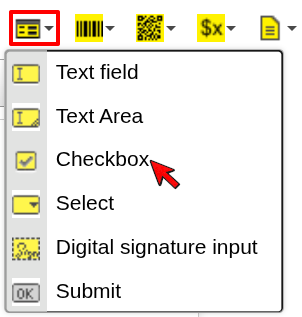
- Click the Form dropdown in the toolbar
- Select Checkbox
- Configure the field and confirm
The Checkbox will be inserted at the cursor position.
Configuration
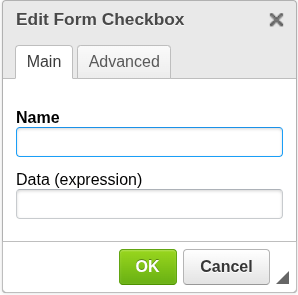
Name
The technical name of the field in the PDF form.
- Should be unique within the document
- Used when processing form data or integrations
Data (expression)
Defines whether the checkbox is initially checked.
-
Evaluated during document generation
-
Must resolve to a boolean value
-
true→ checkbox is checked -
false→ checkbox is unchecked
Examples:
Question1
Checks the box if Question1 is true.
Amount > 100
Checks the box if Amount is greater than 100.
Chooser1 == "Red"
Checks the box if Chooser1 equals "Red".
When to use Checkbox
Use a Checkbox when you need:
- user-editable true/false input
- prefilled yes/no values
- simple toggles inside a PDF form
Next steps
- Learn about conditional display → Block Condition
- Learn how expressions work → Expressions
Was this article helpful?
Yes
No