Digital Signature Input
A Digital Signature Input allows you to add a signature field into your PDF document.
The user can draw or provide their signature directly in the document.
Add a Digital Signature Input
To insert a Digital Signature Input into your document:
- Place the cursor where you want the signature field to appear
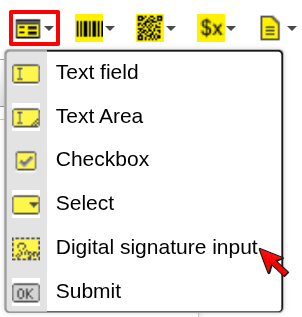
- Click the Form dropdown in the toolbar
- Select Digital signature input
- Configure the field and confirm
The signature field will be inserted at the cursor position.
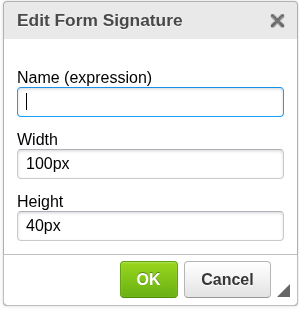
Configuration
Name (expression)
Defines the identifier of the signature field.
- Can be a static name or an expression
- Evaluated during document generation
- Useful when generating multiple signature fields dynamically
Width
Defines the width of the signature field.
- Accepts values with units (e.g.
100px) - Controls how much space is available for the signature
Height
Defines the height of the signature field.
- Accepts values with units (e.g.
40px) - Controls the vertical space for the signature
When to use Digital Signature Input
Use a Digital Signature Input when you need:
- user-provided signatures
- document approval or confirmation
- legally or visually signed documents
Next steps
- Learn about other form inputs → Select or Text Field
- Learn how expressions work → Expressions
Was this article helpful?
Yes
No