Text Area
A Text Area allows you to add an interactive multi-line text input field into your PDF document.
The field can be prefilled with data and later edited by the end user.
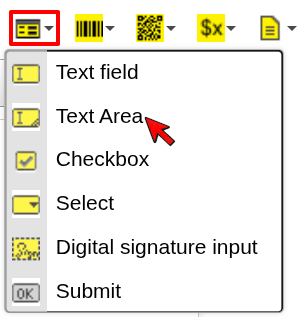
Add a Text Area
To insert a Text Area into your document:
- Place the cursor where you want the field to appear
- Click the Form dropdown in the toolbar
- Select Text Area
- Configure the field and confirm
The Text Area will be inserted at the cursor position.
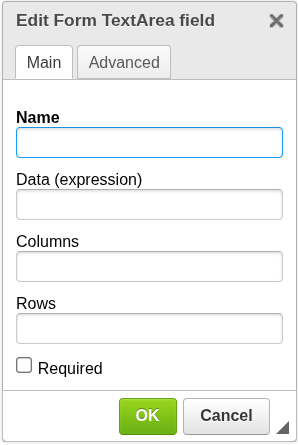
Configuration
Name
The technical name of the field in the PDF form.
- Should be unique within the document
- Used when processing form data or integrations
Data (expression)
Defines the value that will be prefilled in the field.
- Can be a simple field name
- Or an expression evaluated during document generation
Examples:
Description
Inserts the value of Description.
"Notes: " + Notes
Prepends a label to the Notes field.
Columns
Defines the width of the input field.
- Numeric value
- Represents the number of characters per line
Rows
Defines the height of the input field.
- Numeric value
- Represents the number of visible text lines
Required
Marks the field as mandatory.
- When enabled, the user is required to fill in the field
- Validation behavior depends on the PDF viewer
When to use Text Area
Use a Text Area when you need:
- multi-line user input
- longer text (notes, descriptions, comments)
- editable content that spans multiple lines
Next steps
- Learn about single-line input → Text Field
- Learn how expressions work → Expressions
Was this article helpful?
Yes
No