Header and Footer
Eledo does not use traditional header and footer sections.
Instead, it uses a Background document, which is rendered behind the main content.
This allows you to design the entire page layout — not just fixed areas at the top or bottom.
Main and Background documents
The Template Editor contains two separate document areas:
- Main — contains the primary document content
- Background — contains page-level elements rendered behind the Main document
Use the left-side menu in the Template Editor to switch between Main and Background.

The two documents are independent.
The Main document is not placed inside the Background document. During PDF generation, Eledo renders the Background first and then renders the Main document on top of it.
This means the Background can provide repeated page elements such as:
- logos
- titles
- page numbers
- decorative elements
- header and footer layouts
However, the Background does not automatically reserve space for the Main document. Page margins must be configured explicitly to prevent the two layers from overlapping.
How it works
- The Background document is rendered first
- The Main document is rendered on top of it
- Both layers are independent
This means:
- background elements can overlap with content
- layout must be controlled explicitly
Creating a header and footer layout
A simple way to structure the page is to use a 3-row table.
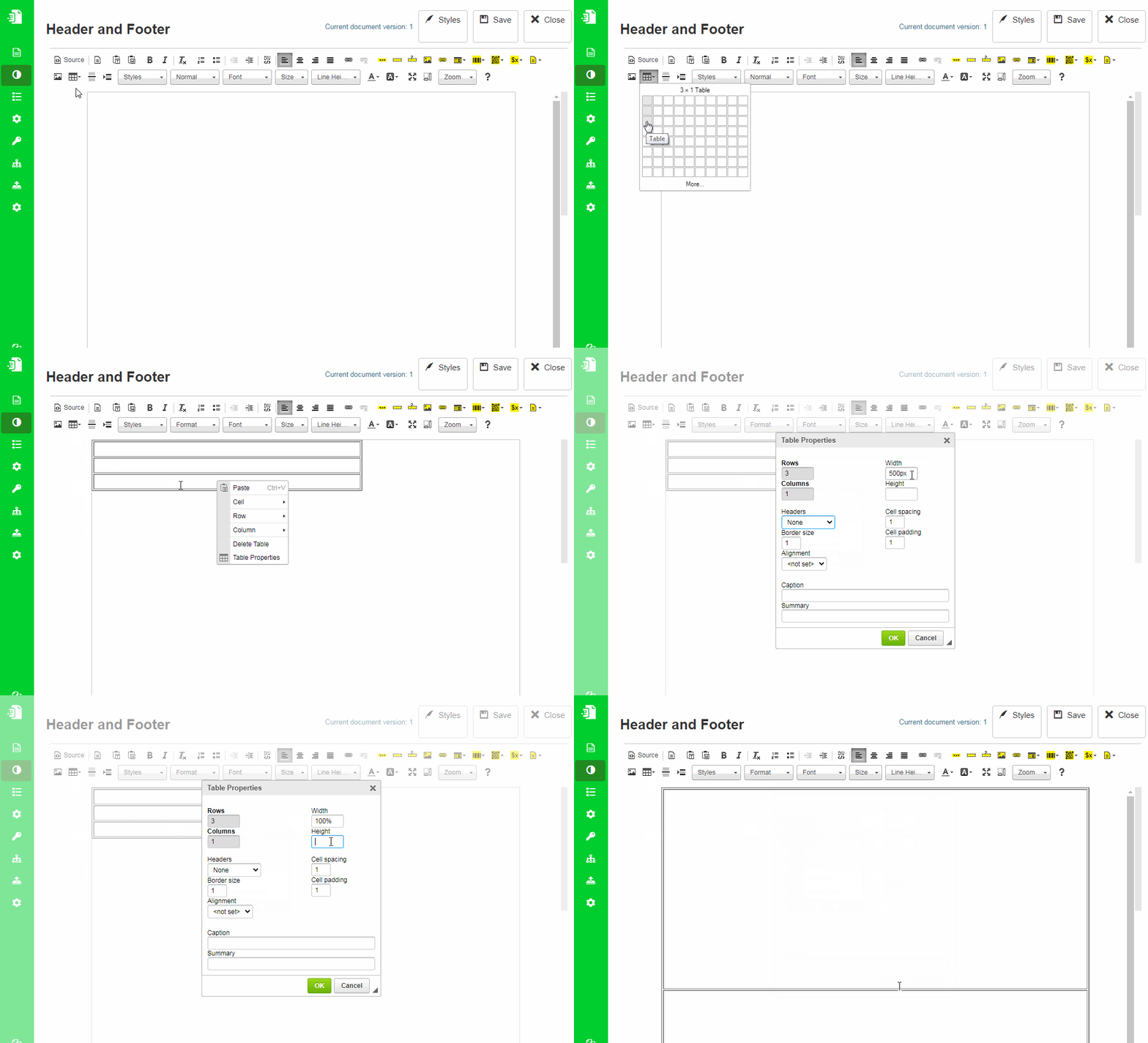
Step 1: Create a full-page table
Select Background from the left-side menu.
In the Background document:
- create a table with 1 column and 3 rows
- set width and height to 100%
This divides the Background layout into:
- header
- empty middle area
- footer
The middle row does not contain the Main document. It only creates space between the header and footer inside the Background layout.
Step 2: Set row heights
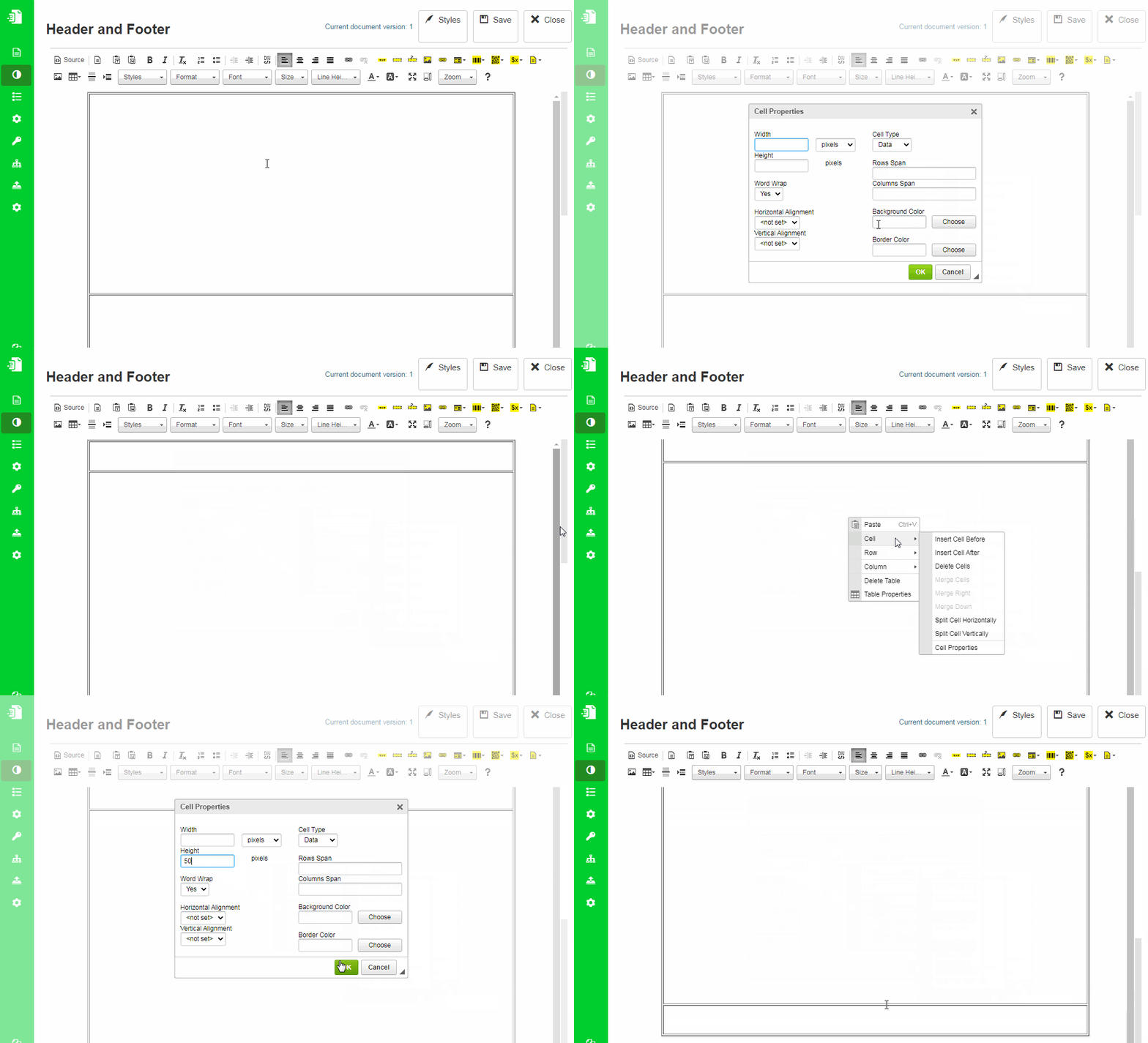
Row heights are automatic by default.
To create stable header and footer areas:
- set fixed height for the first (header) row
- set fixed height for the last (footer) row
Step 3: Add content
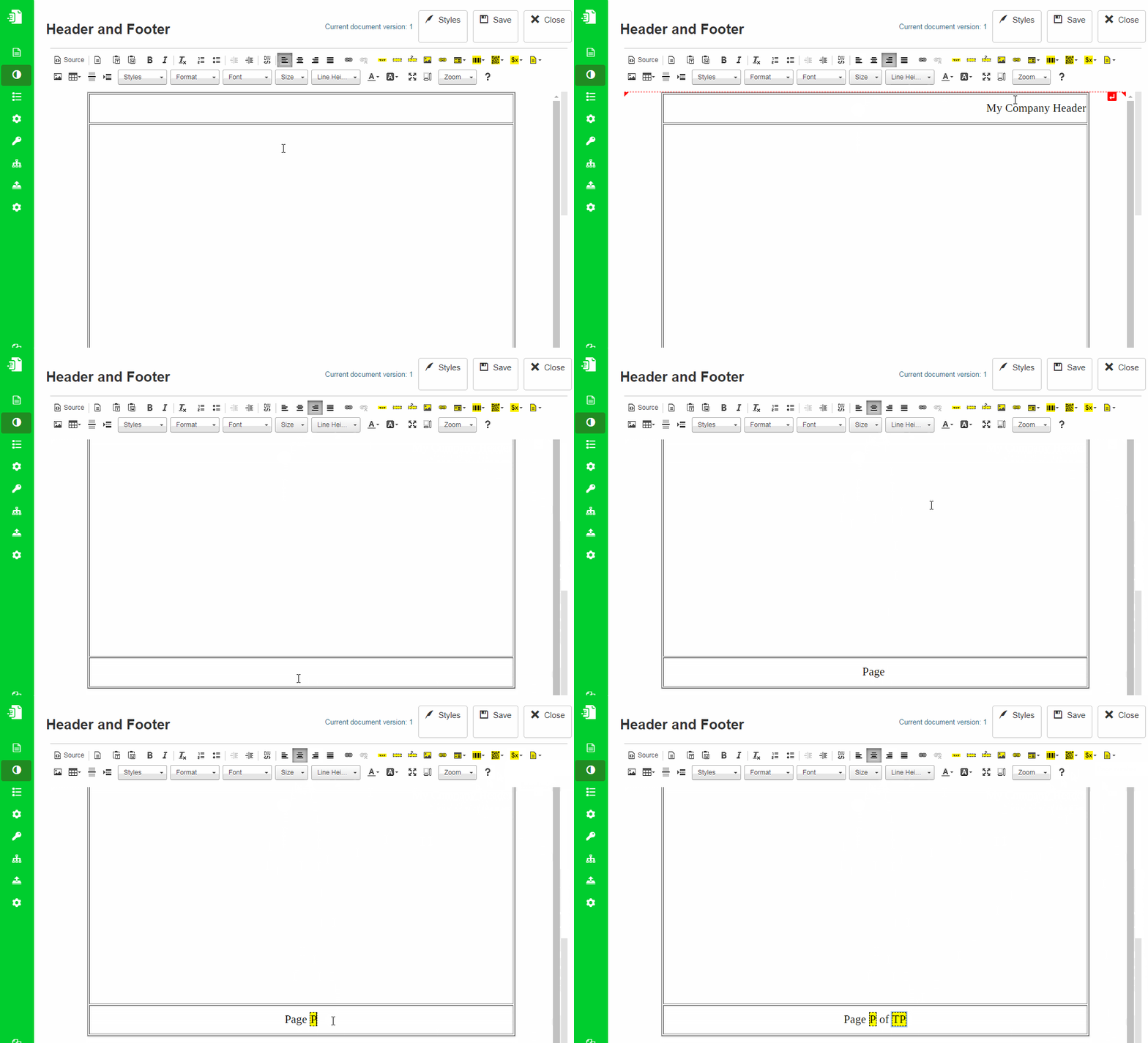
You can place:
- text
- images
- page numbers
Page numbers are available under Variables in the toolbar.
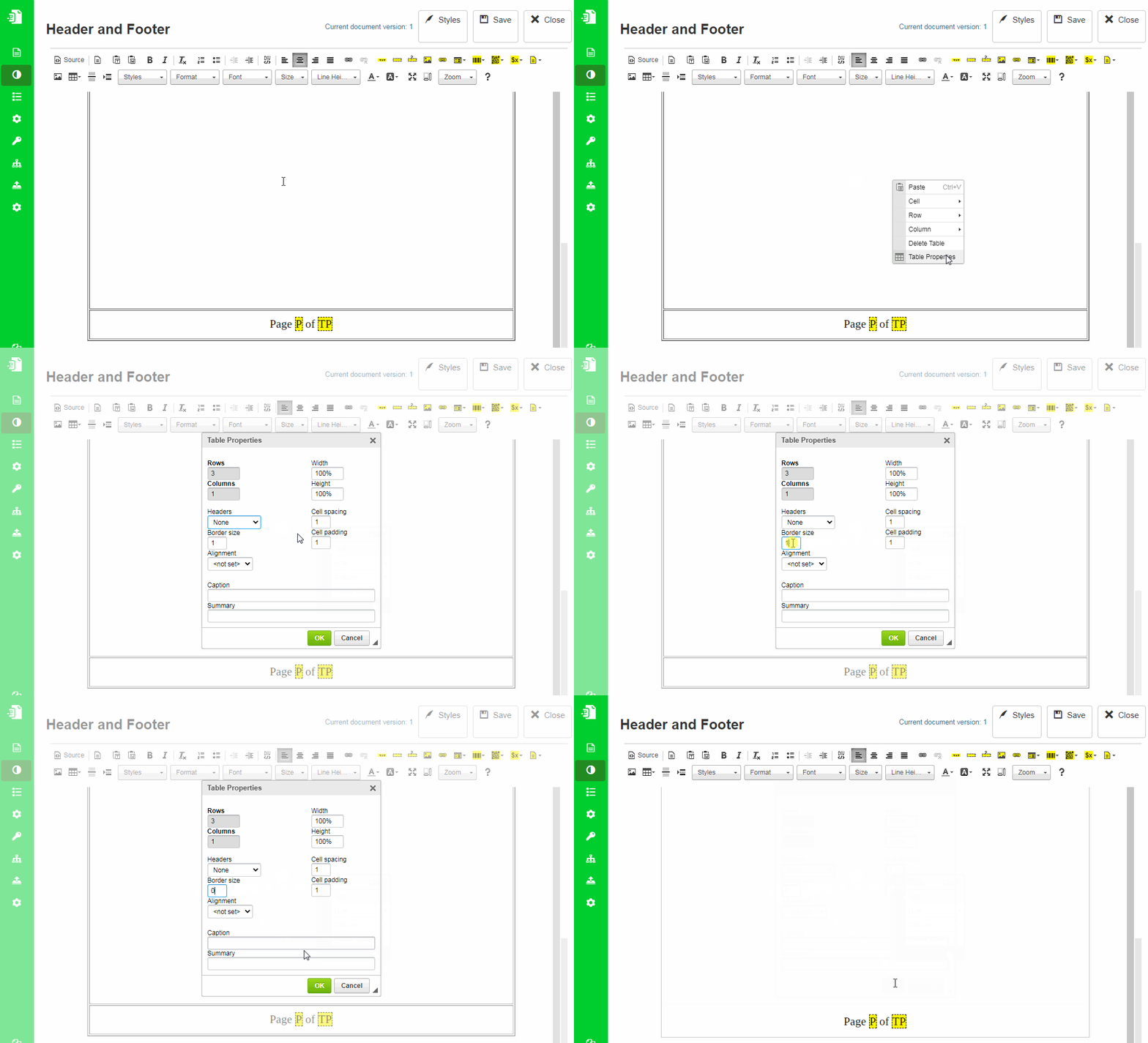
Step 4: Remove table borders
Set border size to 0 in table properties.
Avoiding overlap with content
Since the Background and Main documents are rendered independently:
- Background is drawn first
- Main content is drawn on top
If elements overlap, the Main content will cover the Background.
To prevent layout issues:
- Define header and footer height in the Background table
- Select Main from the left-side menu
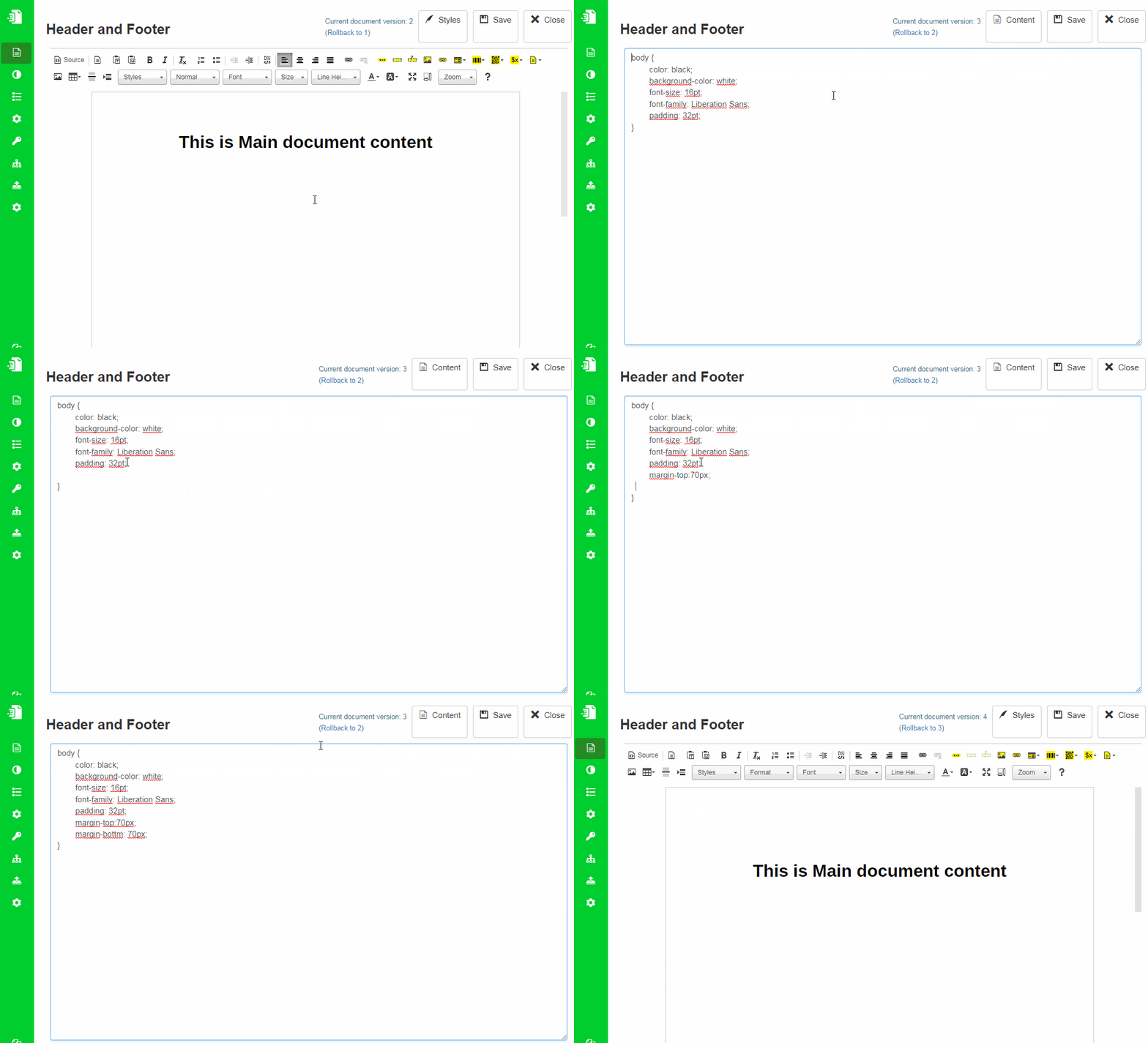
- Increase the top and bottom margins in the Main document
Margins are configured in Styles using CSS.
Dynamic Flow vs Static Pages
The behavior of the Background depends on the template type.
Dynamic Flow
- One Background layout is used for all pages
Static Pages
- Each page has its own Background
- Allows different layouts per page
However:
- each page behaves like a Dynamic Flow internally
- overflowing content creates additional pages
- those additional pages reuse the same Background
When to use this approach
Use Background-based headers and footers when you need:
- consistent page layout
- full control over page design
- repeated elements such as logos, titles, or page numbers
Related topics
- Page layout → Page Margins, Borders and Padding
- Variables → Variables
- Styling → Styles Mode