Printing Images in Line
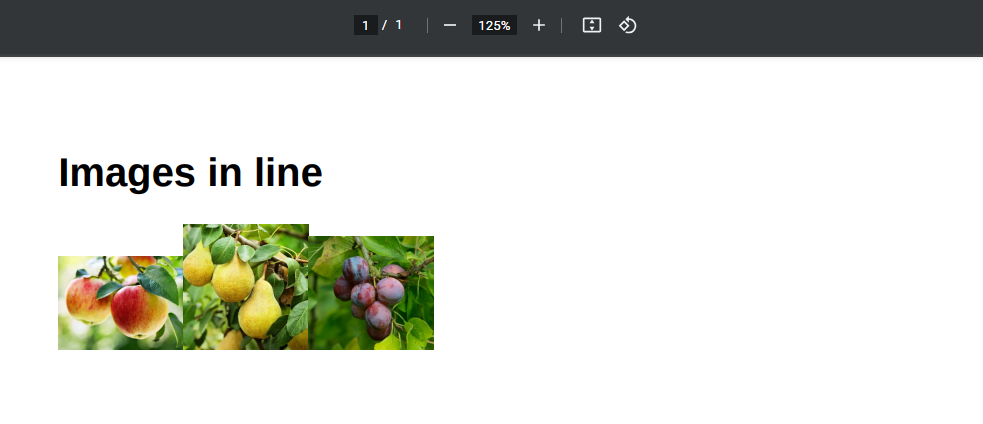
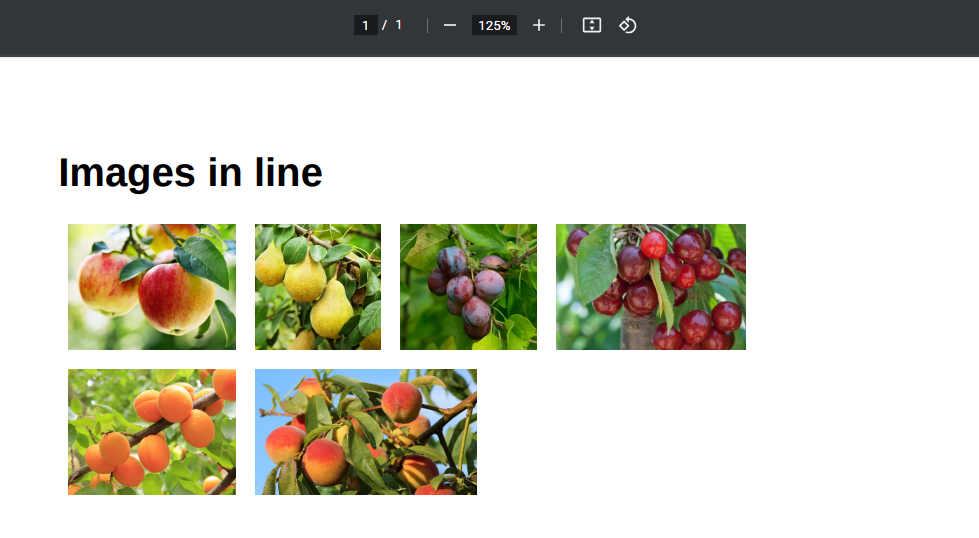
You can display multiple images in a row and automatically wrap them to the next line when space runs out.
This is achieved using:
- Dynamic Image
- DIV Container
- Block Repetition
- custom CSS (
inline-block)
How it works
By default, elements are rendered as block, meaning each item appears on a new line.
To display images side by side:
- wrap each image in a DIV Container
- set the container's display to
inline-block - repeat the container using Block Repetition
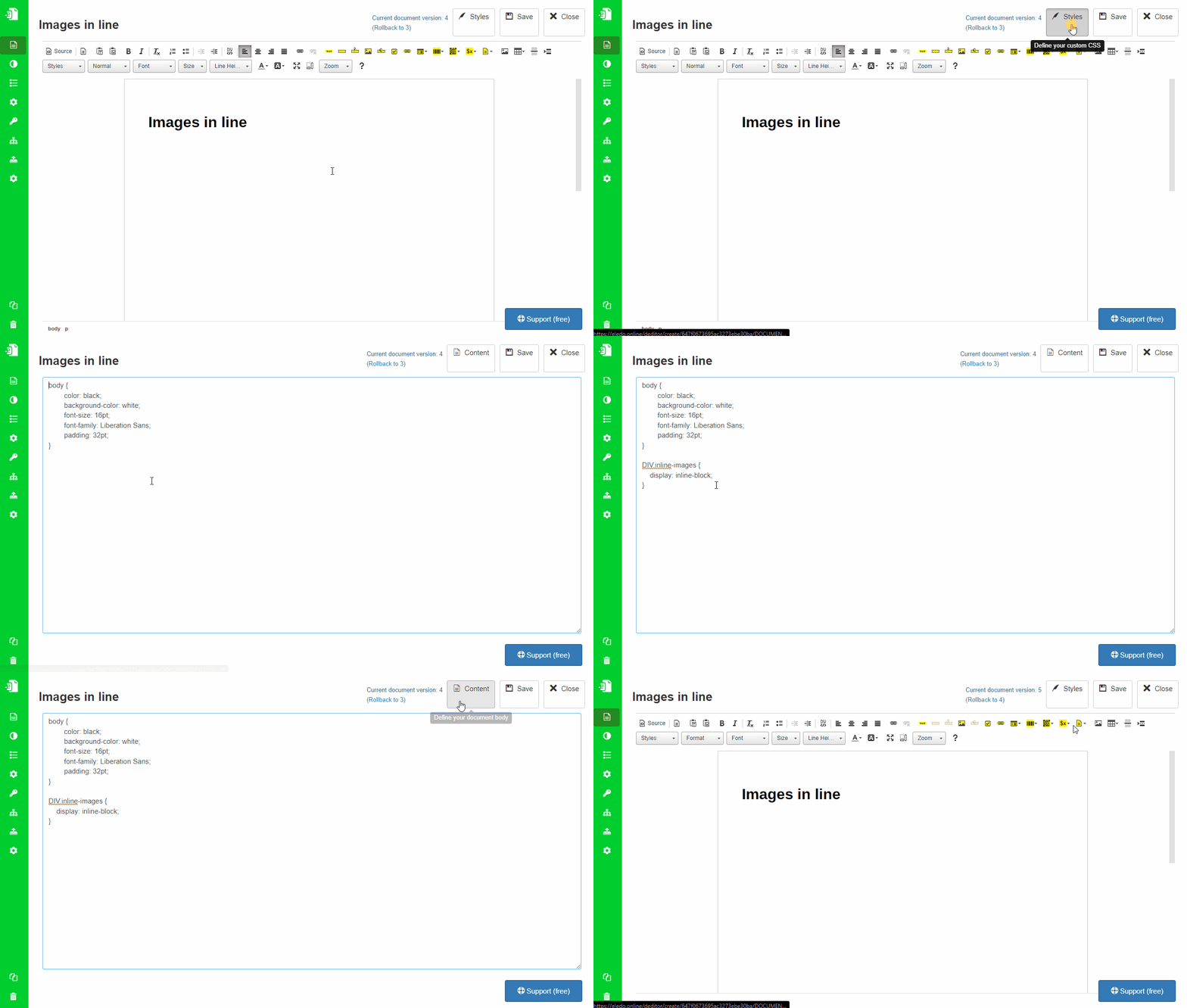
Step 1: Define custom style
Add a style for the DIV container:
div.inline-images {
    display: inline-block;
}
This allows multiple containers to sit next to each other and wrap automatically.
Add this style in Styles Mode.
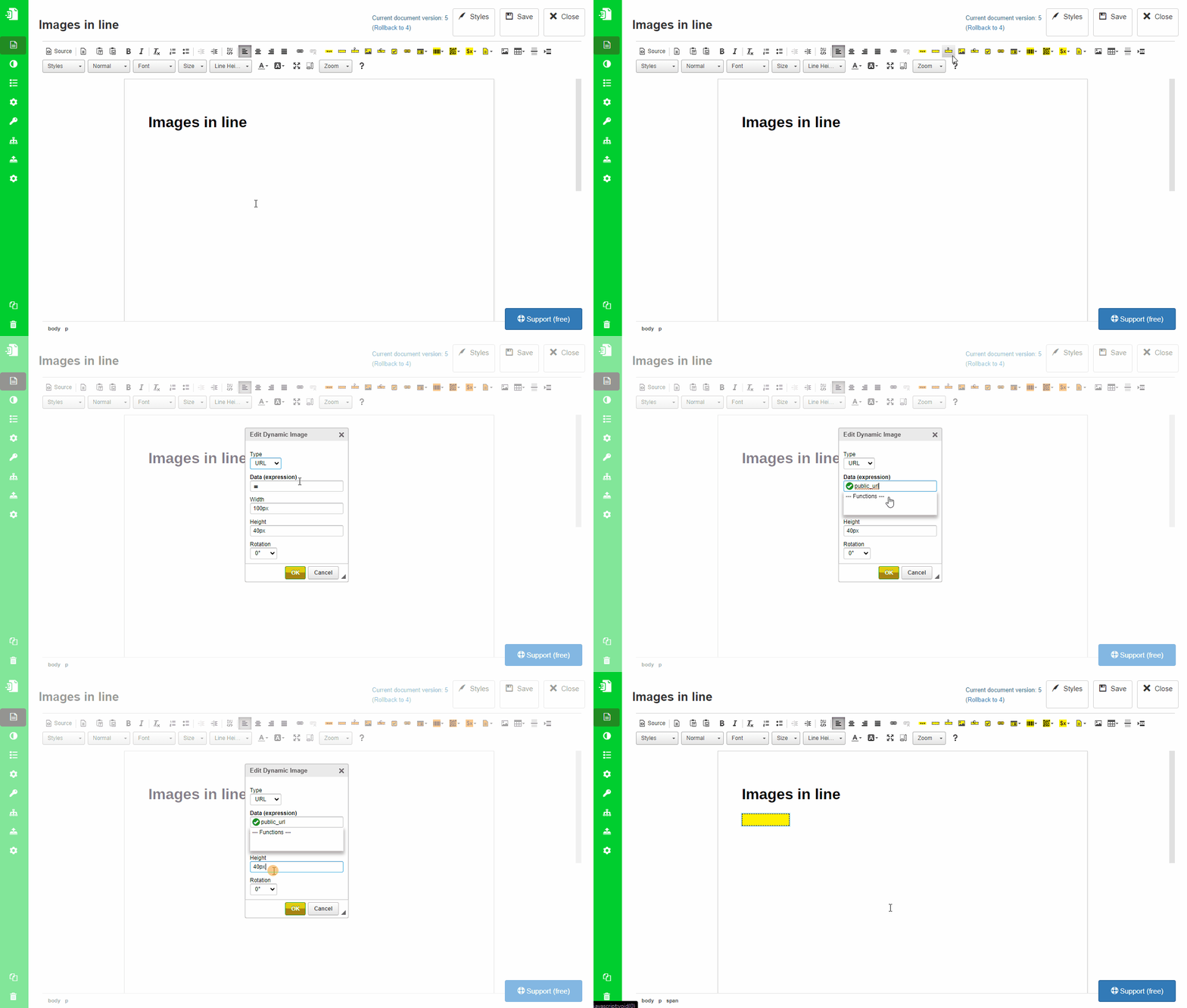
Step 2: Add Dynamic Image
Insert a Dynamic Image component.
Use a field that contains a publicly accessible image URL.
Example:
public_url
Remove the height (or width) to preserve aspect ratio.
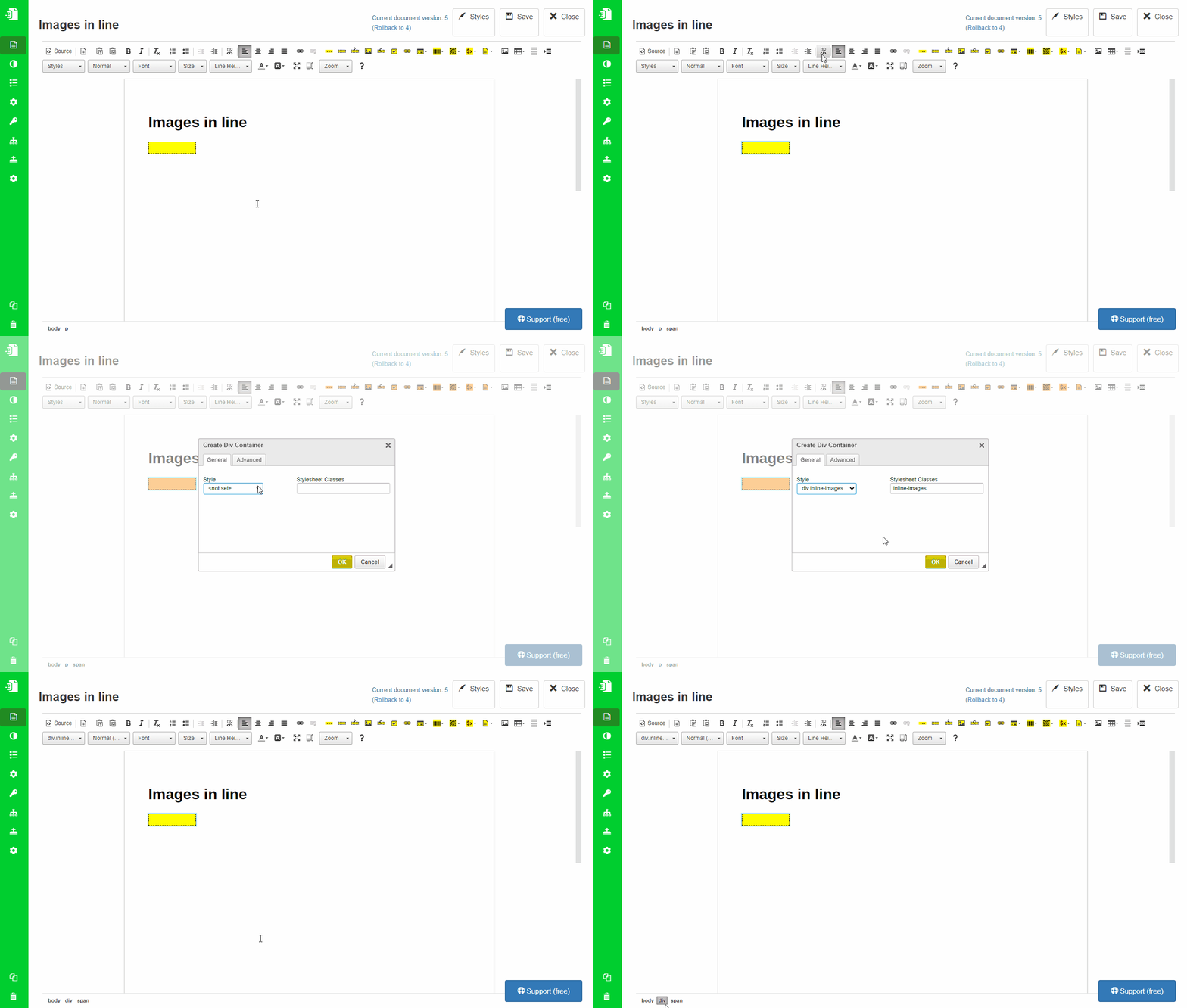
Step 3: Wrap with DIV container
Select the Dynamic Image and wrap it using Create DIV Container.
- This replaces the default paragraph (
<p>) container - Assign the
inline-imagesclass
You can verify the structure in the editor’s component path (bottom bar).
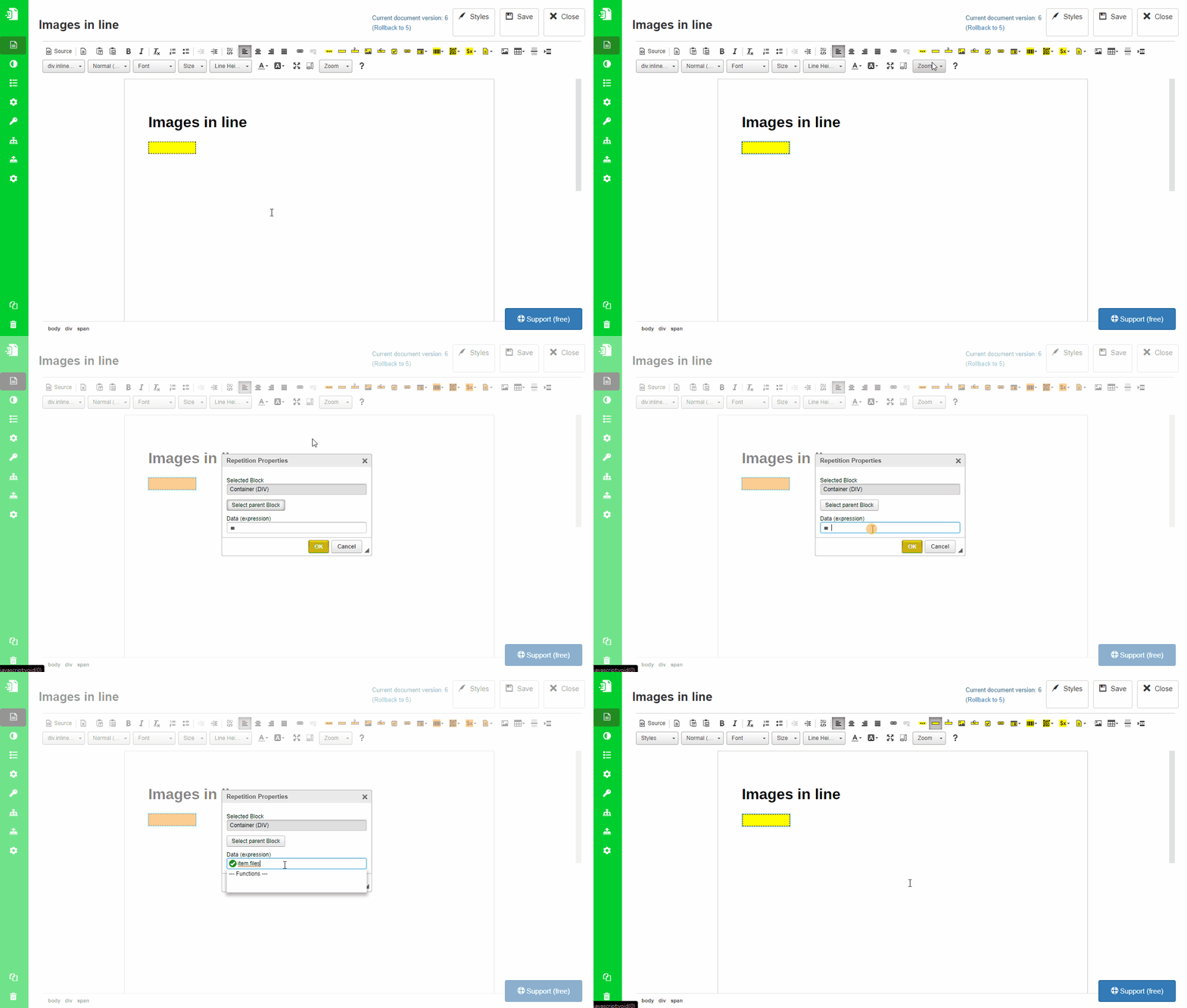
Step 4: Apply Block Repetition
Apply Block Repetition to the DIV container.
This repeats the container for each image in your list.
Result
Images are displayed in a row and automatically wrap to the next line.
Improvements
Add spacing
Update the style:
div.inline-images {
    display: inline-block;
    margin: 6pt;
}
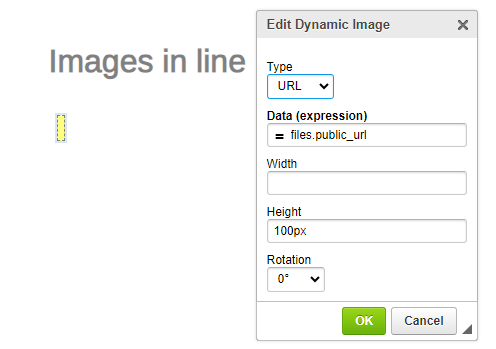
Normalize image size
Set a fixed height for images (e.g. 100px) to improve alignment.
Final result
Important notes
- Images must be accessible via public URL
- Layout depends on CSS — adjust styles as needed
- Mixed image sizes may affect alignment
Related topics
- Images → Dynamic Image
- Layout → Create Div Container
- Repetition → Block Repetition
- Styling → Styles Mode