Printing Text
Printing text is one of the most basic operations when building a document in Eledo.
A Text Box allows you to insert dynamic values into your document — such as names, prices, dates, or calculated values.
Instead of writing static text, you define what value should appear when the document is generated.
How it works
Each Text Box is connected to a value using the Data (expression) field.
This field can either:
- reference a simple input value
- or evaluate an expression to transform data during document generation
This value is then filled in when generating the document through integrations (Make, Zapier, API, etc.).
Learn more about the component itself: Text Box
Basic example
Using a simple field:
Name
prints the value provided at runtime.
Using an expression:
CONCAT("Invoice #", invoiceNumber)
prints:
Invoice #12345
Formatting values
In many cases, raw values are not enough.
For example:
- a number should look like a price
- a name might need a prefix
- a value might need to be combined or shortened
You can format values directly inside the Data (expression) field.
Instead of:
Amount
you can use:
CONCAT(NUM(Amount, 0, 2), " €")
This controls how the value appears in the final document.
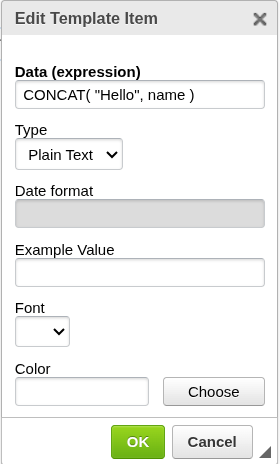
Common examples
Combine multiple fields
CONCAT(name, " ", surname)
Result:
John Smith
Add text around a value
CONCAT("Invoice #", invoiceNumber)
Format numbers
CONCAT(NUM(Amount, 0, 2), " €")
See full guide: Formatting Numbers
Format dates
Dates are formatted using a dedicated function.
See full guide: Formatting Dates
Where this is used
Formatting is applied directly in:
- Text Box → Data (expression)
Each Text Box controls how its value is displayed.
Using + operator (alternative)
In addition to functions like CONCAT(), you can also combine values using the + operator:
"Invoice #" + invoiceNumber
This produces the same result as:
CONCAT("Invoice #", invoiceNumber)
While both approaches are supported, CONCAT() is recommended for clarity and consistency.
Keep it simple
Start with:
- a simple field name
- small adjustments (adding text, combining fields)
You don’t need to fully understand expressions to get started.
Related
- Learn how Text Box works → Text Box
- Format numbers → Formatting Numbers
- Format dates → Formatting Dates
- Explore all functions → Text Functions