Eledo PDF with Line Items from Make Array
Many document types like Invoices or Orders contain one or more line items of goods or services.
A simple way to print the line items table would be to create a table with many rows and populate only some of them. Unfortunately, tables with empty rows do not look good and preparing such templates takes unnecessary time.
Eledo provides an elegant solution that is simple, powerful, and prints the exact number of rows needed.
Eledo Template
Insert a table with two rows and multiple columns.
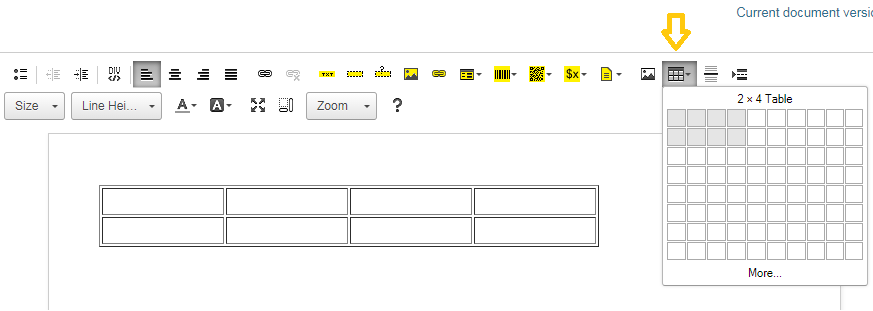
Populate the first row with table headers.
Move the cursor to the second row and click Block Repetition.
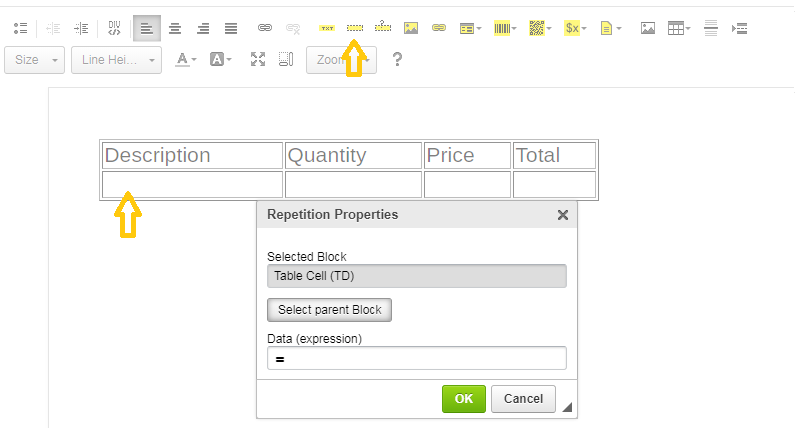
The selected block will initially be Table Cell. Since we want to repeat the entire row, click Select parent Block to change it.
Then populate the Data expression with:
line_items
Confirm the configuration with OK.
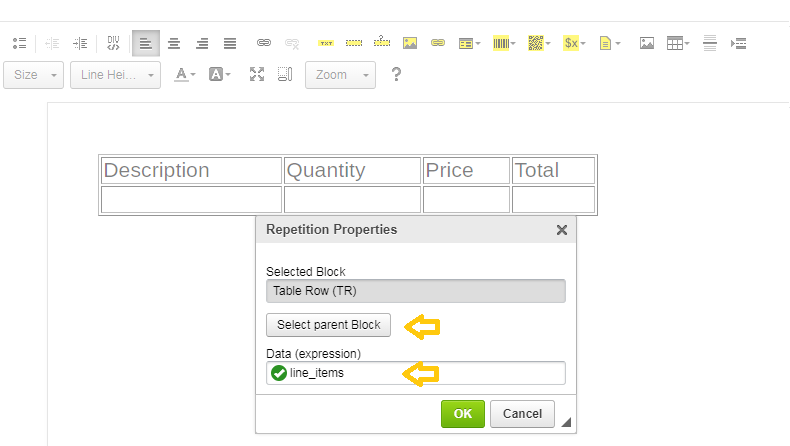
The row will become yellow, indicating it is a repeating block.
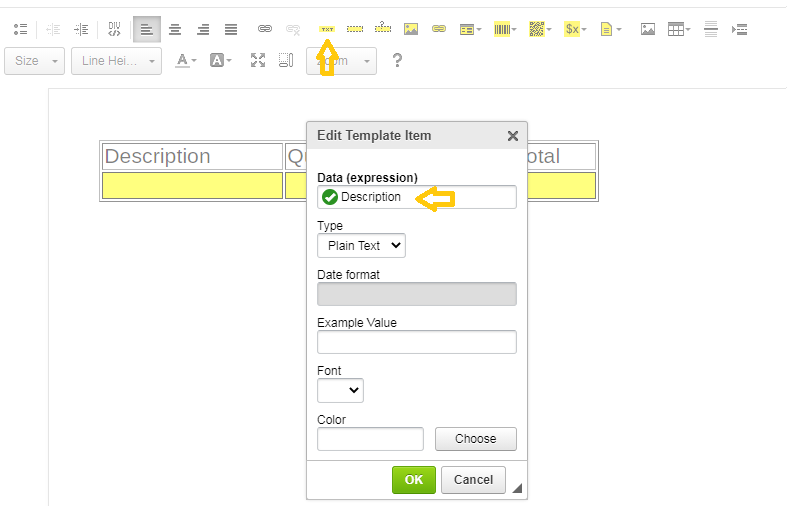
Now insert Text Boxes into the row.
Place the cursor in the first cell and click Table Box. Populate the Data expressions with line item fields and confirm. Repeat the process for each column.
The last column usually contains the line total, which we can calculate directly in the Eledo template.
A simple expression could be:
Quantity * Price
However, totals are usually rounded and formatted with two decimal places, so we recommend using:
CURR(ROUND(Quantity * Price, 2), 0, 2)
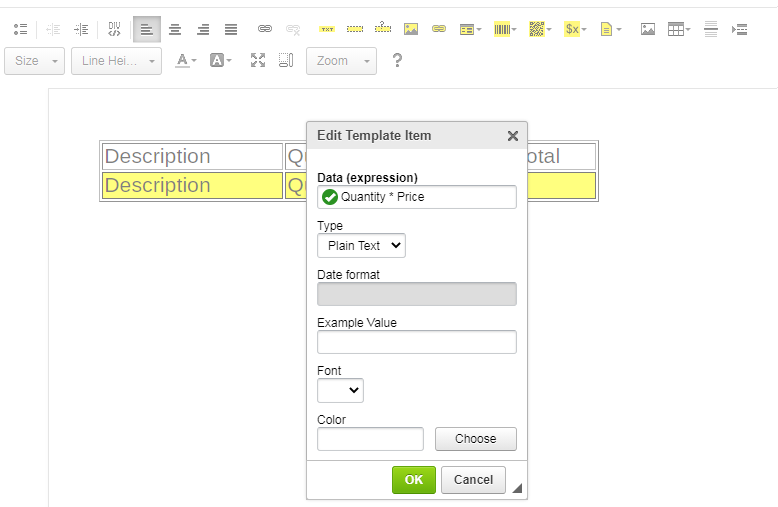
Save the template and your automation is ready.
Make scenario
Our Eledo template with the line items array should look like this:
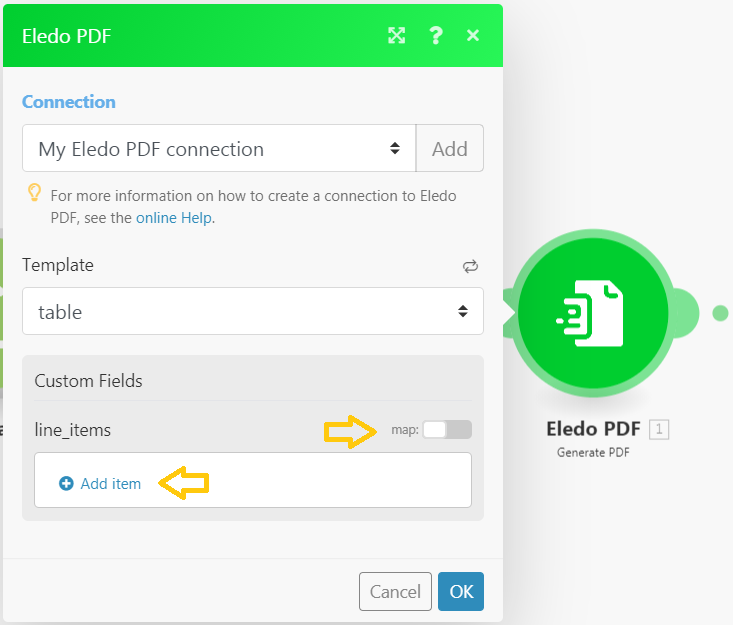
There are several ways to populate the array.
The most intuitive way might seem to be Add item and manually populate the column values. However, this is not the correct approach.
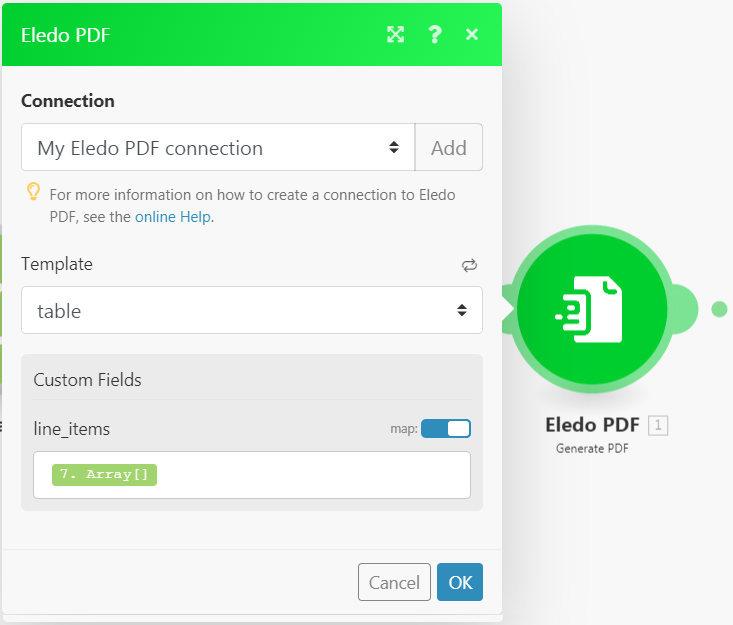
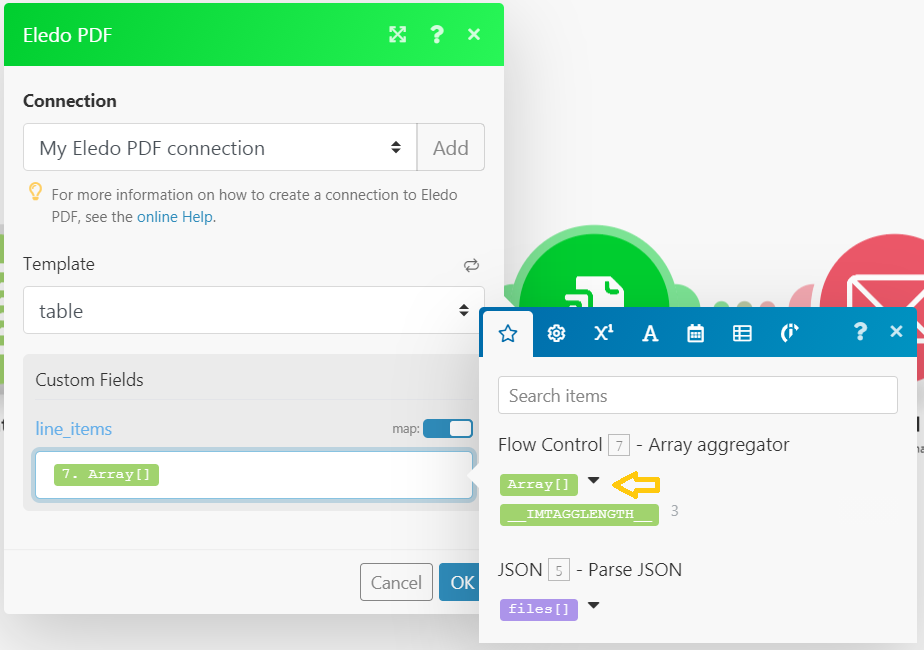
If we want a dynamic number of rows, we must use the Map toggle and populate line_items with an array.
There are two main approaches.
Easy way
The simplest method is to pass the entire source array directly into line_items.
This works if the source array structure matches the structure expected by the Eledo template.
If the structures do not match, you may see missing values in the generated PDF.
In that case, you can adjust the field names in the Eledo template so they match your source array structure.
This method works best if you plan your template structure in advance.
Advanced configuration
For more advanced scenarios — such as mapping between arrays or combining multiple data sources — a second method can be used.
This method provides more control but consumes more Make operations.
It typically consists of:
- an Iterator or Repeater module
- an Array Aggregator
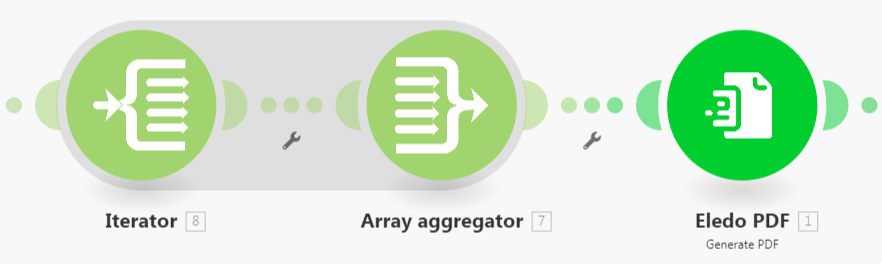
The Iterator processes your source array.
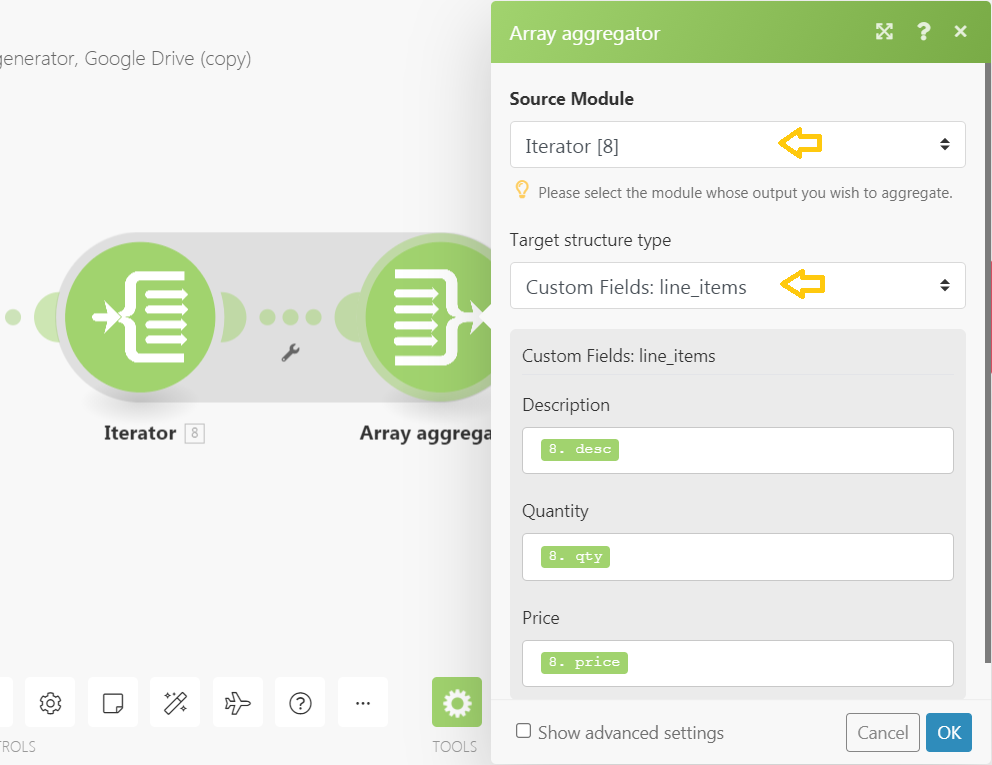
The key configuration happens in the Array Aggregator:
- Select Iterator as the Source Module
- Choose Eledo line items as the Target Structure
- Map the fields into the structure expected by your Eledo template
Finally, populate the line_items field in the Eledo module using the array produced by the Aggregator.
Your dynamic line items are now fully configured.