Generate Your First PDF with Zapier
What You Will Build
This guide does not attempt to cover every possible template or app combination. Instead, it introduces a simple pattern that you can reuse and extend.
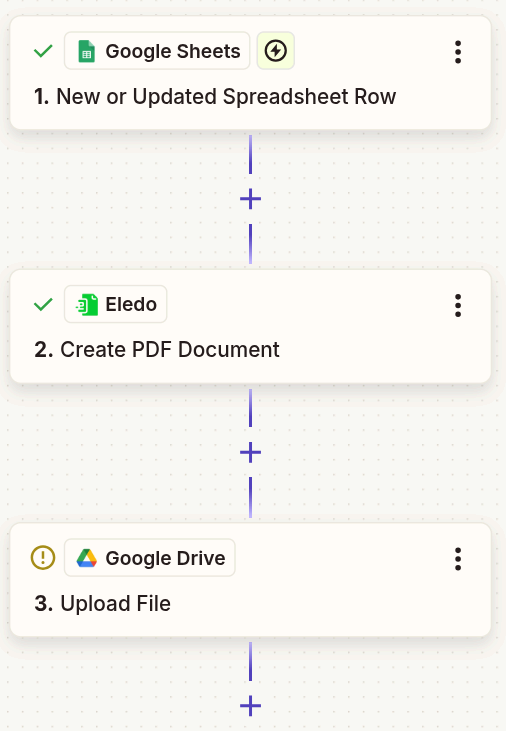
We will build a Zap with three components:
- Data source — Google Sheets
- Eledo — PDF generation
- Data sink — Google Drive (stores generated PDFs)
Once you understand this pattern, you can adapt it to other data sources and storage systems supported by Zapier.
Step 1 — Create a Simple Template in Eledo
For this guide, we will use a simple template with only a few dynamic fields.
Instead of creating a template from scratch, we recommend selecting one from the public template library and modifying it. This allows you to get started quickly.
If you prefer to create a template manually, refer to:
Template Editor
Instructions
- Log into your Eledo account.
- Open My Templates.
- Click From Library to access the public template catalog.
- Select a template and click Try it out.
This creates a private copy under your account. - For this guide, select Certificate of Attendance.
You can freely modify your private copy.

Optional — Inspect the Data Structure (Advanced)
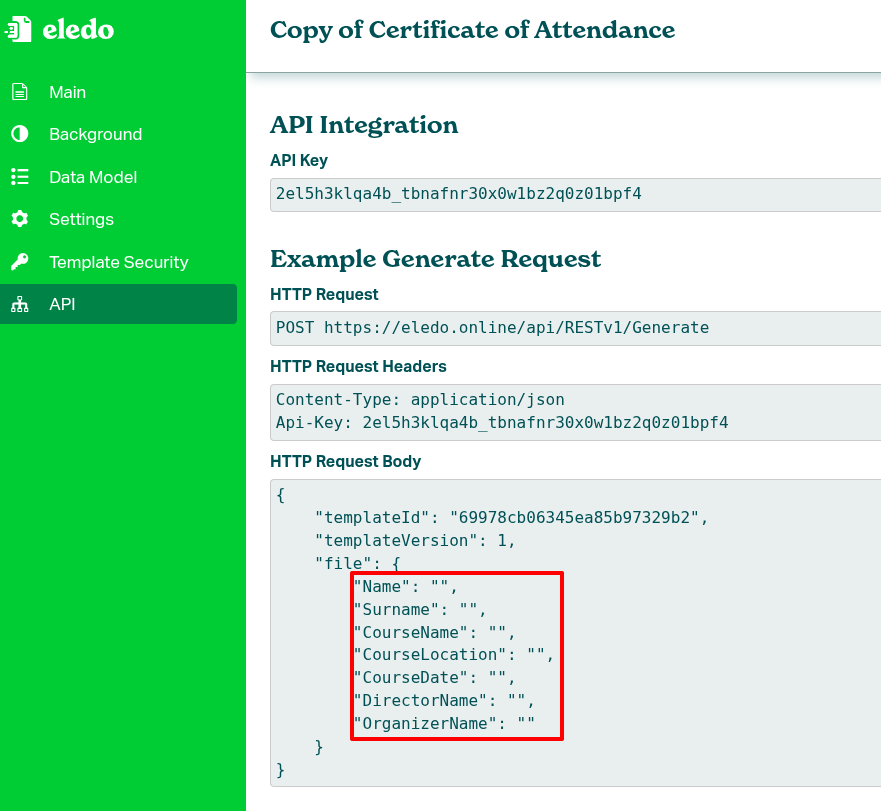
In the left-side menu, open Profile → API to see the full data model.
You can review the payload inside the HTTP Request Body section. This may help you understand how fields are structured before mapping them in Zapier.
Step 2 — Create a New Zap
Create a new Zap and add three apps in this order:
- Google Sheets (trigger event)
- Eledo (action event)
- Google Drive (action event)
Configuration of Google Sheets and Google Drive authentication is outside the scope of this guide. Refer to official Zapier documentation for basic setup.
Step 3 — Configure Google Sheets
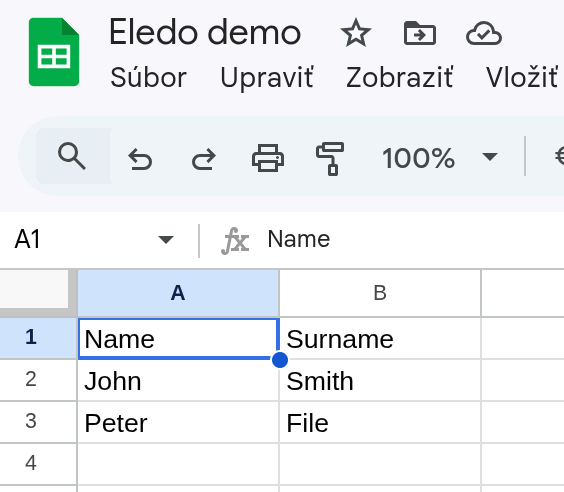
Create a Google Sheet with the following structure:
| Name | Surname |
|---|---|
| John | Smith |
| Peter | File |
Each row represents one student.
Set up the trigger so that the Zap runs when a row is added or updated.
The first row must contain headers. Zapier automatically uses these headers (Name, Surname) as property names.
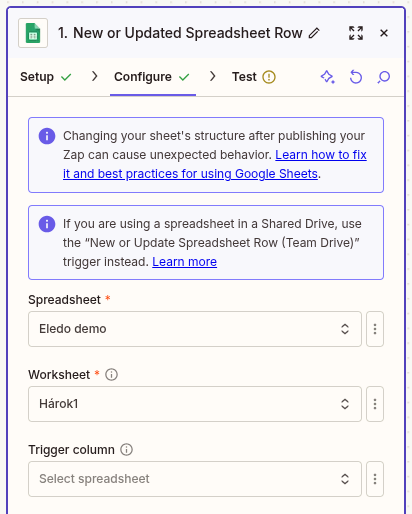
In the Google Sheets step:
- Authenticate your account
- Select the correct spreadsheet
- Select the appropriate worksheet
In this example, we selected a document named Eledo demo.
Step 4 — Configure Eledo (Setup Tab)
The Eledo step is triggered by Google Sheets and generates a PDF document.
Open the Eledo step and stay on the Setup tab.
Set the Action event to Create PDF Document.
Step 5 — Configure Authentication
In the Eledo step, locate the Account field.
If this is your first time using Eledo in Zapier, you need to connect your account.
Follow the Authentication documentation to configure your API key.
Step 6 — Select a Template
Switch to the Configure tab in the Eledo step.
At the moment, the Zapier integration lists only your private templates.
Select your copied template (for example: Copy of Certificate of Attendance).
Eledo always uses the latest version of the selected template. Selecting a specific template version is not currently supported.
Template names may differ slightly — this is expected.
Step 7 — Bind Data
After selecting the template, Zapier displays a dynamic form matching the template structure.
Why Our Sheet Has Only Two Columns
It is not necessary to populate every field.
Many template fields are static (academy name, course title, instructor name, etc.). Only certain fields change per row — in our case:
- Name
- Surname
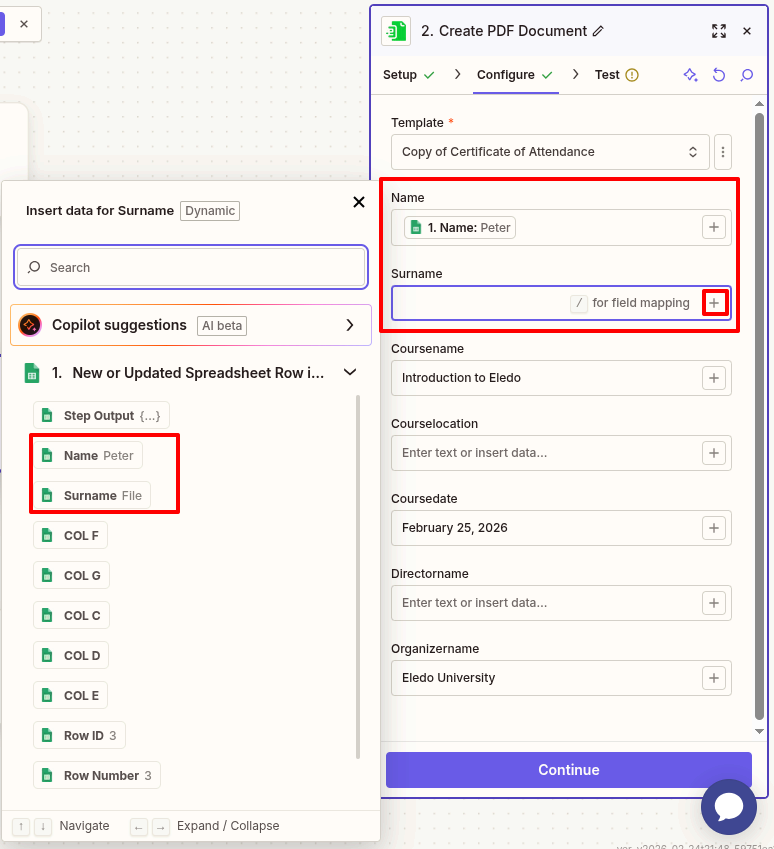
Configure Form Fields
Each field is treated as text. It does not matter whether you insert a number, date, or string.
- Fill in static fields that will not change (for example,
Organizer name). - For dynamic fields (
Name,Surname), click the+button and select the appropriate data from Google Sheets.
See the screenshot below for reference.
Step 8 — Test the Eledo Step
Switch to the Test tab and click Test step.
If everything is configured correctly, Zapier will generate a PDF based on the first row of your sheet.
Download the file and verify the result.
Step 9 — Configure Google Drive
Google Drive stores the generated PDFs.
Create a folder in Google Drive where documents will be uploaded.
In the Google Drive step:
- Authenticate your account.
- Select Upload File as the action event.
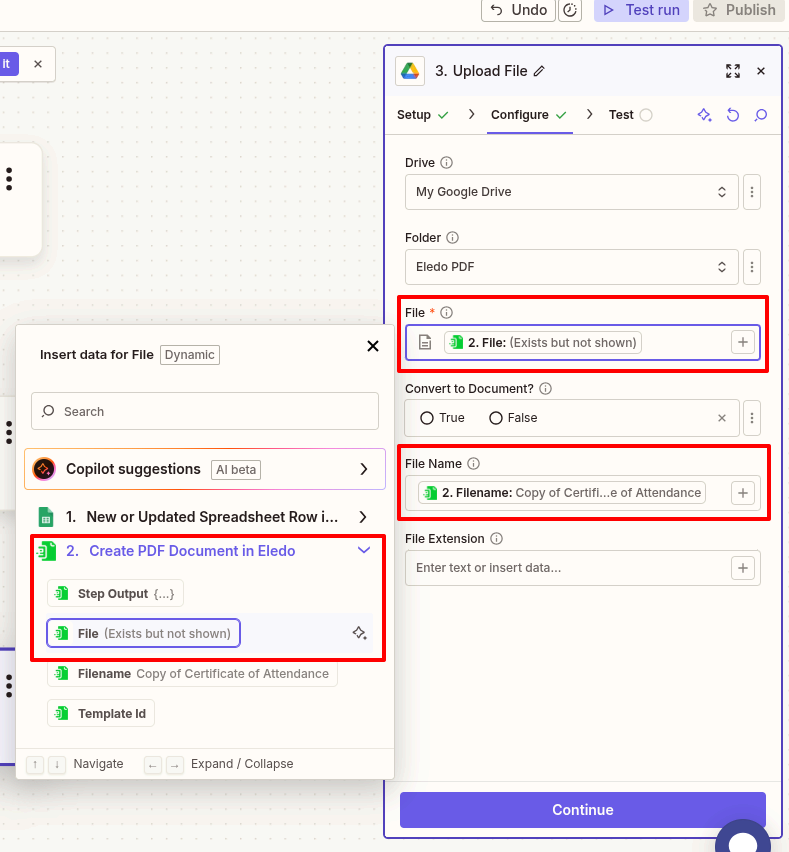
Configure File Upload
Switch to the Configure tab in the Google Drive step.
- Select the target Drive.
- Select the target Folder.
- Map the File field to the File output from Eledo.
- Optionally, map the File Name field.
Use the + button to insert dynamic values.
What’s Next?

You now have a working automation:
Google Sheets → Eledo → Google Drive
From here, you can:
- Add more rows to your sheet and observe automatic generation
- Replace Google Sheets with another trigger app
- Replace Google Drive with email, CRM, or cloud storage
The pattern remains the same.