Fill an Existing PDF Form with Make
What You Will Build
This guide introduces a practical pattern for filling an existing PDF form using Make and Eledo.
We will build a scenario with three components:
- Data source — Google Sheets
- Eledo — PDF generation
- Data sink — Google Drive (stores generated PDFs)
Once you understand this structure, you can adapt it to other data sources and storage systems supported by Make.
Step 1 — Upload a Fillable PDF into Eledo
For this guide, we prepared a sample fillable PDF. You may use any PDF form, but using the sample makes it easier to follow along.
Instructions
- Download the sample PDF from this link
- Log into your Eledo account.
- Open My Templates.
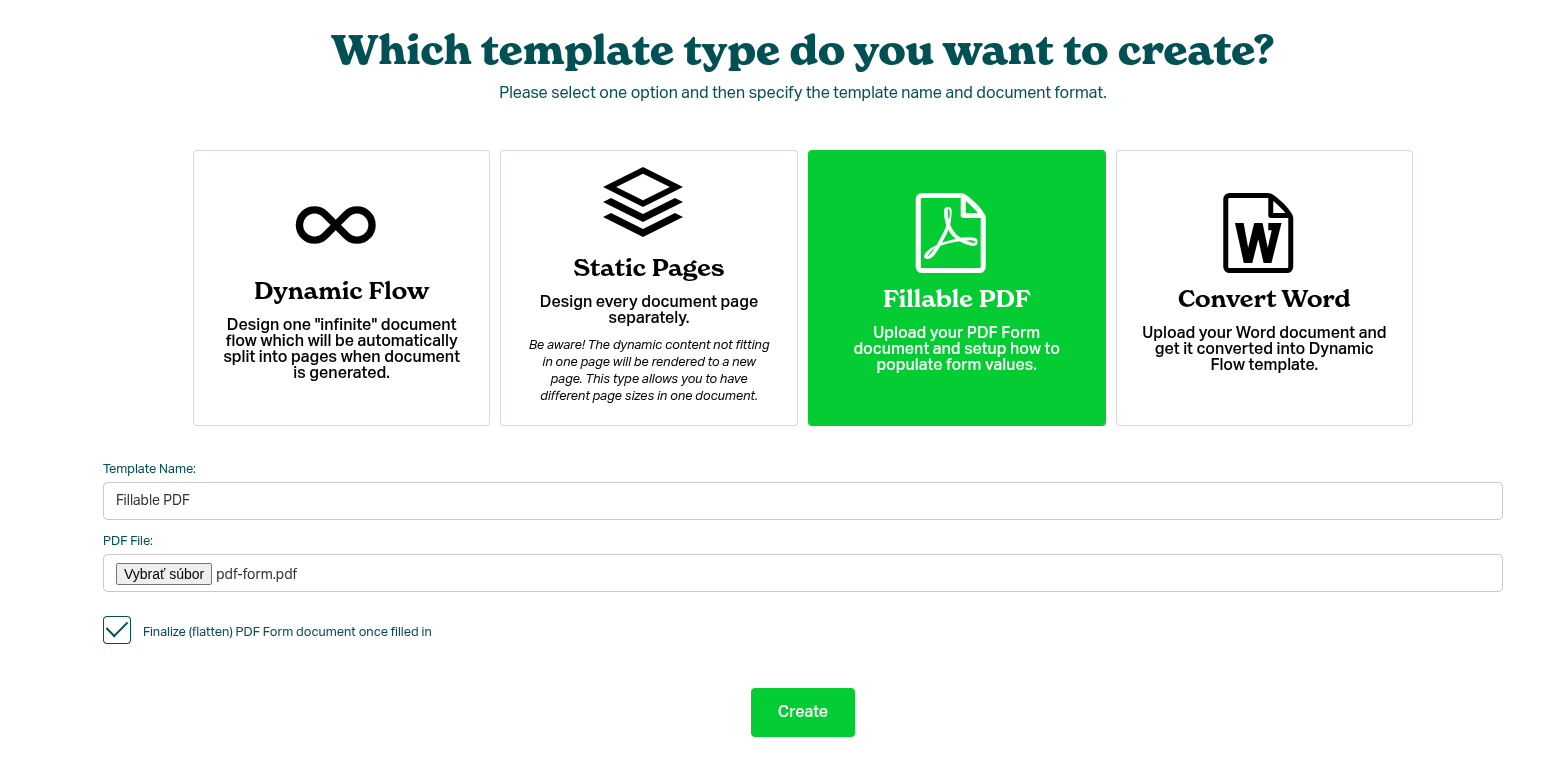
- Click Upload PDF, select your file, and provide a template name.
Step 2 — Map PDF Form Fields to Eledo Data Fields
Although the PDF already contains fillable form fields, these fields are internal to the document. You must explicitly define which fields Eledo should populate and how they map to your data model.
In other words, you are mapping internal PDF form fields to Eledo data fields.
You are not required to map every form field. You may populate only selected fields. Adding new PDF form fields is outside the scope of this guide.
Mapping is straightforward:
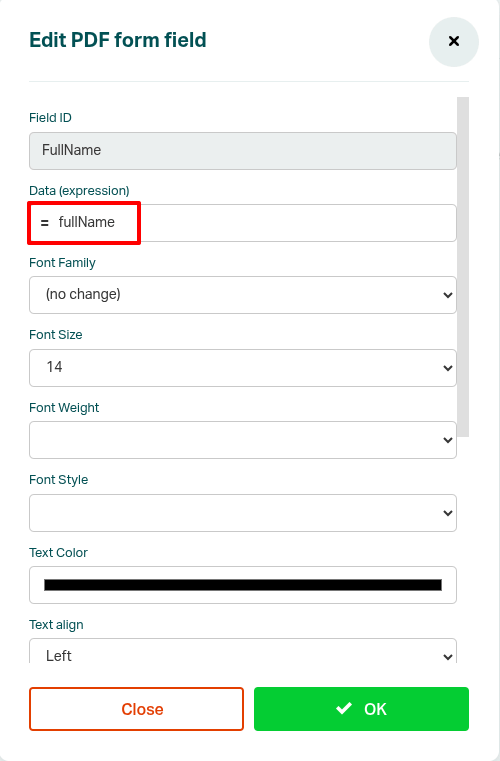
- Each PDF form field has a type (text, boolean, etc.)
- You assign a corresponding data field name in Eledo
Below is an example of mapping the fullName field.
Repeat the process for the remaining fields.
After completing the mapping, click Save. You now have a fully usable Eledo template based on your PDF form.
Optional — Verify the Data Structure (Advanced)
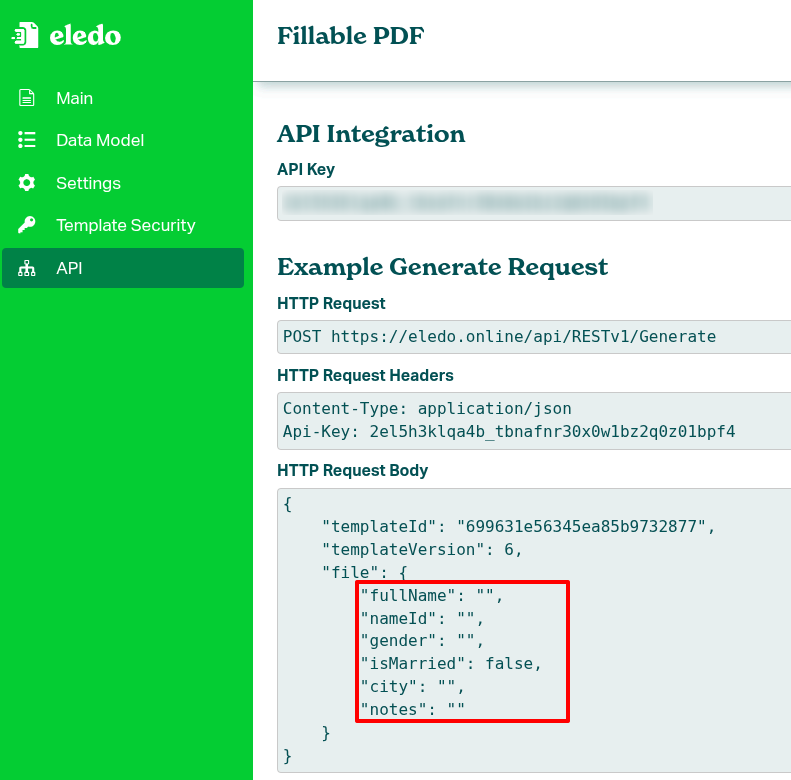
Open Profile → API in the left-side menu.
You can inspect the payload inside the HTTP Request Body section. This helps verify that your field mapping matches the expected data structure.
Step 3 — Create a New Scenario
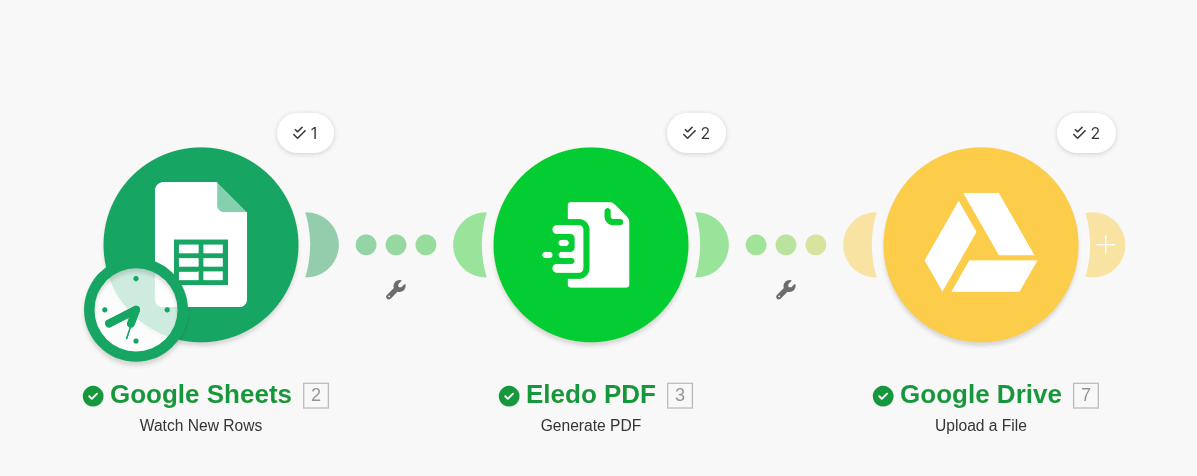
Create a new scenario in Make and add three modules in this order:
- Data source — Google Sheets (Watch New Rows)
- Eledo PDF — Generate PDF
- Data sink — Google Drive (Upload a File)
Configuration of Google Sheets and Google Drive authentication is outside the scope of this guide. Refer to official Make documentation for basic setup.
Step 4 — Configure Google Sheets
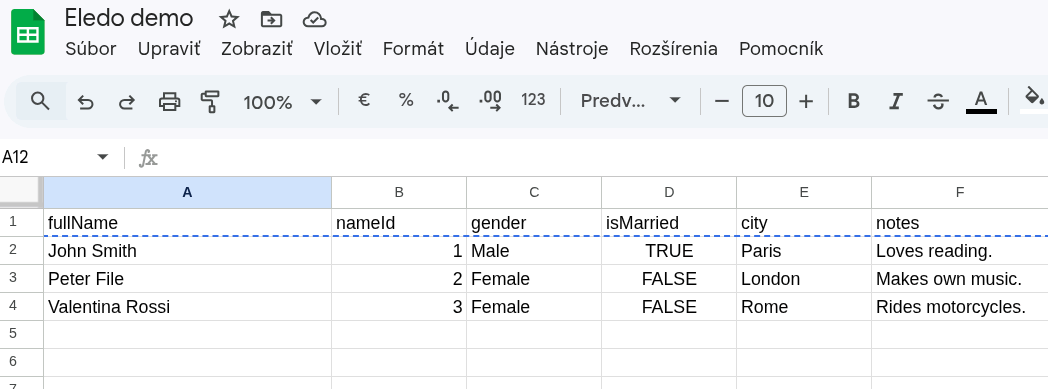
Create a Google Sheet with the following structure:
| fullName | nameId | gender | isMarried | city | notes |
|---|---|---|---|---|---|
| John Smith | 1 | Male | TRUE | Paris | Loves reading. |
| Peter File | 2 | Male | FALSE | London | Makes own music. |
| Valentina Rossi | 3 | Female | FALSE | Rome | Rides motorcycles. |
Each row represents one person.
In the Google Sheets module:
- Authenticate your account
- Select the correct spreadsheet
- Select the appropriate worksheet
- Configure the module to watch for new or updated rows
The first row must contain headers. Make uses these headers (fullName, nameId, etc.) as field names.
Step 5 — Configure Eledo
The Eledo module receives data from Google Sheets and generates the completed PDF form.
In the Eledo module:
- Select your Connection
- Select your template
Step 6 — Configure Authentication
If this is your first time using Eledo in Make, you need to create a connection.
Refer to the Authentication documentation for detailed instructions.
Step 7 — Select the Template
In the Eledo module:
- Select your uploaded template (for example:
Fillable PDF)
Only private templates are available in Make.
Eledo always uses the latest version of the selected template.
Step 8 — Bind Data
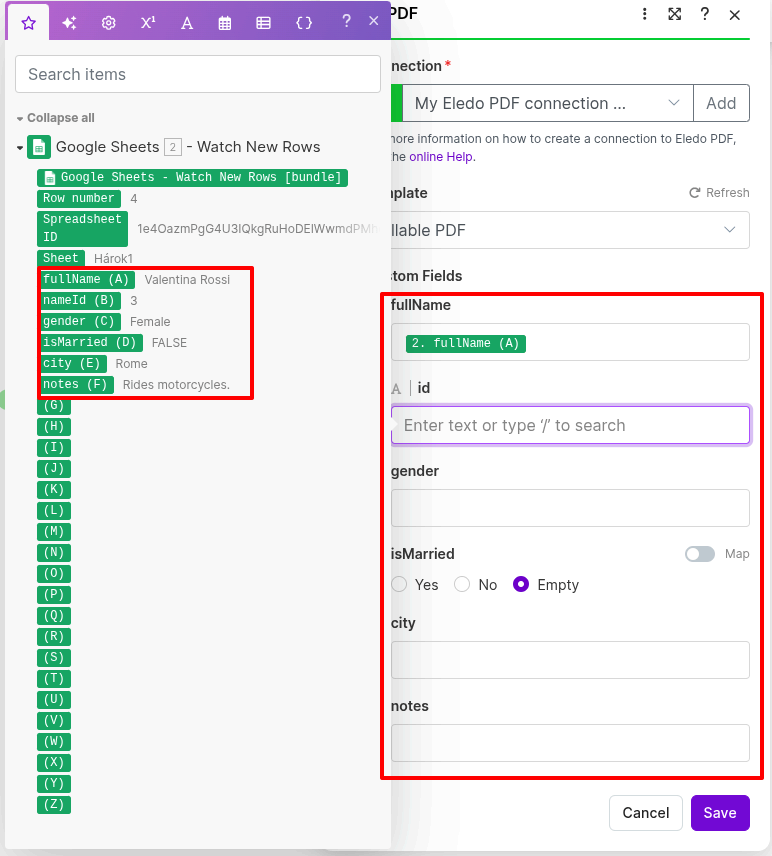
After selecting the template, Make displays a dynamic form that mirrors the mapped PDF fields.
Why Your Sheet Might Contain Fewer Columns
Even if the PDF form expects multiple fields, you do not need to store all values in Google Sheets. Some values may remain static or be reused across documents.
Configure Form Fields
- Fill in static fields if needed
- For dynamic fields (
fullName,nameId,gender,isMarried,city,notes):- click into the field
- open the mapping panel
- insert values from Google Sheets (double-click or drag and drop)
Step 9 — Run the Scenario
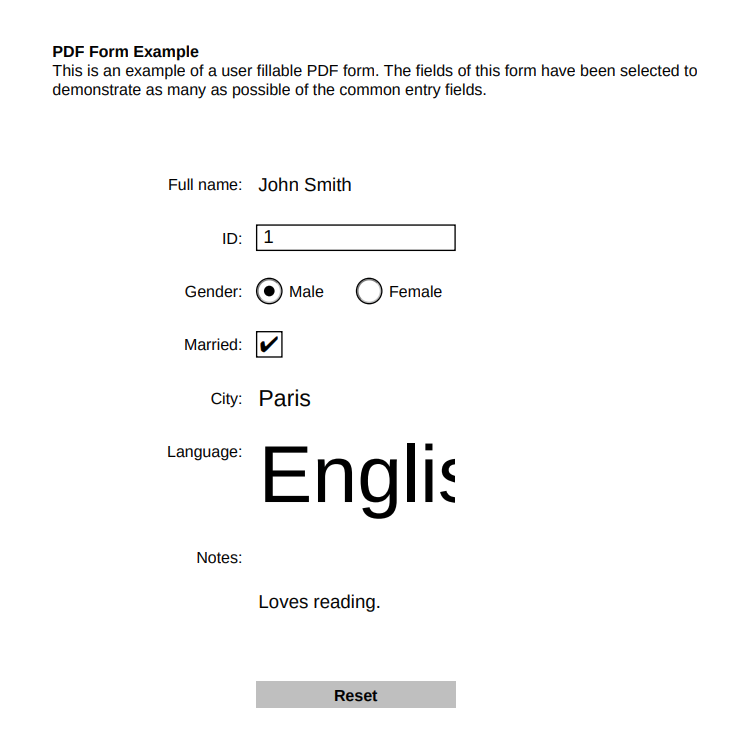
Click Run once to execute the scenario.
If everything is configured correctly, Make will:
- read a row from Google Sheets
- pass the data to Eledo
- generate a completed PDF form
You can inspect the output directly in the scenario execution view.
Step 10 — Configure Google Drive
Google Drive stores the generated PDF documents.
Create a target folder in Google Drive.
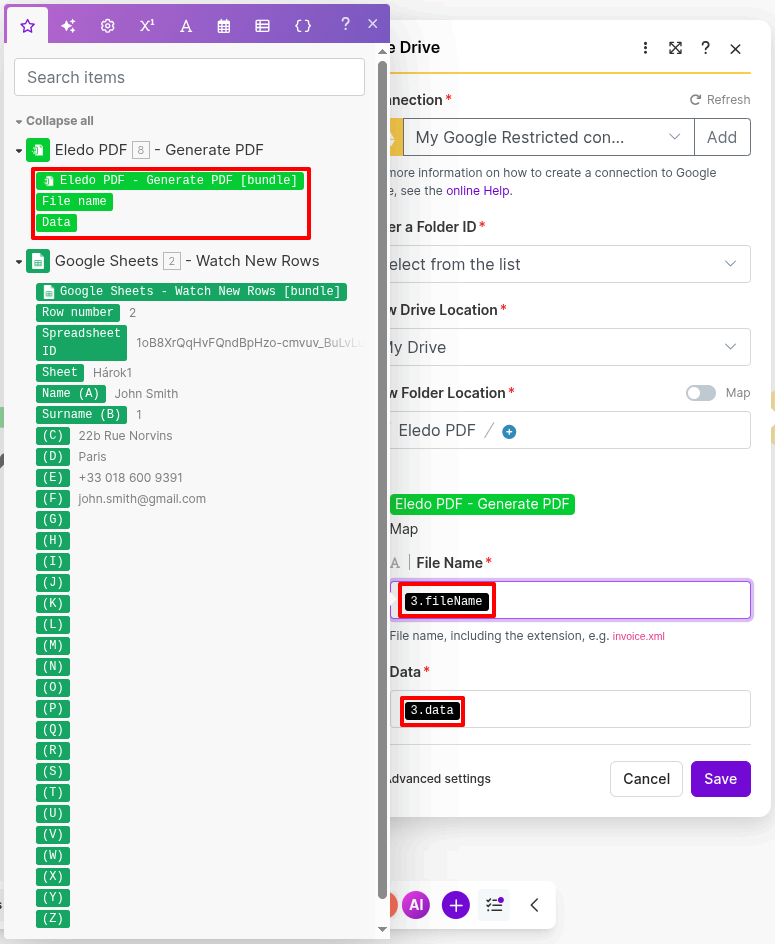
In the Google Drive module:
- Choose the destination drive and folder
- Map the Data field to the file content from Eledo
- Map the File Name field to the filename from Eledo
Optionally, you can:
- adjust the filename
- change the destination folder
What’s Next?
You now have a working automation:
Google Sheets → Eledo → Google Drive
From here, you can:
- Add more rows and observe automatic form filling
- Replace Google Sheets with another data source
- Replace Google Drive with email, CRM, or cloud storage
The automation pattern remains the same.